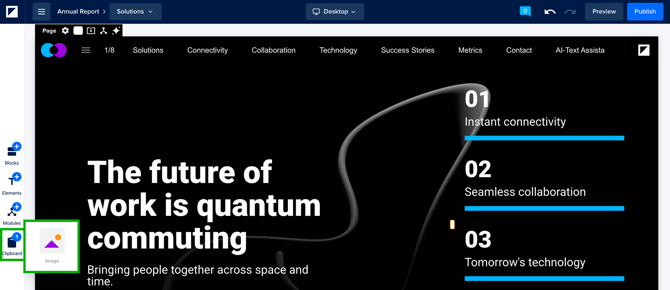
![foleon_logo_white.png]](https://www.foleon.com/hs-fs/hubfs/foleon_logo_white.png?height=40&name=foleon_logo_white.png)
In this article
Content Builder vs. Content Studio
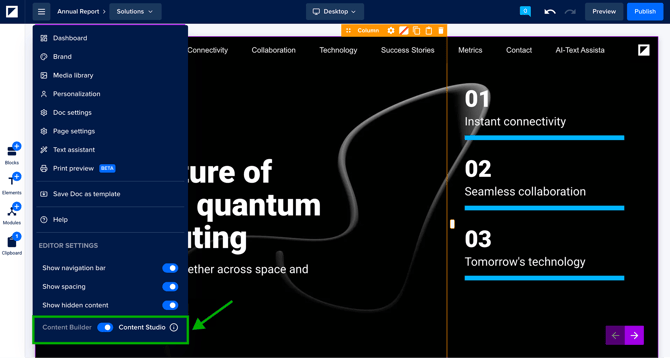
First, check if you're working in the Content Builder or the Content Studio.
At the bottom of the menu, you'll see which content editor you're working in. Use the toggle to switch between editors.
Depending on your plan and user role, you're working with the Content Builder, Content Studio, or both, which allows you to use the switch.
📖 To learn more about the differences between these two content editors, read our article Content Builder vs. Content Studio: What's the difference?
Overview
The image below shows the various options in your content editor. We'll briefly describe each component and link to articles with more in-depth information.
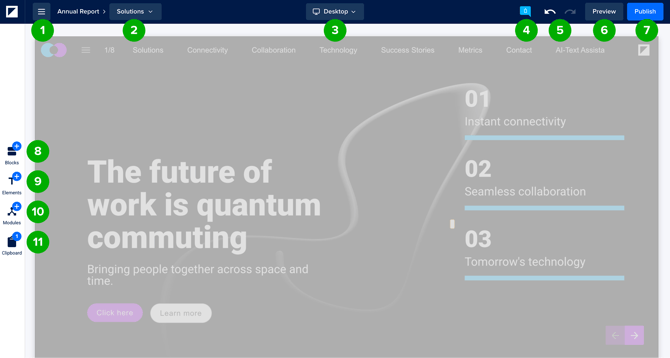
- Menu - Here, you manage pages, set up your brand, go to the media library, and manage settings.
- Pages - Here you can see which page you are currently on. Click the page name to switch between pages or open an overlay.
- View modes - Use the different view modes to fine-tune your content for different screen sizes (desktop, tablet, and mobile).
- Review mode - Review mode lets your team leave comments on a Doc. Collaborate with reviewers to process feedback and publish faster.
- Undo/redo - With the undo/redo feature, you can revert your edits. This empowers you to experiment with content more freely.
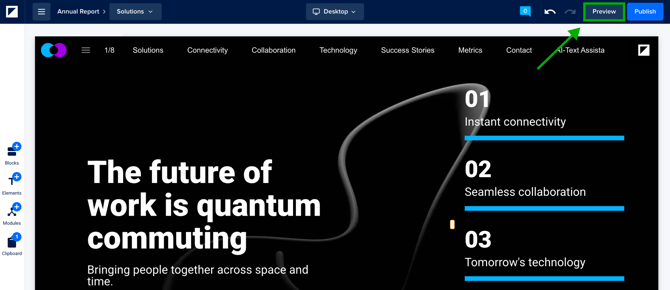
- Preview - You can preview your Foleon Doc to see what it looks like outside our editor.
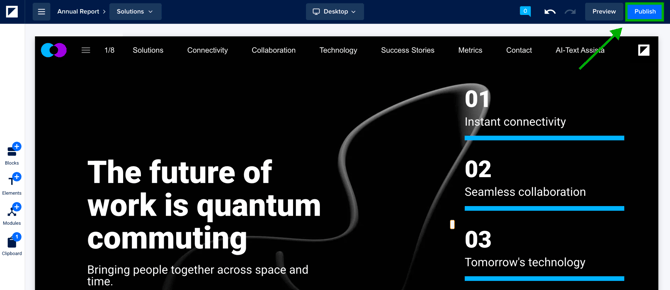
- Publish - Once your content is done, and you’re ready to share it with the world, you can publish it.
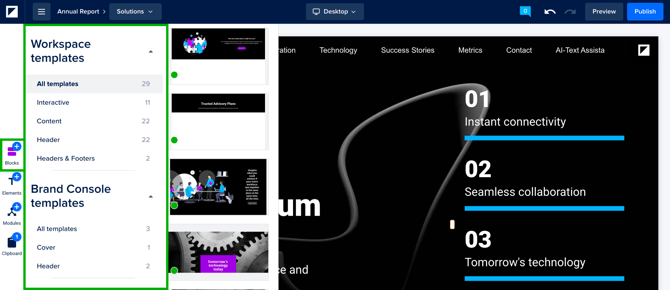
- Blocks - Blocks are the base for every page. Columns and elements can only be added to a page if there is a block on the page to put them in.
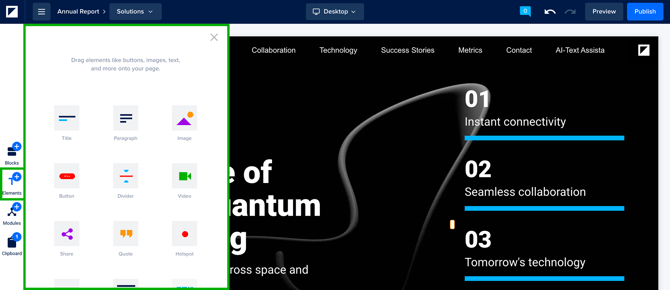
- Elements - Elements are all the content types that can be used in a Foleon Doc and can be added to any column.
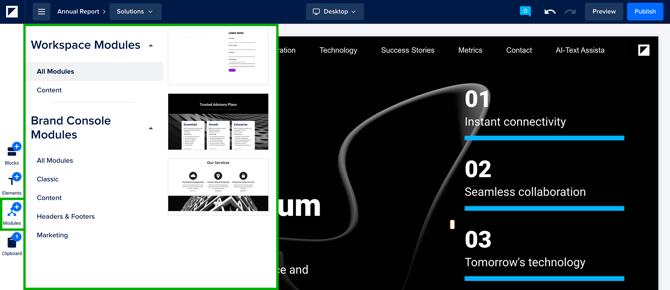
- Modules - Modules are reusable blocks of content that automatically sync across all Foleon Docs where they appear. Modules are managed from the dashboard, but from the editor, you can drop them on your page.
- Copy to clipboard - Copy blocks, columns, and elements to your clipboard to reuse them on any page in any Foleon Doc. This lets you work faster in the editor without saving content as a template.
Menu
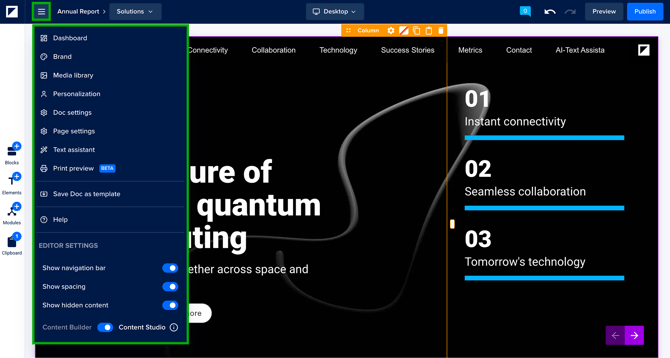
This important menu lets you navigate to the following options:
- Dashboard - From here, you can easily navigate back to the Dashboard.
- Brand - Each Foleon Doc also has its own brand settings. This is where you set global styling that applies to an entire Doc. You can edit and save style elements like fonts, buttons, and text links to use them throughout your Foleon Doc.
- Media library - You add images, videos, and documents to your Foleon Doc. Where do these assets live? The Media Library helps you organize these content assets. In this article, we discuss how the media library works, and how to manage your files.
- Personalization - This option allows you to personalize your Doc if you've added personalization properties. Select Preview to see how your Doc will look when personalized. Or, select Generate URL to create a personalized URL.
- Doc settings - Here, you can control the 4 tabs of your general Foleon Doc settings: Basics, Marketing, Navigation, and Access Control. These settings apply to the specific Foleon Doc you are working on. Learn more about these settings in our article About Foleon Doc settings.
- Page settings - The page settings allow you to control the settings that apply to that specific page of your Foleon Doc.
- Text assistant - A feature that enables seamless page-by-page translation within the designed Doc.
- Print preview - Open a print preview window of your Foleon Doc so you can see what it will look like before you export.
- Save Doc as a template - By saving your Doc as a template, you empower your team to create on-brand content with just a few clicks.
- Help - Quick access options to the Help Center and Foleon Academy.
- Editor settings
- Navigation bar - The navigation is really helpful for readers who read through your content, but in the editor, it can sometimes get in your way. It's visible by default, but you can toggle it off if you are working on your content.
- Show spacing - Toggle off show spacing to hide the spacing of your Foleon Doc. Toggling this off can help with a smooth content creation experience. This will apply to all Docs in your workspace.
- Show hidden content - Content hidden through your visibility settings appears in the editor by default, so you can find and edit it. Toggle it off to preview your Doc exactly as a reader would see it.
- Content Builder vs. Content Studio - The Content Builder lets anyone quickly create on-brand content, regardless of skill. Want more creative freedom? Design bespoke content at scale with the Content Studio.
Pages
Pages are where you build all your content. At the top of the editor, you'll see the name of your Doc, followed by the name of the page you're currently on. Click the page name to open the pages overview, where you can switch between pages, create a new page, switch to an overlay, or create a new overlay.
📖 Learn more in our article: Creating and managing your pages
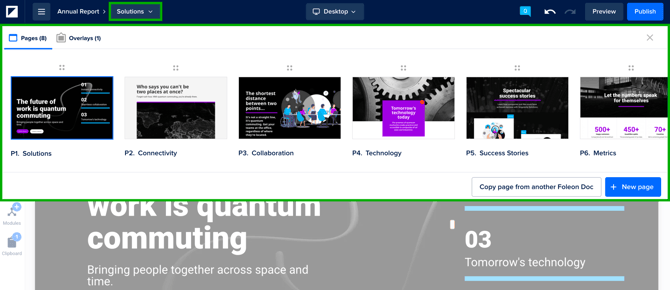
View modes
One of our favorite Foleon features is that every piece of content you create is responsive out of the box. However, you can use the view modes to fine-tune your content for different screen sizes.
📖 Learn more in our article: Using view modes
Review mode
Review mode lets your team leave comments on a Doc. Collaborate with reviewers to process feedback and publish faster.
💡This feature is available for select plans. If you're interested in this functionality, contact our Customer Success Management team.
Undo/redo
With the undo/redo feature, you can revert your edits. This empowers you to experiment with content more freely.
📖 Learn more in our article: All about undo/redo
Preview
You can preview your Foleon Doc to see what it looks like outside our editor. If you’ve already published your Doc, this also lets you preview your changes before setting them live.
The preview URL is freely shareable and accessible to anyone with the URL, even if they don’t have a Foleon account. If you want to share a preview of your Foleon Doc with someone, simply send them the preview URL.
💡 The preview of your Foleon Doc can’t be found through search engines and is only accessible to those that have the URL.
Publish
Once your content is done and you’re ready to share it with the world, you can publish it! During publishing, we optimize the Foleon Doc for search engines, fine-tune the imagery, and make it available using a hostname of your choice. You can always update a published Foleon Doc at any time by republishing it.
When you are ready to take your Foleon Doc live, click on Publish in the top right corner of the editor. You'll then see a pop-up with the final publish button and your Foleon Doc URL.
📖 Read more about hosting possibilities in our article: Hosting Foleon Docs
Blocks
Blocks are the base for every page. Columns and elements can only be added to a page if there is a block on the page to put them in. In the editor, we provide a wide variety of template blocks to choose from. These template blocks already contain columns and elements.
📖 Read more about it in our article: Working with blocks
Elements
Elements are all the content types that can be used in a Foleon Doc and can be added to any column. Elements like headings, text, buttons, forms, and hotspots can be dragged and dropped into any of your columns. You can find all available elements from the element button on the left sidebar.
In the Content Builder, you can't add any elements.
📖 Learn more about the different elements in our article: Working with elements
Modules
Modules are reusable blocks that automatically sync across Foleon Docs. From the editor, you can drag and drop one onto your page. Once added, a Module's content is locked, so any edits need to happen in the Module itself, not on the page where it's used.
📖 Learn more about it in our article: All about global content modules
Copy to clipboard
📖 Read more about it in our article: Work faster with copy to clipboard