![foleon_logo_white.png]](https://www.foleon.com/hs-fs/hubfs/foleon_logo_white.png?height=40&name=foleon_logo_white.png)
One of our favorite Foleon features is that every piece of content you create is responsive right out of the box. However, you can use the view modes to fine-tune your content for different screen sizes. In this article, we'll show you how to make the most of this functionality.
💡 Check the different view modes regularly to ensure your content displays properly on all screen sizes.
Why you should design for different screen sizes
Your audience will read your content on all kinds of devices, ranging from a 5" mobile to a 23" monitor (and everything in between). We have registered over 15,000 (!) different screen sizes used to view Foleon Docs so far.
Our data shows that on average, 50% of visitors view Foleon Docs on desktop, 38% on mobile devices, and 12% on tablet devices. The percentage of desktop and tablet visitors decreases yearly as mobile continues to grow.
With this in mind, you can imagine how important it is to design your content for different screen sizes. Using the view modes feature helps you achieve this.
⚠️ Remember that the view modes indicate what your Doc will look like on desktop, tablet, and mobile devices. The end view will still vary based on the specific screen size of your visitors.
How to change view modes
The view modes are located at the center of the top bar in the editor. You can switch between desktop, tablet, and mobile to fine-tune your content.
💡 You can set global styling for specific elements—such as fonts, buttons, and data elements—for tablet and mobile view modes in your brand settings.
- Changes made in the desktop view mode apply to desktop, tablet, and mobile views.
- Changes made in the tablet view mode apply to both tablet and mobile views.
- Changes made in the mobile view mode apply to mobile view only.

When you click on a different view mode icon, the editor's layout adjusts accordingly. The mobile view mode is shown below.

When creating your Foleon Doc, check the different view modes regularly to ensure your content is showing properly in different screen sizes.
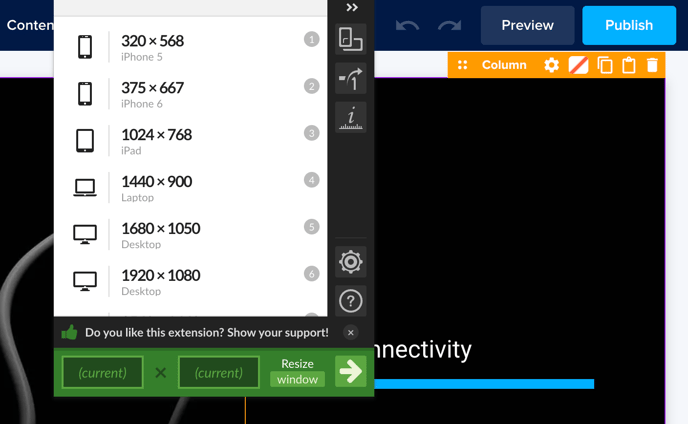
💡 Want to simulate a specific screen size? We recommend installing the Google Chrome plugin Window Resizer. It lets you quickly resize your browser to test different device dimensions, making your design adjustments easier.
Block settings for tablet and mobile
When you switch to the tablet or mobile view modes, you'll notice that the purple block settings bar looks different than in the desktop view mode. Let's walk through the available options.
💡 The examples below are from the mobile view mode, but the same functionality applies to the tablet view mode.
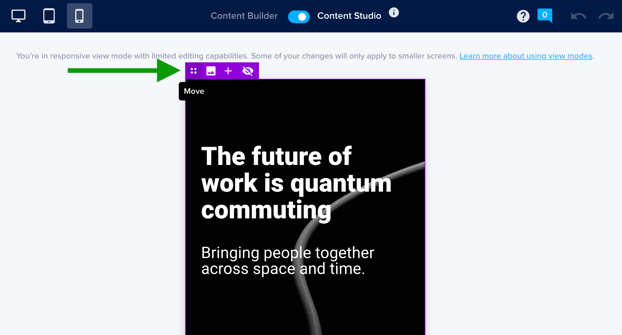
Move
With the move functionality, you can change the order of the blocks on your page.
- Desktop - Moving blocks (or columns) while in the desktop view mode will affect the order on all view modes.
-
Tablet - Moving blocks (or columns) while in the tablet view mode will affect the order on both tablet and mobile.
-
Mobile - Moving blocks (or columns) while in the mobile view mode will only affect the order for mobile.
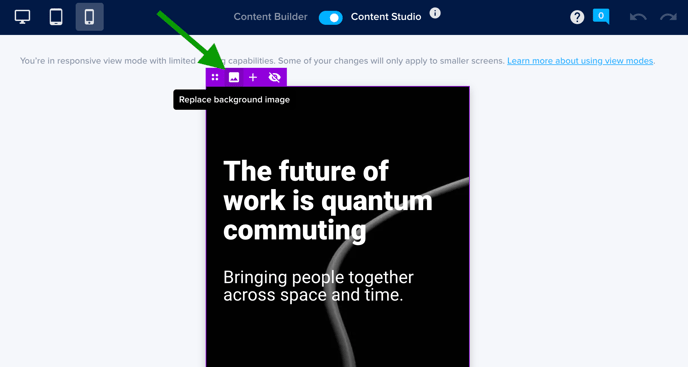
Replace background image
This allows you to replace the background image in a block, with device-specific control.
- Desktop - Replacing the background image while in the desktop view mode will set this new image for all view modes.
-
Tablet - Replacing the background image while in the tablet view mode will set this new image for both tablet and mobile. The ideal dimensions for a tablet background image are 768 x 1024 px.
-
Mobile - Replacing the background image while in the mobile view mode will set this new image only for the mobile view mode. The ideal dimensions for a mobile background image are 523 x 934 px.
💡 Once you replace a background image in a specific view mode, it's not possible to delete it. You can only replace it. Also, once you set a custom image in the tablet or mobile view modes, the desktop background will be disconnected. Future changes to the desktop image will not affect tablet or mobile views.
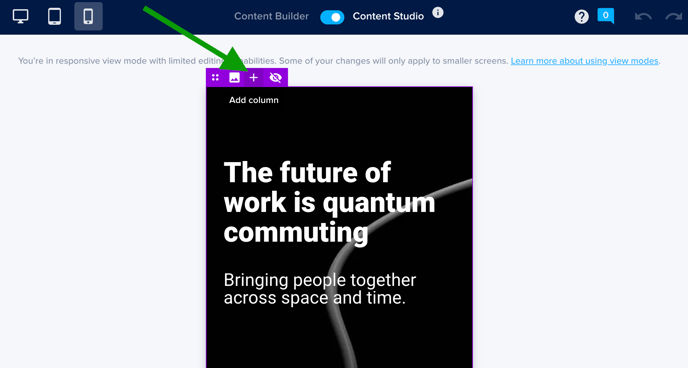
Add a column
You can add a column to your block while in tablet or mobile view mode. New columns will always appear in all view modes.
💡 When working with the Content Builder, you can't add columns to a block. Columns are fixed in the block templates you select.
Visibility options
If you want to hide specific blocks or elements on certain devices, you can use the visibility options to create custom desktop, tablet, or mobile designs.
Hide specific blocks
If you want to hide a block from the desktop view mode, go to the block settings and select visibility. Enable hide on desktop. In this window, you can also choose to hide the block in the tablet or mobile view modes.
💡 When you're working with the Content Builder, you can't hide blocks for a specific view mode.
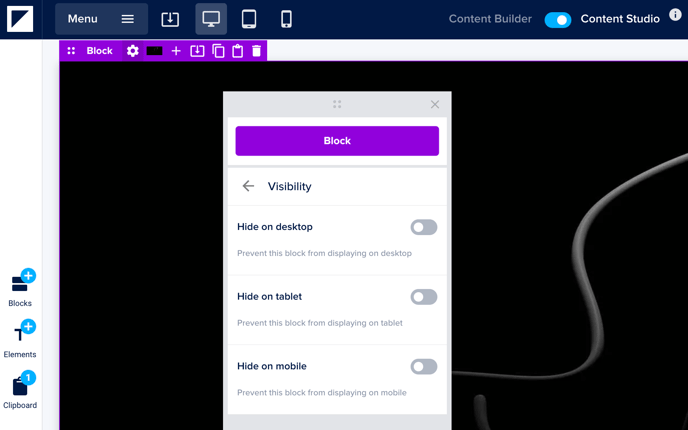
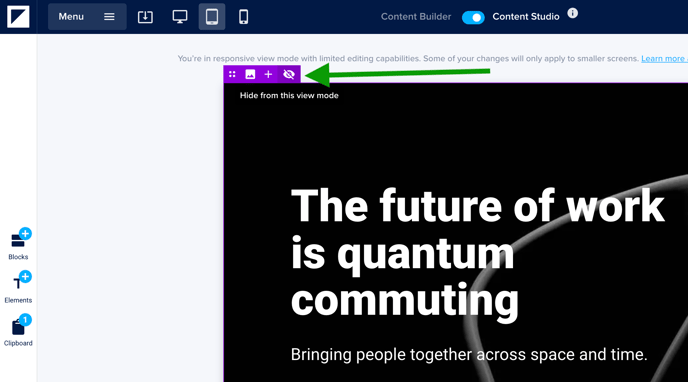
With hide from this view mode, you can choose not to display a block in that view mode. This can be particularly useful when creating custom content for specific screen sizes.
💡When working with the Content Builder, you can't hide blocks for a specific view mode.
Hide specific elements
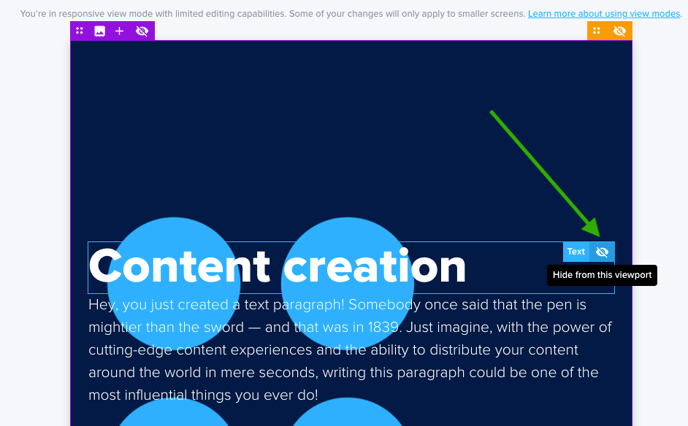
In the tablet and mobile view modes, you can also hide individual elements using the hide from this view mode option. Click the eye icon to hide the selected element in the current view mode.
💡When working with the Content Builder, you can't hide elements for a specific view mode.
Which changes affect which view mode?
Not all changes behave the same way across view modes. Some changes automatically apply everywhere, while others can be customized per device type. Below, you’ll find a detailed overview to guide you.
💡 Changes made in the desktop view mode usually cascade to tablet and mobile. We recommend designing and editing in the desktop view mode first and making smaller changes in the tablet and mobile view modes.
Changes that always affect all view modes
These changes automatically apply across desktop, tablet, and mobile, regardless of which view mode you are working in:
- Text changes: Updates to text content are reflected in all view modes.
-
Adding content: You can add a block, column, or element in any view mode. New items you add will always appear in all view modes.
💡 When working with the Content Builder, you can't add columns or elements. Columns and elements are fixed in the block templates you select.
Changes that vary by view mode
Some changes you make follow a cascading hierarchy and allow you to edit view modes individually. Here's how they behave:
Spacing
-
Spacing adjustments are independent per view mode. Changes made to the spacing in desktop, tablet, or mobile apply only to that specific view mode.
Order of columns and blocks
You can adjust the order of columns or blocks on your page using the move functionality.
- Changes in desktop: Apply to desktop, tablet, and mobile view modes.
- Changes in tablet: Apply to tablet and mobile view modes.
- Changes in mobile: Apply only to mobile view mode.
⚠️ Once you manually adjust the order of columns or blocks in tablet or mobile, those view modes become independent. Future changes made in the desktop view mode will no longer impact the tablet or mobile views.
Background images
You can replace the background image of your block to adjust the design per view mode.
-
Changes in desktop: Apply to desktop, tablet, and mobile view modes.
-
Changes in tablet: Apply to tablet and mobile view modes.
- Changes in mobile: Apply only to mobile view mode.
⚠️ When you replace a background image in tablet or mobile view modes, those views will keep their custom image even if you update the desktop background later.
Brand settings
In your brand settings, you can control global styling across your Docs.
Some brand settings, like logos, main navigation, page background, and page arrows, are Doc-wide elements. Changes to these always impact all view modes, no matter where you make the change. Other brand settings, such as styling for fonts, buttons, and data elements, can be customized per view mode.
💡 Want to learn more about optimizing your images for the different view modes? Read our article: All about responsive design.
Related articles