![foleon_logo_white.png]](https://www.foleon.com/hs-fs/hubfs/foleon_logo_white.png?height=40&name=foleon_logo_white.png)
Learning our language will help you create better content in an efficient way. In this article, we discuss the terminology of our platform.
💡This article provides you with a short description of each term and links you to articles to learn more about each topic.
In this article
The dashboard
The dashboard gives you an overview of your Foleon account. Here you can edit projects, Foleon Docs, account settings, access the Template Manager, and visit our Help Center.
Read more in our article: All about the Dashboard
Admin Console
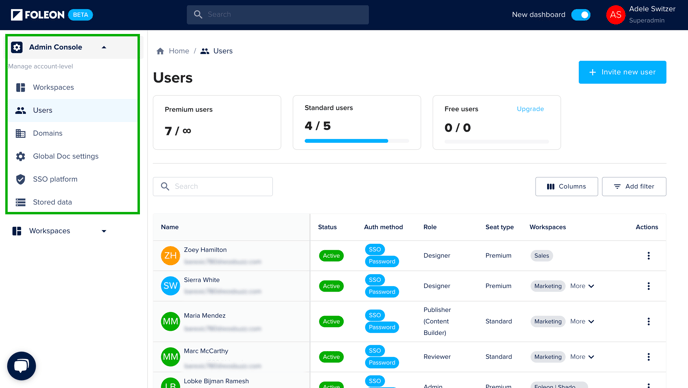
The Admin Console is a dedicated space for company-level admins to manage users, workspaces, domains, and other account-wide settings.
Read more in our article: All about the Dashboard
Brand Console
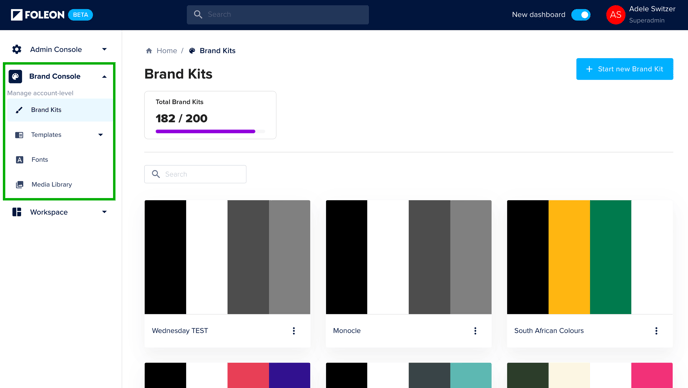
The Brand Console is the central hub where designated Admins and Designers manage and distribute brand assets, such as Brand Kits and templates, across workspaces. With centralized brand management, teams can create content more efficiently and at scale without risking any brand inconsistencies.
Read more in our article: All about the Dashboard
Workspaces
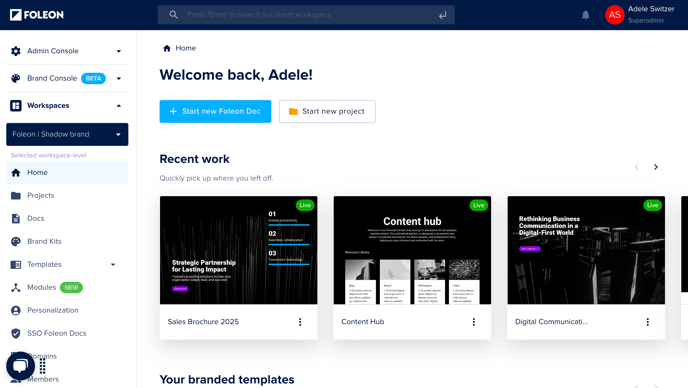
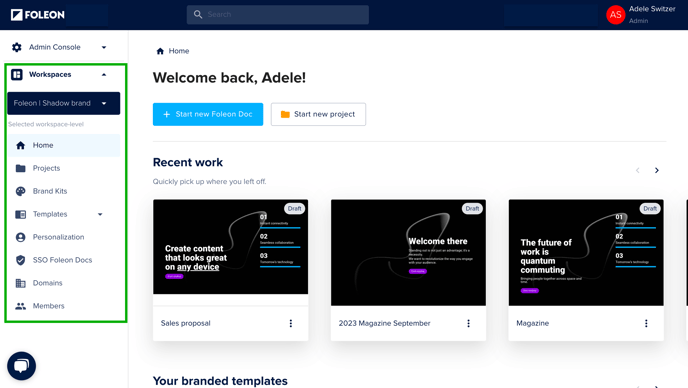
Workspaces help you organize and manage content based on teams, projects, or departments. This is where you create your content and where members can collaborate.
Read more in our article: Scale content creation with workspaces
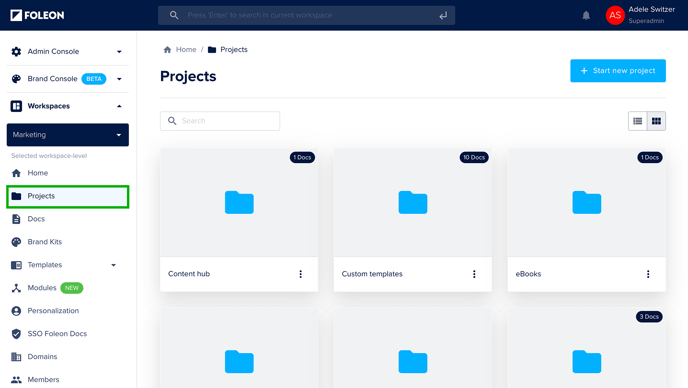
Projects
With Foleon, every Foleon Doc you create is part of a project. Each project has its own settings: a hostname, Google Analytics code, and default logos. These settings apply to every Foleon Doc within a project.
Read more in our article: Working with projects
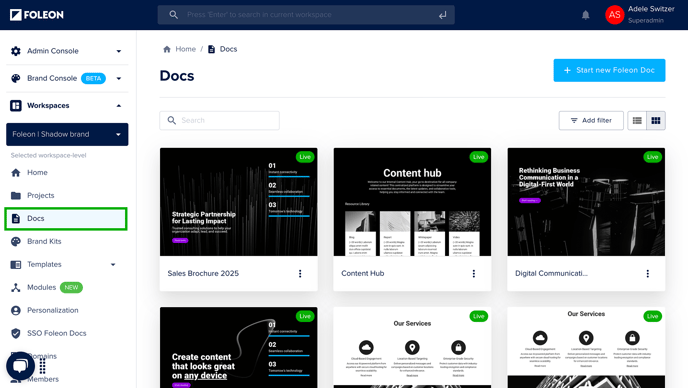
Foleon Docs
The main thing you’ll be doing in Foleon is creating content, which you create in a Foleon Doc. These hold all your content, divided into different pages enriched with text, images, and other elements. In the dashboard, you can access and manage the different Foleon Docs.
In addition to the project settings that apply to all Foleon Docs within a project, each Doc also has its own settings that only apply to that specific Foleon Doc. We’ve conveniently grouped these into settings regarding the Basics, Marketing, Navigation, and Access Control.
Read more about it in our article: All about the Doc settings
Content Builder
The Content Builder's easy editing interface lets anyone create and publish high-impact content in minutes, regardless of design skills, using Foleon's expertly-designed templates.
Learn more about it in our article: Working with the Content Builder

Content Studio
With the Content Studio, you design content with the full Foleon design capabilities. You have complete control over the design process to fit your specific design needs or brand guidelines. Create bespoke content and save it as new templates for the rest of your organization to use.
Learn more about the Content Studio in our article: Content Builder vs. Content Studio: What's the difference?
💡The Content Studio was previously known as the editor.

Brand Kit
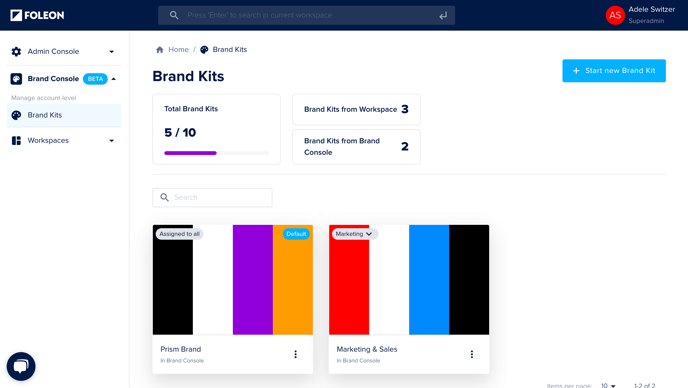
With Brand Kits, you manage your brand centrally, ensuring consistency across all your Foleon Docs. Add your logo, set a color palette, choose typography, and more — helping content creators start quickly. For maximum control, create and manage Brand Kits from the Brand Console to ensure consistent styling across all teams and workspaces.
Read more about brand kits in our article: Govern your brand with a Brand Kit
Brand Settings
In addition to the Foleon Doc settings, each Foleon Doc also has its own brand settings. This is where you set global styling that applies to an entire Doc. You can edit and save style elements like text fonts, buttons, text links, and use them throughout your Foleon Doc. You can also apply a Brand Kit to a Doc to set the stying.
Read more about brand settings in our article: All about the brand settings

Templates
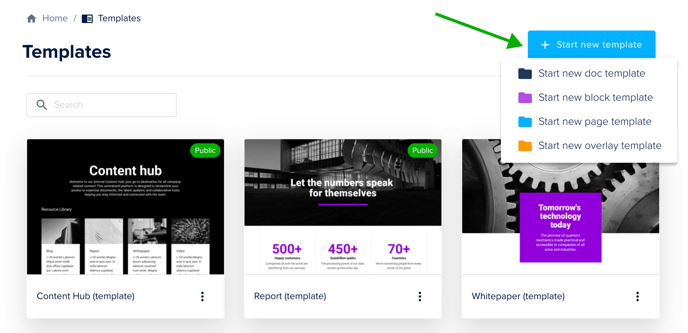
Templates in Foleon help you create consistent, high-quality content quickly. You can save Docs, pages, overlays, and blocks as templates to reuse them across your Docs. For centralized control and brand consistency, templates can be managed via the Brand Console, empowering all your teams to create interactive content that’s always on brand.
Read more about templates in our article: Save time and stay on brand with templates
Preview
You can preview your Foleon Doc to see what it looks like outside the content creation environment. If you’ve already published your Doc, the preview feature also allows you to preview your changes before setting them live.
The preview URL is freely shareable and accessible to anyone with the URL, even if they don’t have a Foleon account. If you want to share a preview of your Foleon Doc with someone, simply send them the preview URL.
💡The preview of your Foleon Doc can’t be found through search engines and is only accessible to those that have the URL.

Review mode
Review mode lets your team leave comments on a Doc. Collaborate with reviewers to process feedback and publish faster.
Learn more in our article: Collect actionable feedback in Review mode

Publish
Once your content is done and you’re ready to share it with the world, you can publish it! During publishing, we optimize the Foleon Doc for search engines, fine-tune the imagery, and make it available on a hostname of your choice. You can always update a published Foleon Doc at any time by republishing it.
Read more about hosting possibilities in our article: Hosting Foleon Docs
When you are ready to take your Foleon Doc live, click on Publish in the top right corner of the editor.

Next, you will see a pop-up with the final Publish button and what your Foleon Doc URL will be. When the Foleon Doc is published, the screen will show you the URL and the possibility to republish when a new change has been made.
Pages
Every Foleon Doc consists of pages. Pages hold all of your content, which includes Blocks, Columns, and Elements. In addition to project settings and Foleon Doc settings, every page also has its own Page Settings that only apply to that specific page.
Read more about it in our article: All about Page settings

Blocks
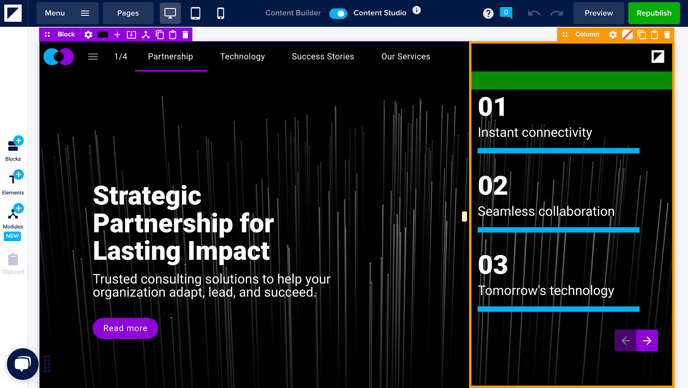
Blocks are the base for every page. Columns and elements can only be added to a page if there is a block on the page to put them in. In the editor, we provide a wide variety of template blocks to choose from. These template blocks already contain columns and elements.
Read more about it in our article: Working with blocks

Columns
Columns are essential for adding different elements to a page or they can be used to add a column background image to a page. Blocks hold columns and columns hold elements.
Read more about it in our article: Working with columns
Overlays
Overlays are pop-ups that you can create and trigger to provide additional information. Overlays are linked to a button, hotspot, or image. They are a great way to give a cleaner look to your Foleon Doc and make it more accessible.
Read more about forms in our article: All about overlays

Forms
Foleon Docs can be enriched with features like forms and overlays. You can use forms to gather information and feedback from your visitors.
Read more about forms in our article: All about forms

Modules
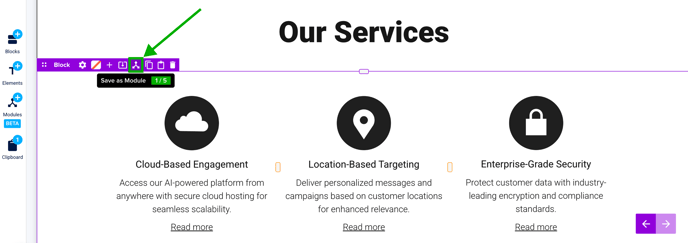
Global Content Modules are reusable blocks that automatically sync across Foleon Docs. Admins or designers can update Modules from a central location, eliminating the need to manually update each Doc. This streamlined approach to content management saves time, minimizes errors, and enhances governance, ensuring consistency and efficiency across Docs.
Read more about modules in our article: All about global content modules