![foleon_logo_white.png]](https://www.foleon.com/hs-fs/hubfs/foleon_logo_white.png?height=40&name=foleon_logo_white.png)
Pages
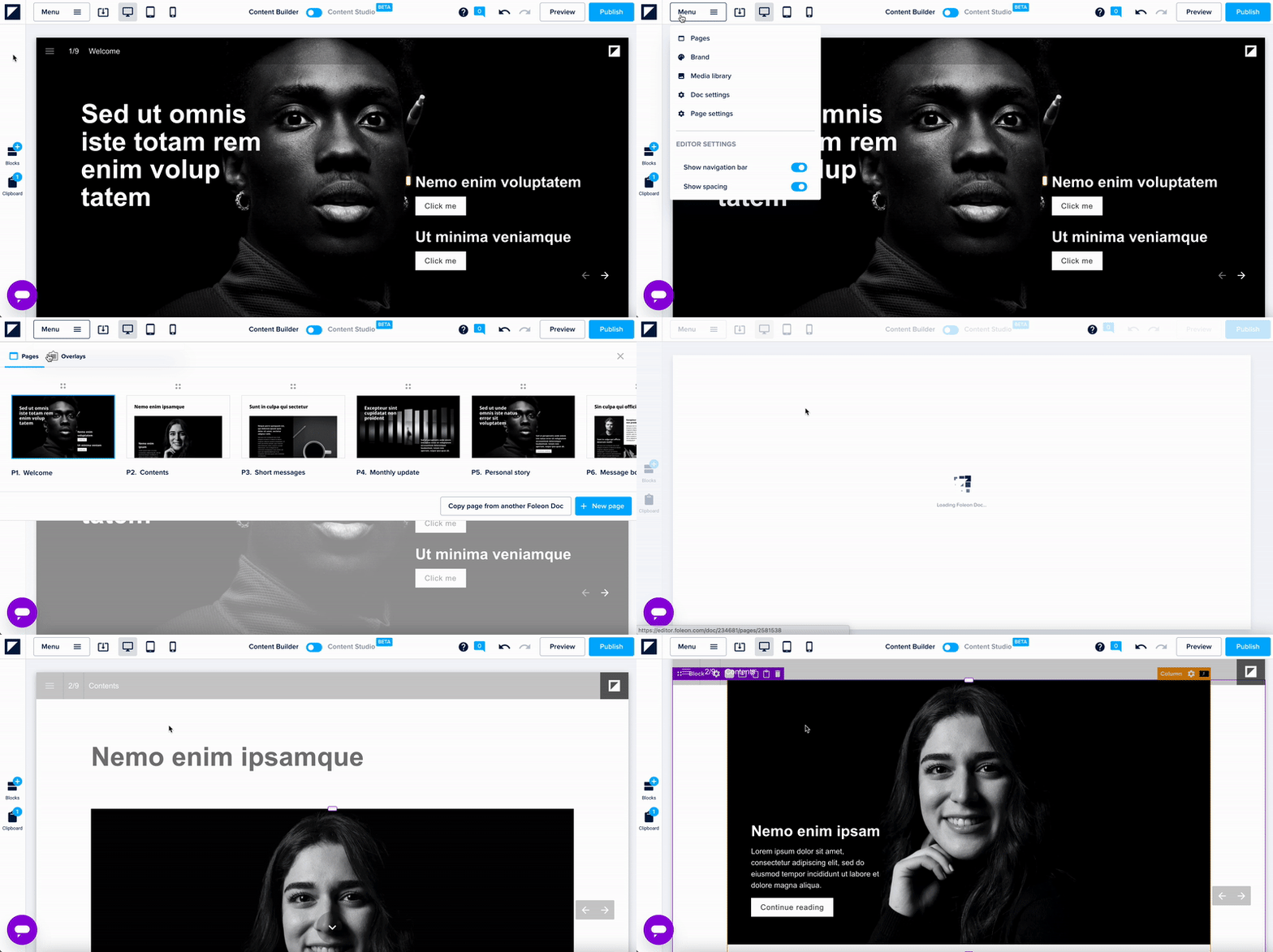
Your page contains blocks, columns, and elements. In terms of hierarchy, pages contain blocks, blocks contain columns, and columns contain elements.
There’s no limit to the number of pages that can be added to a Foleon Doc. However, we recommend keeping Foleon Docs between 5 and 10 pages for optimal performance. With Foleon, you can create interactive, engaging, and highly effective content. Read our article Recommended content size to learn more.
⚠️ We don't recommend creating more than 30 pages, as it has a negative impact on the performance of your content.
Blocks
Each page is built using blocks. Blocks hold columns, which contain elements. Blocks and their settings are purple in the editor. You’ll find the button to add blocks on the left-hand side of your screen.
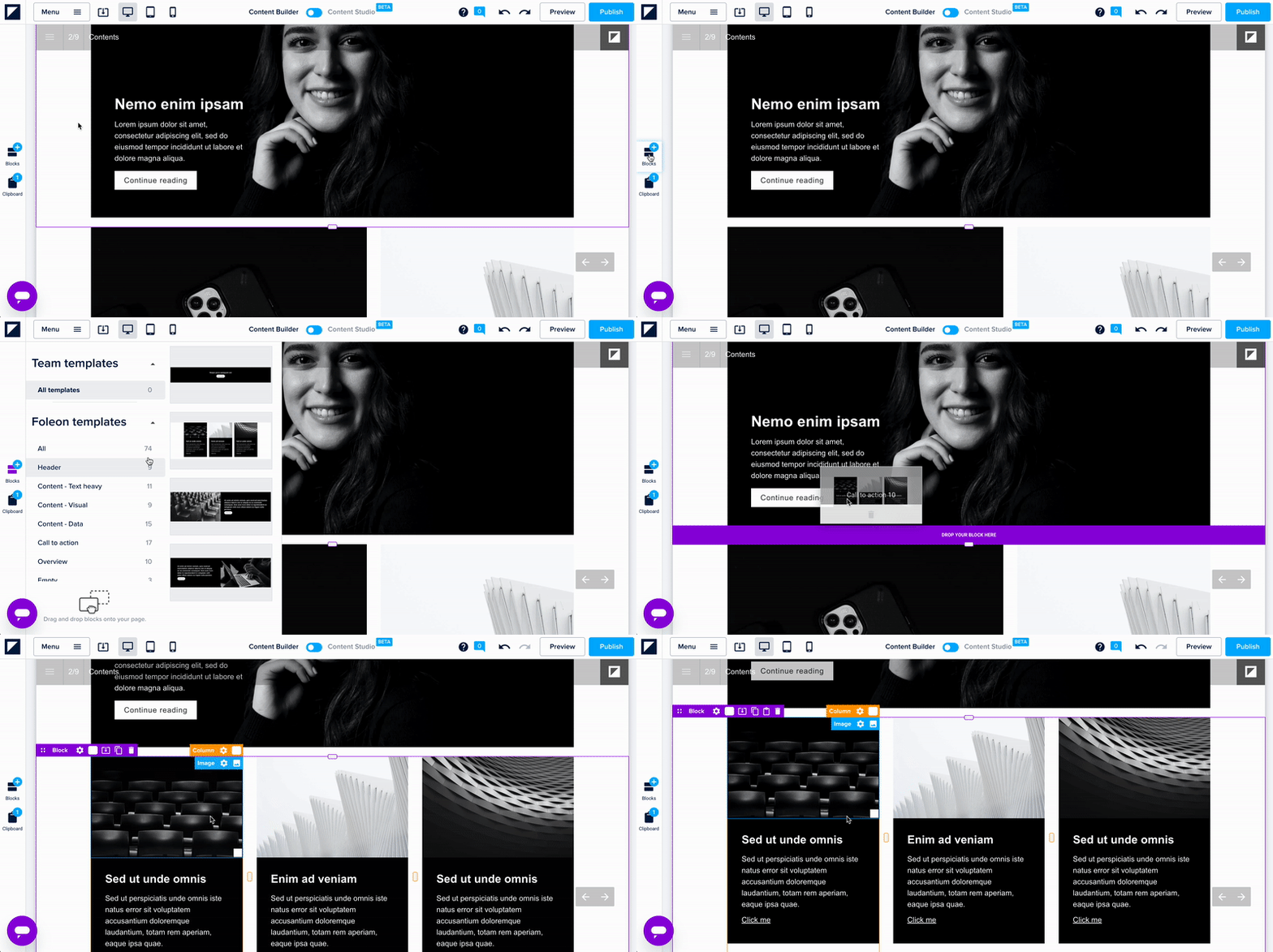
Blocks are designed by default to fill the page in terms of height and width. To add new blocks to your page, click +Block to the left of your page. You’ll find a wide variety of pre-designed blocks categorized for different use cases.
📖 Read more about blocks in our article Working with blocks.
Columns
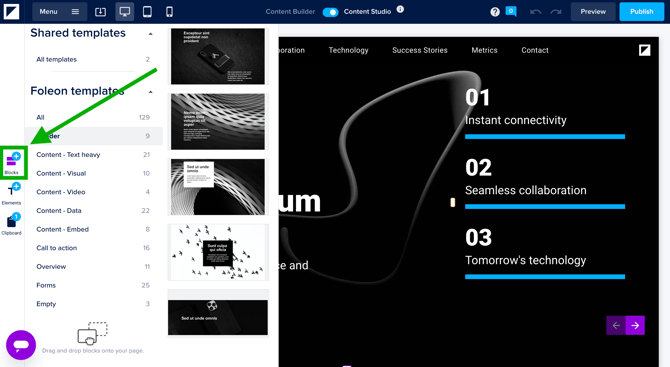
Each block contains up to seven columns with your content. Columns can be resized by dragging their edges to adjust the width within the 24-compartment grid. To add columns in a block, click the +Add column icon below the Purple block settings bar.
⚠️ You can only add columns in the Content Studio, not in the Content Builder. Learn here what the difference is.
When adding columns to your block, you can’t always have them with an equal width. The grid has 24 compartments, which means you can have 2, 3, 4, or 6 equal columns by duplicating the column. This also means that having 5 or 7 columns with an equal width is not possible.
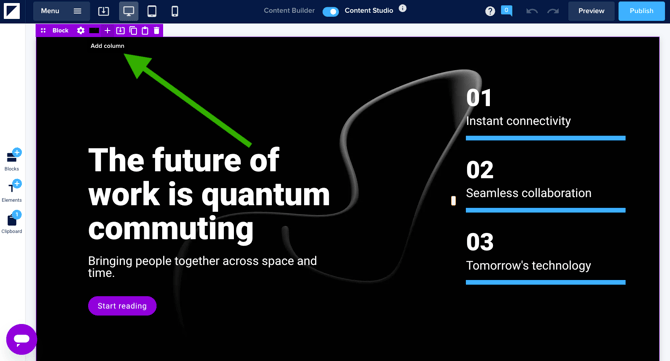
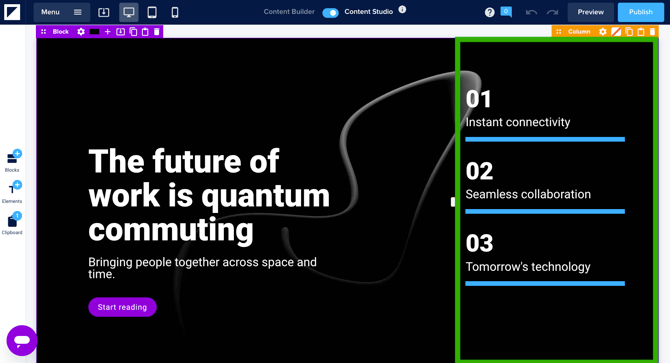
When you click to add a column, you’ll see an orange outline on your page and the orange columns settings bar.
📖 Read more about columns in our article Working with columns.
Elements
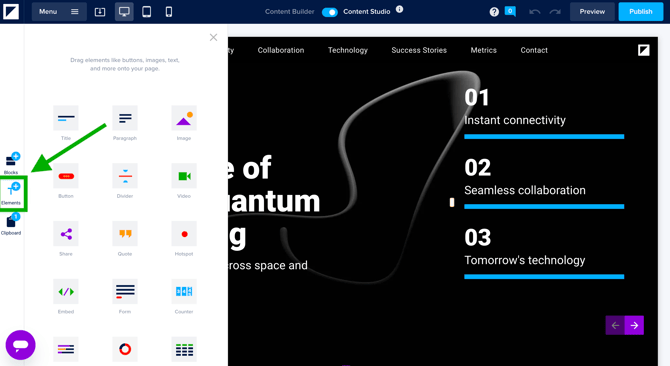
Columns contain elements that make up the actual content of your page. Elements like text, images, buttons, and videos make your pages come alive. Once you've found the element you need, drag and drop it onto your canvas.
Elements can be recognized by the blue outline and the blue element settings bar. To add an element, open the Elements panel on the left side of the editor and drag it onto a column on your page. blue element settings bar.
💡When you're working with the Content Builder, you can't add any individual elements. They will always be a part of the blocks you build your page with.
📖 Read more about elements in our article: Working with elements.