
The dashboard is what you see when you log in to Foleon. From the dashboard, you can access your projects, templates, account settings, and brand assets.
💡 This article provides a high-level overview of the dashboard and links to articles that explain each topic in more detail.
In this article
From the top navigation bar, you'll be able to search for docs or projects and manage your profile. On the left panel of the dashboard, you'll find the menu, which contains three sections:
- Admin Console: A dedicated space for admins to manage users, workspaces, domains, and other key settings all from one central environment.
- Brand Console: A central hub for admins and designers to manage and share brand assets, such as Brand Kits, templates, and modules, across workspaces.
- Workspaces: This is where you access your workspace-specific content for content creation and collaboration.
🎓 Want to dive deeper into setting up the right controls and managing content from the dashboard? Enroll in our Foleon Academy course: From Control to Creativity: Structuring Foleon for Scalable Content
Top navigation bar
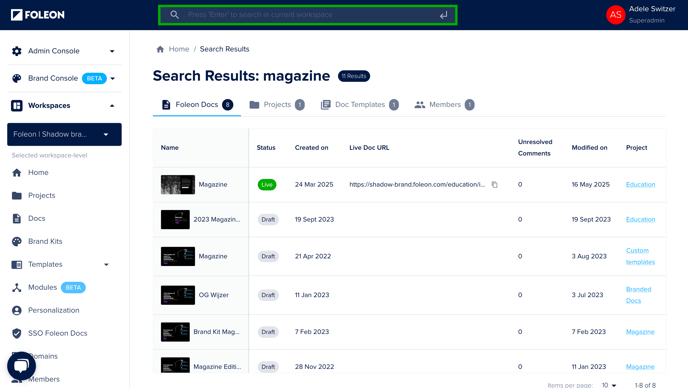
Search Bar
Use the search bar to quickly find a Foleon Doc or Project within your workspace. Type your query and hit enter to view the results in a dedicated search page.
Search results are grouped into the following categories:
- Foleon Docs
- Projects
- Doc Templates
- Members
⚠️ Search results are workspace-specific. Make sure you're in the correct workspace to find what you're looking for. To switch workspaces, click workspaces in the left menu and select the workspace from the dropdown.
Profile
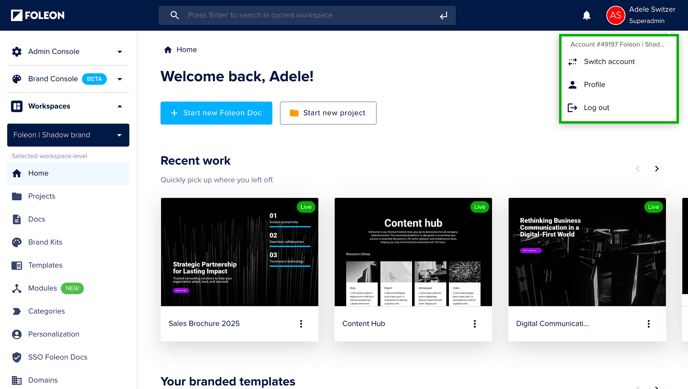
On the top right corner, you'll see your name and a circle with your initials. This is where you'll find your profile settings. Click your name or initials to:
- Update your name or password under profile
- Log out or switch accounts
📖 Learn more in our article: Set up your user account
Admin Console
The Admin Console is a dedicated space for company-level admins to manage users, workspaces, domains, and other account-wide settings.
⚠️ Only admins who have been added at the company level can access the Admin Console. If you need access to company-wide settings, contact another admin who has company-level access.
Workspaces
With workspaces, you can organize your content and workflows by team, department, or project. From the workspaces page, you can create new workspaces, search for existing ones, and view workspace details.
📖 Learn more in our article: Scale content creation with workspaces
Users
On the Users page, you can invite new users, edit existing ones, and delete users who no longer need access. This page provides an overview of all users on your account. Use the filter to narrow the results to specific workspaces, or use the search bar to find specific users.
📖 Learn more in our article: Set up users and roles
Roles & permissions
From this page, you’ll find an overview of all available roles and what each one can access in Foleon. Click on any role to view its specific permissions. If your workspace includes Custom Roles, you’ll also be able to create and manage them directly from this page.
📖 Learn more in our article: Custom user roles
Domains
Every Foleon Doc needs to live on a URL, and you can choose to host it on your custom domain. On the Domains page in the Admin Console, you can create and manage the custom domains that are available to all workspaces on your account.
📖 Learn more in our article: Hosting on a custom domain
Global Doc Settings
With Global Doc settings, you can preconfigure settings that will be applied to newly created Docs. This allows you to govern configurations that should apply to all content created on Foleon from one central location.
📖 Learn more in our article: Workspace governance with Global Doc settings
Content Governance
Team and Enterprise customers can set Approval Flow settings. The publishing approval settings allow users without publishing rights to submit Docs for approval, while the pre-publishing checklist requires users to complete a checklist before publishing. Together, these features help maintain content quality and streamline communication.
📖 Learn more in our article: Publishing Approval Flow
Global Account Settings
Manage the settings that apply to your whole account. All accounts can configure the use of AI features and allow the use of Gemini or DeepL. In addition, Enterprise customers can enforce brand guidelines by restricting access to Unsplash imagery and Foleon’s template library.
📖 Learn more in our articles:
SSO platform
Use Single Sign-On (SSO) for Foleon Platform to make logging in easy and secure for your workspace. From this page, you set up and manage the SSO configurations for your company.
📖 Learn more in our article: Single Sign-On (SSO) for the Foleon platform
Stored data
As per the GDPR, your audience has the right of access and the right to be forgotten, meaning that you need to be able to export or delete their data if they ask you to do so. If you've acquired their data via a Foleon form, you can export or delete all related data from this stored data page.
📖 Learn more in our article: Managing stored data (GDPR)
Plans & Billings
From the Plans & Billings section, you can manage your subscription. This allows you to view the details of your subscription, download an invoice, and manage your contact details.
📖 Learn more in our article: How to manage your subscription
Brand Console
The Brand Console is the central hub where designated Admins and Designers manage and distribute brand assets, such as Brand Kits, templates, and modules, across workspaces. With centralized brand management, teams can create content more efficiently and at scale without risking any brand inconsistencies.
📖 Learn more in our article: All about the Brand Console
⚠️ Only admins and designers who have been added at the company level can access the Brand Console. If you need access to the Brand Console, contact an admin who has company-level access.
Brand Kits
From the Brand Console, you can create central Brand Kits and assign them to one, multiple, or all workspaces. Workspace members can use the Brand Kits in their Docs but cannot edit them, ensuring full brand control.
📖 For more details on how to create your Brand Kit in the Brand Console, continue reading here: Govern your brand with a Brand Kit
Templates
Empower your teams to work faster and stay on-brand by managing templates directly from the Brand Console. From here, you can save Docs, pages, overlays, and blocks as templates, making them easy to reuse across the platform. You can assign templates to one, multiple, or all workspaces to help teams get started quickly and maintain a consistent look and feel from the very first click.
📖 Learn more about templates in our article: Save time and stay on-brand with templates
Modules
Global Content Modules are reusable blocks that automatically sync across Foleon Docs, keeping content consistent everywhere it’s used. From the Brand Console, admins and designers can create or edit modules, while workspace members can only add them to Docs. Use modules for brand-critical content, and assign them to one, multiple, or all workspaces.
📖 Learn more about modules in our article: All about global content modules
Categories
Categories help organize templates and modules, making your library easier to navigate. From here, you can create and manage categories for templates and modules managed in the Brand Console. This is especially useful for large template and module libraries.
📖 Learn more about categories in our article: Structure your templates and modules with categories
Settings
Use Governance Settings in the Brand Console to decide where brand kits, templates, and modules can be created. If you want all brand assets managed centrally from the Brand Console, switch off the toggles for each asset. This means only company-level admins and designers can create new assets, helping you prevent off-brand content and keep everything consistent from the start.
📖 Learn more about governance settings in our article: Centralized control with Brand Governance Settings
Workspaces
Workspaces help you organize and manage content based on teams, projects, or departments. This is where you create your content and where members can collaborate.
Home
The homepage offers quick access to:
- Recent work: Quickly access recently edited Docs
- Favorite Projects: You can mark up to 10 projects as favorites for easy access
- Your branded templates: Start a new Doc from one of your saved templates
- Foleon templates: Start a new Doc from one of our Foleon Doc templates
- Resources: Quickly navigate to resources, such as the Foleon Academy and Help Center
Projects
Every Foleon Doc is part of a project. Projects are like folders that contain multiple Foleon Docs and help you organize your content. Each project has its own settings, such as domain setup and analytics. These settings apply to all the Foleon Docs located in that project.
📖 Learn more in our article: Working with projects
Docs
The Docs page gives you a full overview of all Docs in your Workspace. From here, you can quickly browse your Docs, search for specific Docs, or start a new Foleon Doc. Switch between either the list or grid view for a more detailed or visual overview.
📖 Learn more in our article: Working with projects
Brand Kits
Brand Kits help you ensure all Docs stay on-brand by setting brand assets like logos, colors, and typography. From this menu, you can create Brand Kits that will be available to the selected workspace.
📖 Learn more in our article: Govern your brand with a Brand Kit
Templates
When you create content in Foleon, you can start from scratch, use one of our pre-designed page templates, or use one of your own templates. From this section on the menu, you can access and manage the templates that have been created in your workspace or assigned via the Brand Console.
📖 Learn more in our article: Save time and stay on-brand with templates
Modules
Global Content Modules are reusable blocks that automatically sync across Foleon Docs. Admins or designers can update Modules from a central location, eliminating the need to manually update each Doc. Modules created here will be available for use in the workspace in which they are created.
📖 Learn more in our article: All about global content modules
Categories
Categories help organize templates and modules, making your library easier to navigate. From here, you can create and manage categories for templates and modules managed in your workspace. This is especially useful for large template and module libraries.
📖 Learn more about categories in our article: Structure your templates and modules with categories
Personalization
With personalization, you can make each Foleon Doc highly relevant to the visitor — using fields such as first names, company names, or industries. Here, you create personalization properties that you can add when editing your Foleon Doc.
📖 Learn more in our article: Personalization in Foleon: an overview
SSO Foleon Docs
Restrict access to Foleon Docs using Single Sign-On (SSO) authentication. This will ensure only authorized users can view your Doc.
📖 Learn more in our article: Single Sign-On (SSO) for your Foleon Docs
Domains
On the domains page under workspaces, you can create and manage the custom domains that are available to only the selected workspace.
📖 Learn more in our article: Hosting on a custom domain
Members
A member is a user assigned to a workspace. Members appear on the members page under each workspace. This page displays all users with access to that workspace and their roles.
📖 Learn more in our article: Set up users and roles
Media Library
Easily manage your media directly from the dashboard. From here, you can upload, organize, and manage files in your Media Library for use in your Foleon Docs.
📖 Learn more in our article: All about the Media Library
Frequently Asked Questions (FAQs)
What's the difference between users and members?
To access Foleon, a person must first be added as a user in the Admin Console. When creating or editing a user, you select the workspaces they can access. Once a user is assigned to a workspace, they become a member of that workspace.
- Users: Anyone with access to Foleon is a user. Users are added and managed via the Users page in the Admin Console.
- Members: A member is a user assigned to a specific workspace. Members appear on the members page under each workspace. This page displays all users with access to that workspace.
For example, when a new team member joins your company, an admin adds them as a user in the Admin Console. The admin assigns them to the appropriate workspace(s), making them a member of those workspaces.
📖 For more information on creating users and making them members of workspaces, continue reading here: Set up users and roles
Why is user management essential for teams?
Foleon makes user management easier with advanced role assignments and centralized controls. Here’s how it helps:
- Assign specific roles with limited permissions: Ensure users only access what they need to complete their tasks efficiently.
- Streamline onboarding: Quickly and securely add new members to the right workspaces with the correct access.
- Reduce errors and inefficiencies: Align user access with their responsibilities to prevent mistakes and bottlenecks.
- Centralized admin control: Manage all users and roles in one place, making adjustments fast and easy.
What makes workspaces a game-changer?
Workspaces help you scale operations while staying organized and in control. By organizing teams, departments, or activities into distinct spaces, you can:
- Equip teams with the right tools and templates: Provide tailored assets to each team while keeping everything centralized.
- Maintain brand consistency easily: Share a Brand Kit across all workspaces to ensure every project stays on brand.
- Eliminate confusion by separating workflows: Dedicated workspaces keep projects organized and reduce the risk of errors or overlap.
- Streamline settings and domain management: Assign unique domains and ensure settings meet data privacy and brand standards, avoiding misconfiguration.
⚠️ The number of workspaces you can create depends on your plan. If you’re interested in additional workspaces or want to upgrade your plan, contact us here.
How does centralization drive better collaboration?
With Foleon, you can scale your team or content production without losing control. Centralized workspace management helps you:
- Stay compliant with branding and security policies: Keep projects aligned with company-wide standards so no details are overlooked.
- Tailor workflows for teams and departments: Enable teams to focus on their strengths with customized processes.
- Protect your content with secure domains and settings. To minimize risks, Assign unique domains and keep sensitive projects private.