![foleon_logo_white.png]](https://www.foleon.com/hs-fs/hubfs/foleon_logo_white.png?height=40&name=foleon_logo_white.png)
💡 Want to learn more? Check out our article All about the Media Library.
⚠️ Enterprise customers can enable or disable access to Unsplash in Admin Console > Global Account Settings > Account Settings. To restrict access, contact us here.
How to use Unsplash
- Open your Doc in the editor.
- Add or replace an image — either by dragging an image element onto the page, or by clicking Replace on an existing image or background.
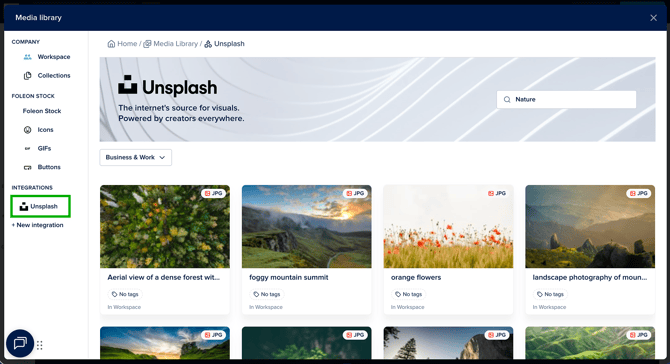
- In the Media Library sidebar, click Unsplash under Integrations.
- Type a search term in the search bar to find images.
- Click an image to preview it.
- Click Select this image to add it to your page.