![foleon_logo_white.png]](https://www.foleon.com/hs-fs/hubfs/foleon_logo_white.png?height=40&name=foleon_logo_white.png)
In this article
What is the Brand Console?
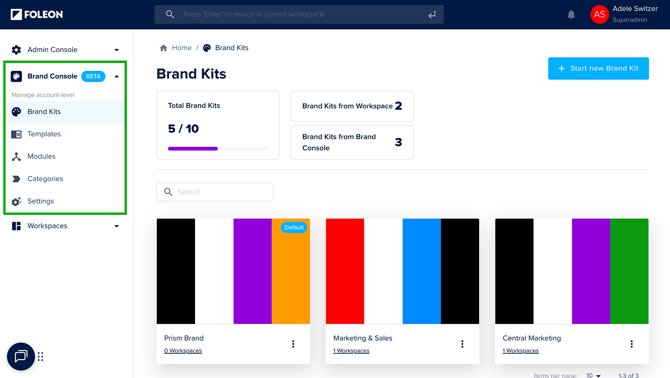
The Brand Console is the central hub for Admins and Designers to manage reusable brand assets in one place. From the Brand Console, you can access the following:
- Brand Kits — Create central Brand Kits to define your company's fonts, colors, buttons, logos, and other styling.
📖 Read more about Brand Kits - Templates — Create layouts for Docs, pages, overlays, and blocks to help teams start faster and stay consistent.
📖 Read more about Templates - Global Content Modules — Reusable content blocks that automatically sync across Docs. No more manual updates needed.
📖 Read more about Modules - Categories — Keep your templates and modules organized with categories.
📖 Read more about Categories - Media Library — Manage and share approved images, videos, animations, and files across all workspaces.
📖 Read more about sharing media from the Brand Console - Settings — Use the brand governance settings to allow (or restrict) workspace users from creating Brand Kits, templates, or modules.
📖 Read more about Brand Governance Settings
Brand Kits, Templates, Modules, and Media can be created/added once in the Brand Console and shared with one or more workspaces. This helps ensure everyone works with the same approved assets, reducing duplication, speeding up content creation, and improving brand consistency.
⚠️ Only admins and designers who have access to all workspaces can access the Brand Console. If you need access to the Brand Console, contact an admin who has access to the Admin Console.
Where to create your assets: Brand Console or Workspaces
You can create and manage brand assets in either the Brand Console or individual workspaces. Where you create them depends on how much control or flexibility your team needs.
Brand Console — for centralized control
Create and manage assets from the Brand Console when you want tight control over your brand identity and how content is used across teams.
➡️ Use the Brand Console when:
-
Your brand team is responsible for maintaining company-wide standards
-
You want to share templates, brand kits, modules, or media across multiple workspaces
-
You need a single source of truth for key messaging, layout patterns, and branding
💡 Workspace users can use Brand Kits, templates, and modules from the Brand Console, but cannot edit them. These assets are clearly labeled as coming from the Brand Console, so users can quickly tell which ones are centrally managed.
Workspaces — for flexibility and autonomy
Create assets directly within a workspace when you want teams to move fast or tailor content to their own audiences. Assets created in a workspace are only available within that workspace and are fully editable by Aadmins and Designers with access.
➡️ Use workspace-level asset creation when:
-
Each team has unique branding or layout needs
-
Teams need to experiment with designs or test layouts
-
Campaigns or Docs are specific to a region, product, or initiative
Hybrid approach
You don’t have to choose just one approach. Many organizations use a combination, with centralized assets for core branding and local flexibility for campaigns.
➡️ Use a hybrid approach when:
-
You want to control brand-critical assets but still allow teams to create their own content
-
Some teams follow strict brand rules while others need more creative freedom
-
You're gradually moving from flexible creation to a more governed structure
Summary: Brand Console vs. Workspaces
Before deciding where to create each asset, it helps to compare the benefits of each approach. Here's a quick overview to guide your choice:
| Asset Type | Use Brand Console When… | Use Workspaces When... |
|---|---|---|
| Brand Kits | You want global consistency in colors, fonts, and logos | Teams have local styling needs or temporary campaign visuals |
| Templates | You need reusable layouts across workspaces | Teams create one-off Docs or want to iterate quickly |
| Modules | You manage legal disclaimers, company info, or shared messaging | Teams design localized or campaign-specific content blocks |
| Media | You want centralized visuals, logos, videos, and files | Teams use their own visuals, logos, videos, and files in Docs |
Use Brand Governance Settings
Brand Governance Settings let you control where brand assets can be created — centrally in the Brand Console, locally in workspaces, or both.
📖 Read more about these settings in our article: Centralized control with Brand Governance Settings
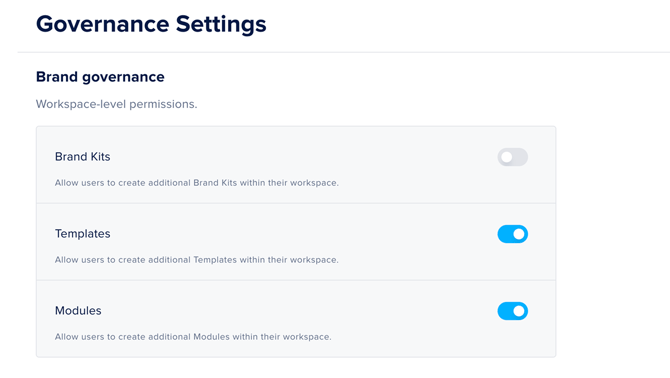
You can access the Brand Governance Settings in the Brand Console > Settings
Here, you can decide to allow (or restrict) asset creation by workspace users:
- Turn the toggles OFF if you want the brand assets created only in the Brand Console.
- Turn the toggles ON if you want each workspace to be able to create brand assets.
You can adjust these toggles for each asset individually, meaning you can also use a hybrid approach. For example, a hybrid approach is shown in the image below:
- Brand Kits can only be created in the Brand Console
- Templates and modules can be created in the workspaces
Save templates and modules to the Brand Console
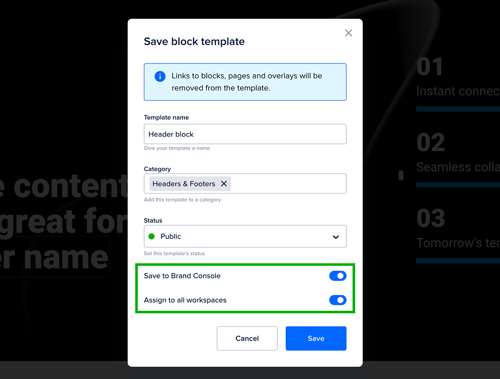
When you create a new template or module in the editor, you can save it straight to the Brand Console and share it with your workspaces in the same step.
💡 You need to be an admin or designer with access to the Brand Console to save templates and modules there.
Choose what to save
You can save different parts of your Doc as a template or module. Where you start depends on what you're saving.
Templates
- Block: Hover over the block's purple settings bar and click Save as template.
- Page: Click the page name to open the page overview. Hover over your page and click Save as template.
- Overlay: Click the page name to open the page overview. Click Overlays. Hover over your overlay and click Save as template.
- Doc: Open the menu and click Save as template.
📖 For more information about templates: Save time and stay on-brand with templates
Modules
- Block: Hover over the block's purple settings bar and click Save as module.
- Page: Click the page name to open the page overview. Hover over your page and click Save as module.
📖 For more information about modules: All about global content modules
Save to the Brand Console
- Click Save as template or Save as module following the steps above.
- Enter a name for your template or module.
- Select a category (optional).
- Choose whether your template or module should be public.
- Toggle on Save to Brand Console.
- Choose which workspaces can use it:
- Toggle on Assign to all workspaces to share it with every workspace.
- Select individual workspaces from the dropdown.
- Click Save.
Move assets to the Brand Console
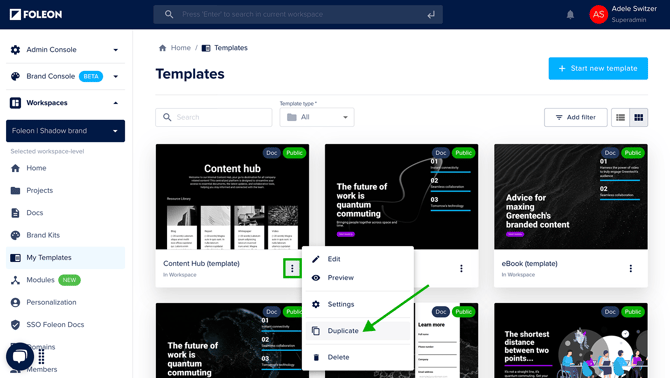
If you've already created a Brand Kit, template, or module in a workspace, you can easily move it to the Brand Console to make it centrally managed and share it across workspaces.
To do this, go to the workspace where the asset is saved. Open the quick actions menu (⋮) and choose Duplicate. When prompted, select Brand Console as the destination.
⚠️ Don’t forget to delete the original asset in the workspace once it has been moved. Keeping both versions can lead to confusion and the use of outdated assets.
📖 The articles below walk you through these actions in more detail for each asset:
Assign assets to Workspaces
After moving an asset to the Brand Console, it won't automatically appear in workspaces. You'll need to assign it before teams can use it.
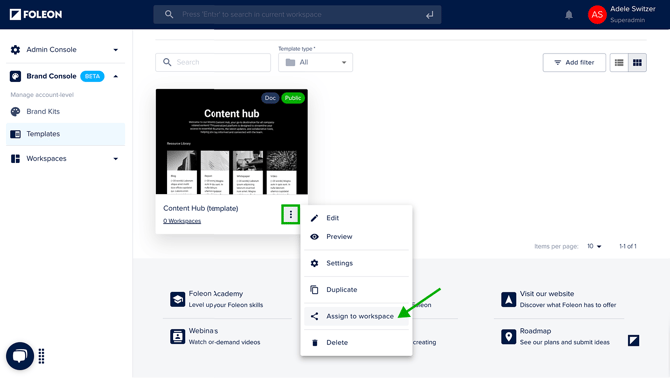
Open the quick actions menu (⋮) on the asset and choose Assign to workspace. From the dropdown, select the applicable workspaces or assign it to all workspaces.
Once assigned, these assets become available within the workspace and are clearly marked as “Brand Console” assets. Workspace users can use them in their Docs, but can't edit or overwrite them. This ensures consistent use of your branded elements across teams.