![foleon_logo_white.png]](https://www.foleon.com/hs-fs/hubfs/foleon_logo_white.png?height=40&name=foleon_logo_white.png)
Foleon templates help you build engaging content quickly and with more structure. Each template is designed to inspire your content, giving you structure without limiting creativity. Whether you're creating an entire Doc, adding a new page, or inserting a new block, templates give you a strong visual starting point.
📖 Want to create your own templates? Continue reading our article: Save time and stay on-brand with templates
⚠️ If you’d like to restrict the use of Foleon Templates, Enterprise customers can enable or disable access in the toggles under Admin Console > Global account settings > Account settings. If you would like to access to these settings, contact us here.
In this article
Why use Foleon templates?
Foleon templates are designed to support content creation by offering structure, guidance, and flexibility. They act like blank coloring pages, giving you a layout that you can fully customize to suit your story and style.
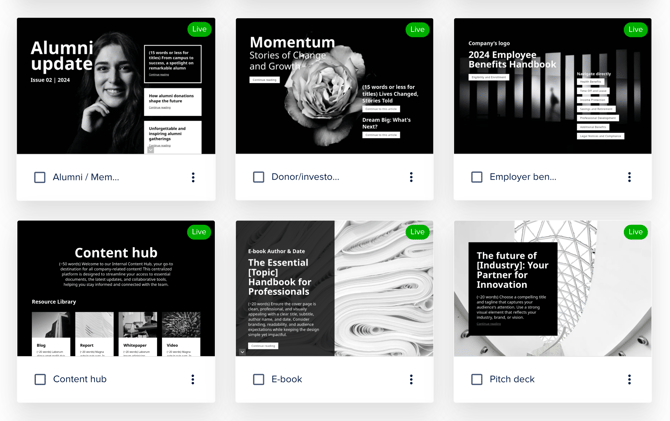
There are four types of Foleon templates to help you get started:
- Doc templates - Full, multi-page layouts tailored to specific content types
- Page templates - Individual pages you can add to existing Docs
- Overlay templates - Ready-made layouts for your overlay content
- Block templates - Content blocks you can drag and drop onto any page or overlay
💡 After customizing a Foleon template, you can save your version as a Workspace or Shared template to reuse across your organization.
📖 Read more in our article: Save time and stay on-brand with templates
Where to find Foleon templates
Each template type is used at a different stage in the creation process. Here's how to find and use them:
Doc templates
Used when starting a new Foleon Doc.
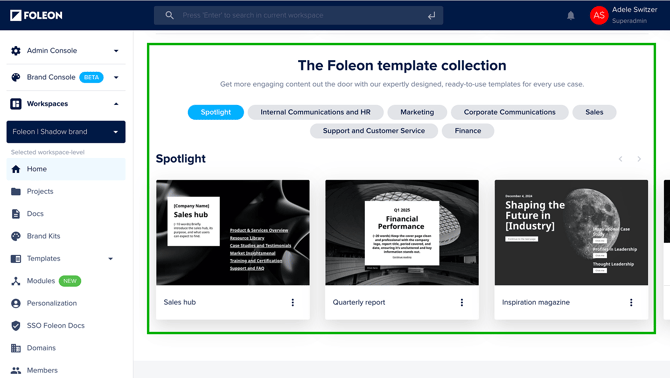
At the bottom of your home page, you'll find the Foleon template collection. Use the categories to browse the available templates.
Double-click the thumbnail or select Start from the quick actions menu to begin.
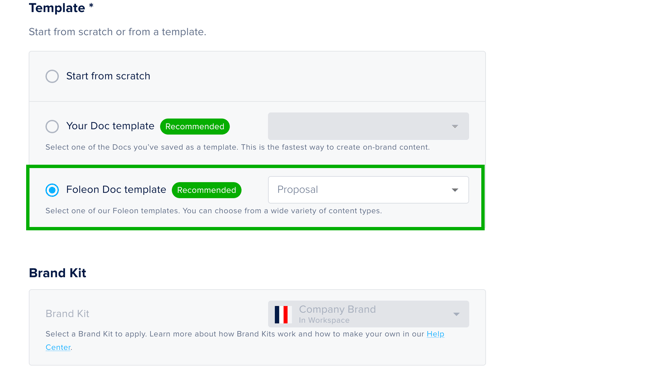
Alternatively, select a Foelon Doc template from the dropdown when creating a new Doc.
Page templates
Used when adding a new page to an existing Doc.
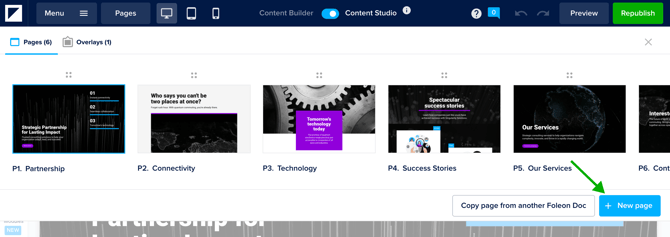
In the editor, click Pages to open the page overview. Click + New page.
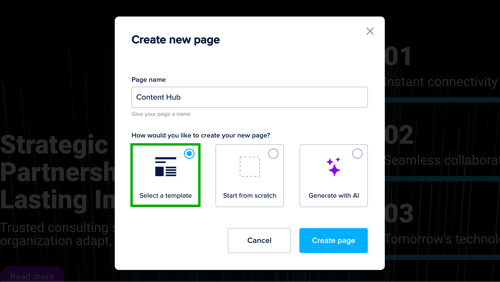
Name your page and choose the option Select a template. Click Create page.
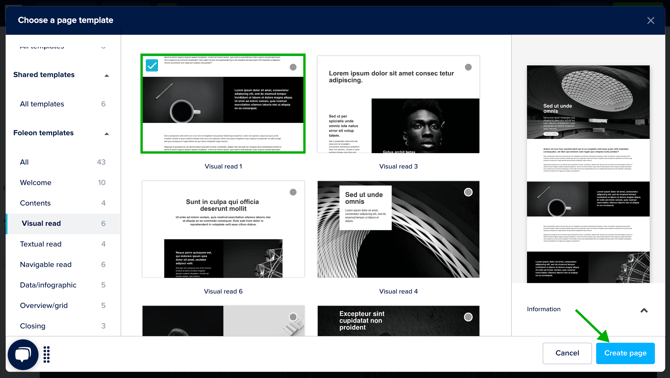
Choose from one of the templates and click Create page to add it to your Doc.
💡 You can also choose one of your Team or Shared templates. Read more in our article: Save time and stay on brand with templates
Overlay templates
Used when creating an overlay in your Doc (like a pop-up or modal).
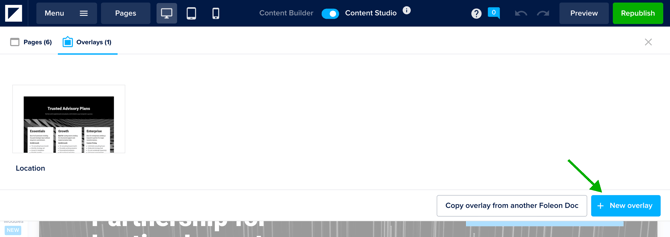
In the editor, click Pages, then go to the Overlays tab. Click + New overlay.
Name your overlay and choose the option Select a template. Click Create overlay.
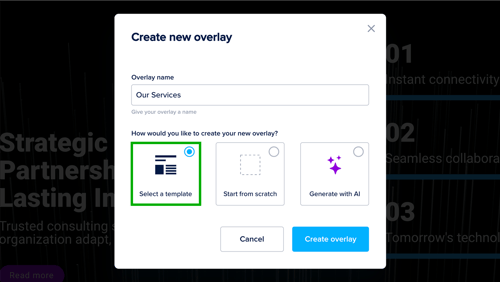
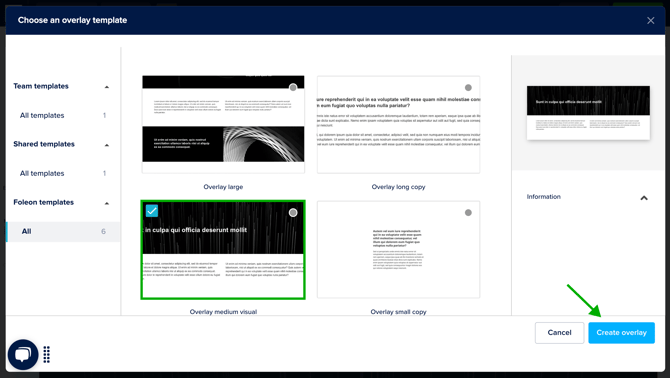
Choose from one of the templates and click Create overlay to add it to your Doc.
Block templates
Used when adding a block to an existing page.
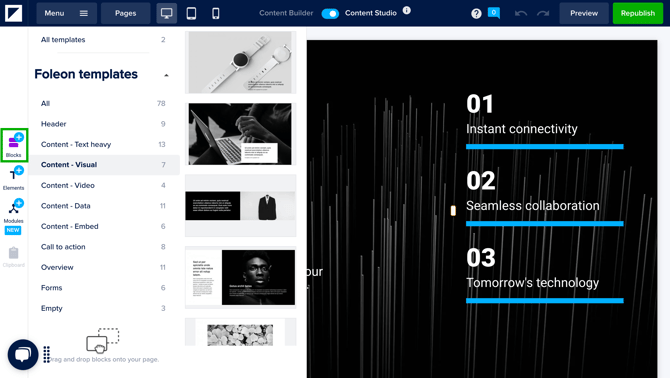
In the editor, click the Blocks button on the left-hand side to browse available templates by category.
The Block Template Library is organized using layout-based categories, making it easy for you to build full pages from modular pieces. Here's how the categories are organized:
-
Cover pages
-
Page headers
-
1 column layout
-
2 column layout
-
3 column layout
-
Emphasis blocks
-
Forms & buttons
-
Grids & overviews
-
Empty blocks (for maximum customization)
Click and drag the block template onto the page. You can drop it anywhere you see a purple bar.
📖 Learn more in the next section: The Layout System Doc template
The Layout System Doc template
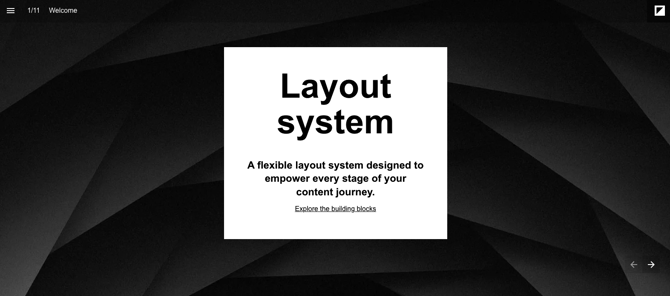
The Layout System Doc is a ready-made template designed to help you create a personalized library of reusable blocks. It includes a variety of structured layouts, such as columns, grids, headers, and emphasis blocks, all in one document, making it easy to design and save your own styled versions.
Use this Doc as a foundation to:
-
Apply your branding to a complete set of pre-built layouts
-
Save individual blocks as Workspace or Shared templates
-
Build a consistent, scalable content system for your team
💡 Especially helpful for new customers, the Layout System Doc is a great starting point for building a design system during onboarding.
Follow these steps to turn the Layout System into your own block template library:
-
Create a new Doc using the Layout System template from the Doc template library.
-
Customize the blocks in the Doc by applying your Brand Kit to set global colors, fonts, and styles. Then adjust each block as needed to match your specific design preferences.
-
Save individual blocks as templates by hovering over the purple block bar and selecting Save as template.
-
Use these templates throughout your Docs by dragging them onto your page from your Workspace or Shared template libraries.
📖 For more help on how to create your own templates, see our article: Save time and stay on-brand with templates