
With Global Doc settings ⚙️, you can improve governance and save time by automatically applying preferred settings to every new Foleon Doc. This ensures consistency and helps streamline your publishing process.
💡Global Doc settings let you preconfigure the Doc settings for all Foleon Docs. We've already selected default values, so even if you don't adjust the Global Doc settings, your content is ready to publish.
Which Foleon settings are there?
Foleon offers several layers of settings to help you manage your content effectively:
- Project settings 🗂️ — Control settings of all Docs in a project. E.g. Google Analytics
- Page settings 📄 — Control settings of individual pages in a Doc. E.g. SEO settings
- Doc settings 📘 — Control settings of a Foleon Doc. E.g. navigation settings
- Global Doc settings 🌐 — Preconfigure settings that automatically apply to every new Doc. E.g. cookie consent
In this article, you'll learn all about these Global Doc settings and how they impact Doc settings.

How to set Global Doc settings
In the dashboard, navigate to Admin Console > Global Doc settings.
On this page, admins and designers with access to the Admin Console can preconfigure the Global Doc settings. These settings will automatically apply to all newly created Foleon Docs, whether you start from scratch or from a template.
💡 We've already selected default values, so even if you don't adjust the Global Doc settings, your content is ready to publish.
⚠️ When duplicating a Foleon Doc, the duplicate retains the settings of the original Doc, not the Global Doc settings.
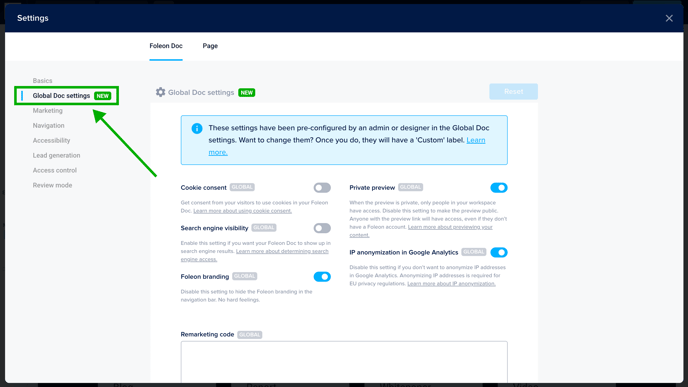
These are the settings you can pre-configure in your Global Doc Settings:
- Cookie consent — Every Foleon Doc has cookies, and according to GDPR regulations, you need to inform your readers about these cookies. You can do so using the cookie consent pop-up. Learn more.
- Private preview — You can preview your Foleon Doc to see what it looks like outside the content editor. There are two options for visibility: private and public. Learn more.
- Search engine visibility — Foleon Docs are optimized for search engines but are not crawled and indexed by default. This means your content won't be publicly available in search engines unless you want it to be. Learn more.
- IP anonymization in Google Analytics — By default, you anonymize IP addresses in Google Analytics to adhere to EU privacy regulations. Learn more.
- Remarketing code — Do you want to add tracking or remarketing codes to your Foleon Doc? Copy-paste the script that your tool provides here. Learn more.
- GTM code — Use Google Tag Manager (GTM) to gather your tags in a single container. Fill in the header code of your container here, and you’re all set (the footer code isn’t necessary). Learn more.
- Navigation — Disable this setting to hide the Foleon branding in the navigation bar. No hard feelings.
💡 Global Doc settings are set in the Admin Console and automatically apply to all Docs created across all workspaces.
What happens to the Doc settings?
The Doc settings in your Foleon Doc depend on how it was created:
- New Docs: When you create a new Foleon Doc, whether from scratch or from a template, it automatically starts with the Global Doc settings.
- Duplicated Docs: When you duplicate a Foleon Doc, the duplicate retains the settings of the original Doc. It does not adopt the Global Doc settings.
Click Menu > Doc settings in the editor to navigate to your Doc settings.

Once you're in the Doc settings, click the Global Doc settings tab. Here, you'll find the settings you pre-configured in the Admin Console.
If the settings aren't locked, you can adjust them manually if needed.
Settings that match the configuration in the Global Doc settings will display a 'Global' label.
⚠️ If you update a Global Doc setting, it instantly updates in the Doc settings of all relevant Docs. To apply the change to a published Doc, you must (re)publish it.
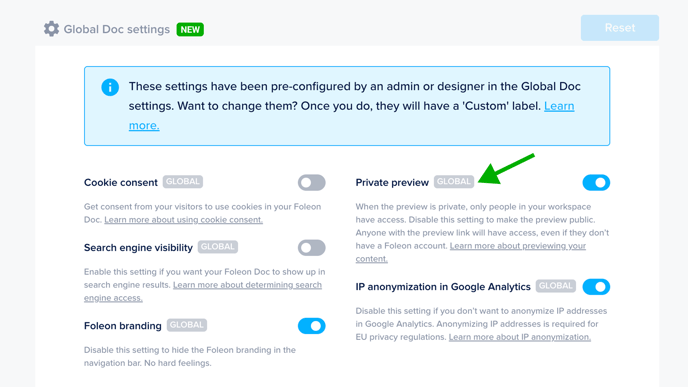
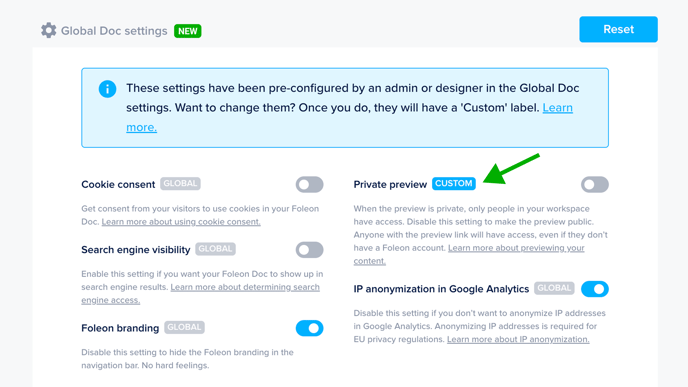
If you make a manual change to one of the Doc settings and it deviates from the Global Doc settings, you'll see a 'Custom' label. This means the setting no longer matches the Global Doc settings.
Read on to learn how you can revert to the Global Doc settings.
👇 Let's look at an example
The timeline below shows how a customer has used the Global Doc settings:
- 15 May: Tom updates the Global Doc settings from the Admin Console.
- 20 May: Lisa creates a new Doc from a template (she does not duplicate). The new Doc automatically has the Global Doc settings that Tom set.
- 21 May: Lisa publishes her newsletter.
- 22 May: Tom updates the GTM code in the Global Doc settings. This change is automatically reflected in the Doc settings of Lisa’s Newsletter, but it will not be implemented into the live Doc unless she republishes.
- 23 May: Lisa republishes her Doc — now with the new GTM code implemented.
Reset to Global Doc Settings
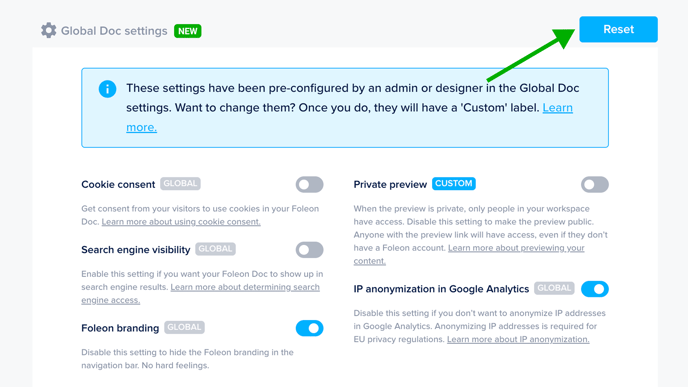
If you’ve customized Doc settings but want to revert to the Global Doc settings, click the reset button. This will restore all settings to their original values as defined in the Global Doc settings.
After resetting, you'll see the 'Global' label again for all settings.
⚠️ Resetting will revert all settings back to the Global Doc defaults.
💡 Global Doc settings were released on May 13, 2024. If you created content before that date and want to apply your Global Doc settings, you need to click the reset button.
Locked Settings
Admins with access to the Admin Console can lock specific Global Doc settings to prevent changes at the individual Doc level, ensuring centralized governance.
⚠️ The locked settings option is not available on all plans. If you're interested in adding this feature to your plan, contact us here.
In the dashboard, navigate to Admin Console > Global Doc settings.
Click the lock icon 🔒 for the setting you'd like to lock. This means users cannot change this setting in the individual Doc settings.
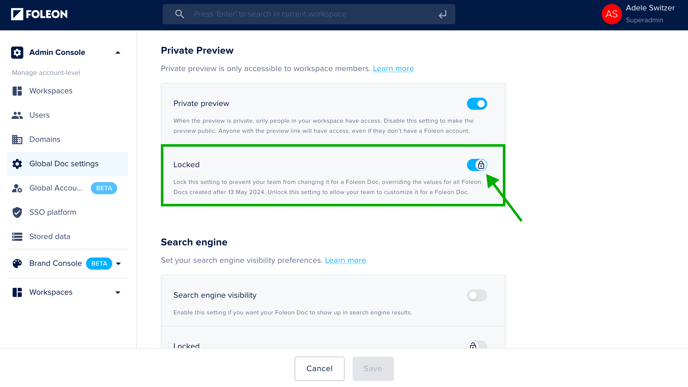
👇 Let's look at an example
Say you added a script to the remarketing code field of the Global Doc settings. This change will automatically be reflected in the Doc settings of new Docs.
Once you lock this setting, other team members can no longer change the script in the Doc settings on individual Docs.
⚠️ If you added a script in the Doc settings for a specific Foleon Doc, locking this setting overrides the value. This means it's lost and replaced by the value of the Global Doc settings.
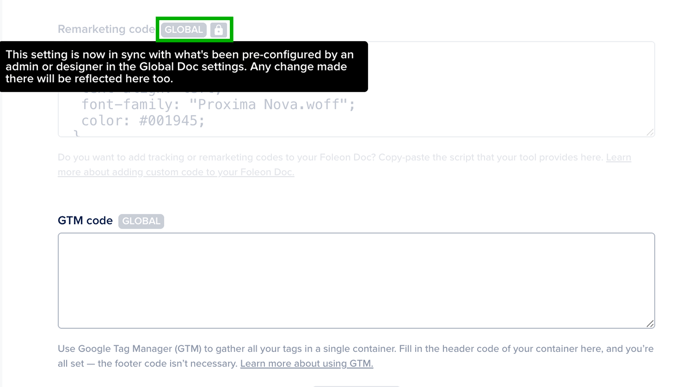
When you lock a setting from the Global Doc settings, you'll see in the Doc settings that the label of this setting instantly becomes 'Global' and locked.
⚠️ To apply a locked setting to content that was published before the setting was changed, you still need to (re)publish.
Related articles