![foleon_logo_white.png]](https://www.foleon.com/hs-fs/hubfs/foleon_logo_white.png?height=40&name=foleon_logo_white.png)
Explore the benefits of multiple workspaces with a free 60-day Trial Workspace. Whether you're testing new team structures, trying out new ideas, or exploring additional use cases, this trial helps you discover what setup works best for your team.
⚠️ The Trial Workspace is available for Scale, Team, and Enterprise accounts that have reached their workspace limit. If you want to try out a new setup, contact us here.
In this article
What you can do with a Trial Workspace
Workspaces keep your content and your teams organized. Instead of sharing one workspace with multiple departments, each team gets its own dedicated environment. It's a cleaner, more scalable way to collaborate.
With multiple workspaces:
- Teams like Sales, HR, Marketing, and Comms can work independently
- Everyone creates within the same brand guidelines, powered by the Brand Console
- Admins maintain control over access and visibility through the Admin Console
✨ Example: Trial Foleon with your Sales Team
Thinking of giving your Sales team their own workspace? A Trial Workspace is the perfect way to explore this setup before a full rollout.
In your 60-day trial, Sales can:
-
Test-drive templates for sales decks, proposals, and one-pagers.
-
Create localized campaigns for different regions or industries.
-
Collaborate independently without affecting Marketing or Comms content.
-
Work within brand guidelines using your existing Brand Kit.
💡 Need more inspiration? Explore more content examples in our Content Compass.
What to expect from your Trial
Here’s what you can do during your 60-day Workspace Trial:
-
The trial runs for 60 days and ends automatically.
-
You can duplicate Docs from your other workspaces into your trial workspace.
-
You can create new Docs in this workspace.
-
You can experiment with new templates, modules, and Brand Kits.
-
You can set up and manage trial users in the Admin Console.
-
Published Docs will be taken offline after the trial ends and trial users will be removed.
For more information, read the Frequently Asked Questions.
💬 Want to keep your Trial Workspace?
If you'd like to continue using it after the 60-day trial, contact your Customer Success Manager to explore your options.
How to start a Trial Workspace
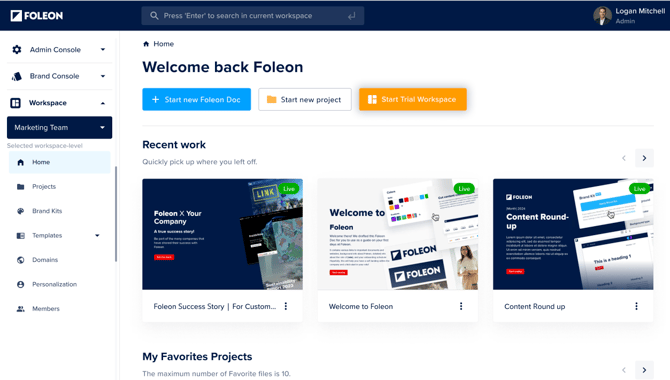
Once you reach your workspace limit, you’ll see the option to start a trial.
On your Home page or Workspaces page in the Admin Console, click the button Start Trial Workspace. Review and accept the terms to activate your 60-day trial.
💡 Trial Workspaces are named Trial Workspace by default. If you decide to keep the workspace, you can rename it after your trial ends.
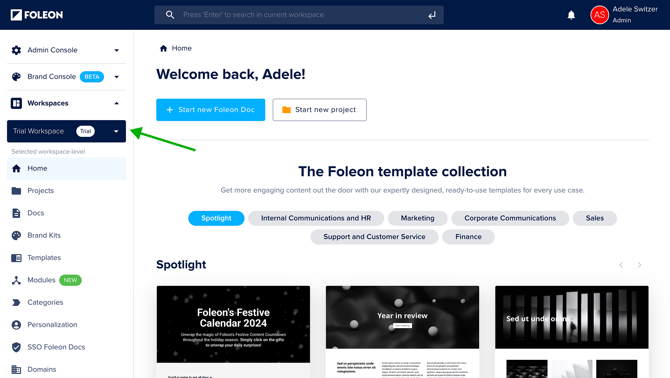
To access your Trial Workspace: Click the dropdown on the left panel. Your Trial Workspace will be marked with the label 'Trial'.
From here, you can start creating a new Project, Doc, Template, or Brand Kit.
💡 For our checklist on starting with your Trial Workspace, continue reading here.
Before the trial ends, you can view the remaining days until expiry on the Admin Console > Workspaces page.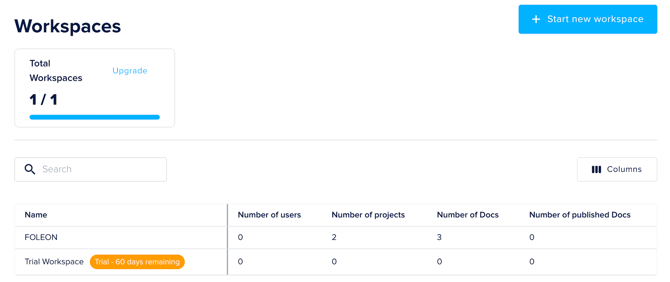
Add users to your Trial Workspace
Once your trial is active, you can invite trial users to explore and contribute, without using up paid seats. This is ideal for adding teammates (like your Sales Reps!) to collaborate with.
To invite trial users:
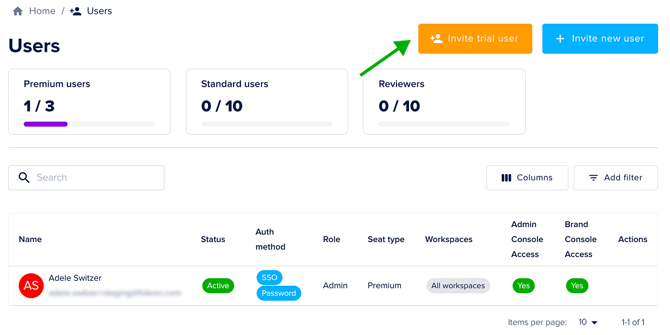
- In the Admin Console, go to the Users page.
- Click Invite trial user.
- Enter the user's name, email, and role.
- Click Save to send the invitation.
💡 Trial users can log in, create, and collaborate within the Trial Workspace just like any other user. For more information on managing users: Set up users and roles
Things to know about trial users:
- ✅ No seat limits: You can add as many trial users as you need, across any role. Trial users do not count toward your regular seat limits.
- ⏳ Trial users are temporary: When the trial ends, these users will be removed along with the Trial Workspace. You can manually re-add them to another workspace later, if needed.
- 🚫 Trial users can’t join other workspaces: They can only be part of the Trial Workspace during the trial.
- 🏢 Users with access to all workspaces can use the trial: Anyone with access to all workspaces automatically has access to all workspaces, including the Trial.
- 🔄 Existing workspace users can’t join the Trial Workspace: Existing users who don't have access to all workspaces cannot be added to the trial.
💡 Inviting trial users is a great way to test new workflows, gather feedback, or involve teams before committing to a full rollout.
Checklist: Getting Started with your Trial Workspace
You can make the most of your 60-day trial by following this getting-started checklist. These steps will help you explore your setup, test new content, and ensure everything stays on brand.
✅ Align with your Team
Start by aligning with your team on how you want to use the Trial Workspace. Are you looking to test a new setup for Sales? Let them explore templates for proposals and one-pagers in their own space. Or maybe HR wants to try out onboarding materials in a dedicated environment. Agree on your use case together — this will help you make the most of your trial period.
📖 Need more inspiration? Explore more content examples in our Content Compass.
✅ Add Trial Users to your Workspace
Invite trial users to your account via the Admin Console. This helps you test how permissions and access control work across teams. Any users with access to all workspaces will also have access to the Trial Workspace.
📖 Read more about adding trial users and managing users
✅ Assign your Brand Kit
Use the Brand Console to assign your Brand Kit to your new workspace. This will help ensure your new content is on brand and uses the right colors, fonts, and logos that align with your visual identity.
📖 Read more about assigning assets to workspaces via the Brand Console
✅ Create Templates and Modules
Create new templates or modules in your Trial Workspace. This makes it easy and fast to create new content while staying consistent. You can also assign templates and modules to the Trial Workspace via the Brand Console.
📖 Read more about Templates, Modules, and the Brand Console
✅ Create your first Doc
Start from scratch, use a template, or duplicate a Doc from another workspace. Experiment with different content types to see what works best.
📖 Read more about creating a Foleon Doc
✅ Preview and publish
Publish one or more Docs in your Trial Workspace. This helps you check how everything looks live and lets you validate your review and publishing process.
📖 Read more about previewing and publishing your Doc
Frequently Asked Questions (FAQs)
- What is a Trial Workspace?
A Trial Workspace is a temporary environment that lets you explore how multiple workspaces support your organization’s setup, collaboration, and brand governance. It mirrors the full functionality of a workspace, but is free for 60 days. - Who can start a Trial Workspace?
Trial Workspaces are available to Scale, Team, and Enterprise plans once your account has reached its workspace limit. If eligible, you'll see the option in your Admin Console. - How long does the trial last?
The trial runs for 60 days and ends automatically. You can see how many days remain under Workspaces in your Admin Console.
- Can I add users to my Trial Workspace?
Yes! Use the Invite trial user button on the Users page in the Admin Console to add a new user to your Trial Workspace. A few things to note:- Trial users can't be added to other workspaces
- Users with access to all workspaces have access to the Trial Workspace
- Existing workspace users can't be added to the Trial Workspace
- Is there a limit to how many users or roles I can add?
No. You can add as many Trial users as needed, in any role (Premium, Standard, Reviewer). Trial users don’t count toward your normal seat limits.
- Can I create and publish content in my Trial Workspace?
Absolutely! You can create new Docs or duplicate existing ones, use templates and brand kits, and publish content just like in a regular workspace. It’s a fully functional environment for testing out a new setup. - What happens when the trial ends?
When the trial expires, the workspace is deactivated, and published Docs go offline. Any users added exclusively to the Trial Workspace are deleted, but the workspace data remains stored. Foleon can reactivate the workspace and republish Docs if you decide to keep the workspace. - Can I keep my Trial Workspace after it ends?
Yes! If you want to continue using it, contact your Customer Success Manager. They can convert the Trial Workspace to a regular workspace and help ensure all Docs and users transition smoothly to your plan.