![foleon_logo_white.png]](https://www.foleon.com/hs-fs/hubfs/foleon_logo_white.png?height=40&name=foleon_logo_white.png)
In this article:
What is Asset Management?
Asset Management is the section of your dashboard where you organize, tag, and find your assets. You'll find it under both your Workspace menu and the Brand Console.
As teams and regions grow, a folder-only approach gets messy fast. Files get duplicated, tagged inconsistently, or buried across scattered folders, making it hard to tell what's current, approved, or ready to use.
Asset Management solves this by structuring your library around tags instead of relying on folders alone. It's made up of two parts: the Asset Library and Collections.
📹 For an introduction to Asset Management, watch the video below:
Asset Library
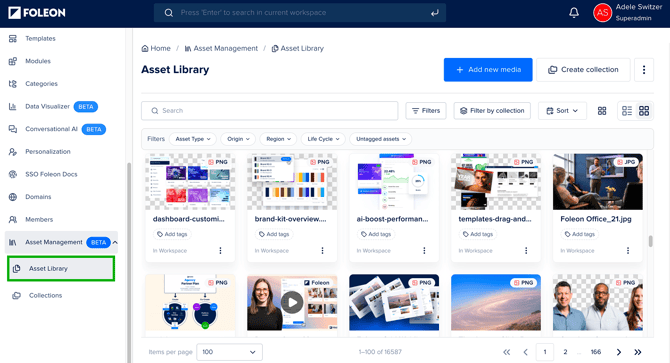
The Asset Library holds all the assets in your workspace or Brand Console. That includes images, videos, and documents, but also your live Docs, templates, modules, and charts.
Use tags to filter across all of it. You can also filter by Collection or sort your results.
📖 Learn how to create and manage tags in Manage your Assets with Tags.
📖 For more information: Working in the Asset Library
⚠️ Prefer to work entirely from tags instead of folders? Reach out to your Customer Success Manager to turn off the Media Library for your account. All your assets will still be available. You'll just access them through the Asset Library instead of the Media Library.
If your account was created after August 2026, the Media Library has already been turned off for you. Start by tagging your assets in the Asset Library.
Collections
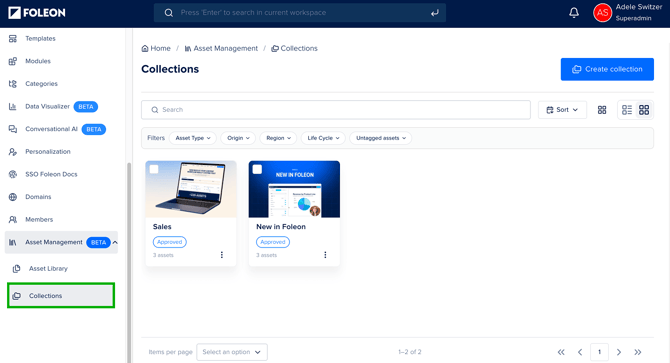
A Collection is a curated, reusable set of assets built from your tags. Adding an asset to a Collection doesn't move or duplicate the file.
Think of it like a playlist. The same song can appear on hundreds of playlists without hundreds of copies of that file. Your assets work the same way: one image can live in as many Collections as you need.
If you crop, replace, or otherwise edit an asset, that change carries across every Collection and every Doc it's used in.
Collections work well for campaigns, product launches, newsletters, and specific projects. They're also useful for sales enablement, or any time a team needs quick access to a set of related assets.
📖 For more information: Curate your Assets with Collections