![foleon_logo_white.png]](https://www.foleon.com/hs-fs/hubfs/foleon_logo_white.png?height=40&name=foleon_logo_white.png)
In this article:
Supported asset types
The Asset Library is more than a place to store your media. It's where you organize all your assets in Foleon, all in one place.
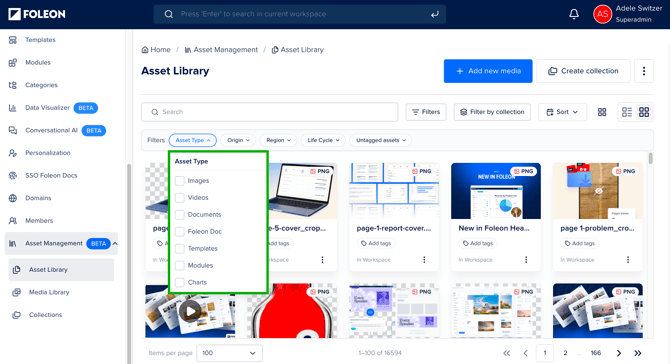
The following assets are included in your Asset Library:
- Images: PNG, JPEG, WebP, SVG, GIF, and Lottie files
- Videos: added via URL (YouTube, Vimeo, Wistia, Brightcove) or a direct .mp4 link, or uploaded as a Foleon-hosted video
- Documents: PDF, Word, Excel, and PowerPoint files
- Foleon Docs: your live Docs
- Templates: your live templates
- Modules: your live modules
- Charts: your live charts
Navigating the Asset Library
Use the search bar, filters, and sort options to find exactly what you need in the Asset Library.
Search
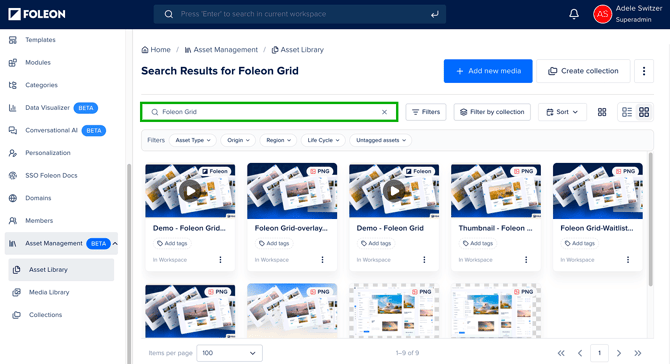
Enter a term in the search bar and press Enter. The Asset Library shows every asset related to your search term, across all asset types.
Filters
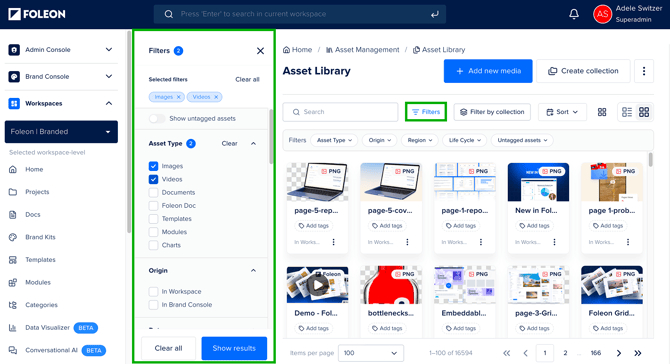
Click Filters to open the filter panel on the left.
From here, you can filter by:
- Untagged Assets: Turn the toggle on to only show untagged assets. This will help you see which assets still need to be organized.
- Asset Type: Filter on the different types of supported assets, such as images, videos, Documents, etc.
- Origin: Workspace or Brand Console - use these filters to show which files have been created in your workspaces or shared from the Brand Console.
- Date: Use the options here to filter on file creation date. Choose from: Today, Last 7 days, Last 30 days, This year, or a custom range
- Tag Groups: The remainder of the filtering options are based on the tag groups and tags you've set up in your Tag Management.
After selecting the relevant filters, click Show results to apply your filters.
📖 To learn how to set up and manage tags, see Manage your Assets with Tags.
Quick filters
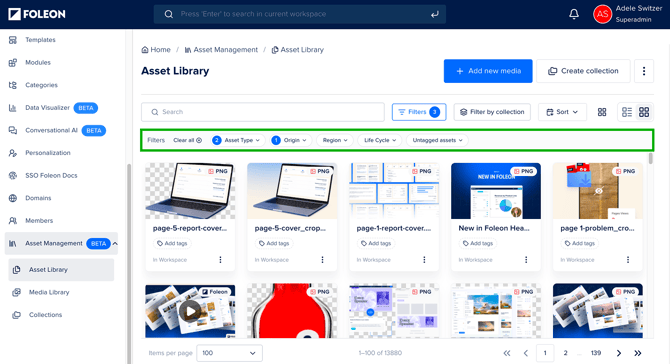
Below the search bar, use the quick filters to filter by the most common tags without opening the full filter panel. This allows you to quickly filter by things like Asset Type and your current active filters without opening the full filter panel.
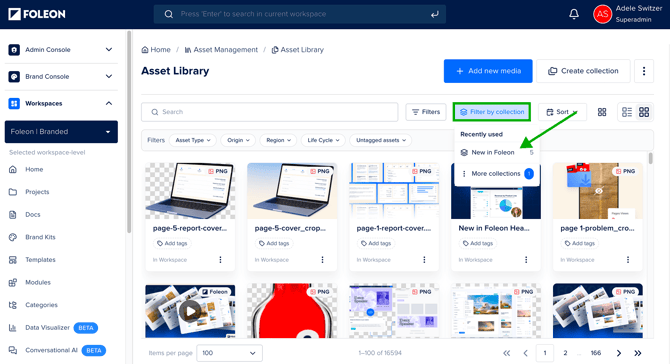
Filter by Collection
A Collection is a curated group of assets built from the tags you specify. Filtering by Collection lets you quickly narrow the Asset Library down to only the assets relevant to what you're working on.
A Collection can be built from multiple tags at once. For example, a Collection built from the tags Images, Live, Approved, and Customers applies all four of those tag filters together as soon as you select it, so you don't have to reselect them one by one.
To filter by a Collection:
- Click Filter by collection, next to the Filters button.
- If you have any recently used Collections, they will appear immediately, and you can click on them directly. If not, click More collections to open the Collections panel on the left.
- Select the Collection you want to view.
Click + Create collection in the top right of the Asset Library to build a new one.
📖 For more information: Curate your Assets with Collections
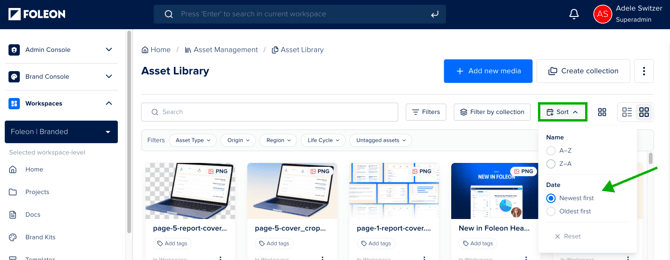
Sort and view options
Sort the Asset Library alphabetically (A-Z or Z-A) or by date (newest first or oldest first).
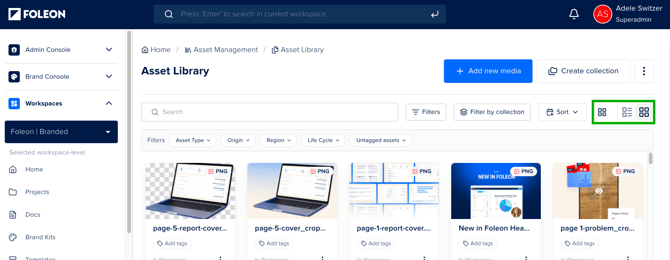
Switch between Grid view and List view. In Grid view, click the grid icon to set how many tiles you see per row.
Adding new media
Click + Add new media in the top right of the Asset Library to upload new images, videos, or documents.
📖 For supported file types, size limits, and upload steps, see Upload and manage your assets.
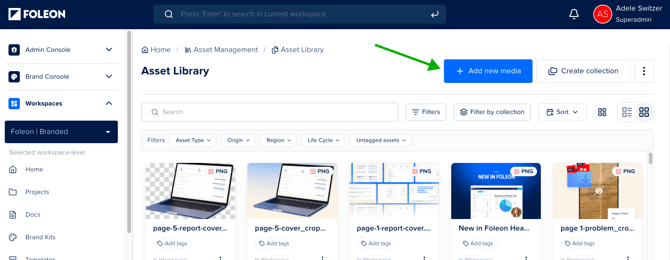
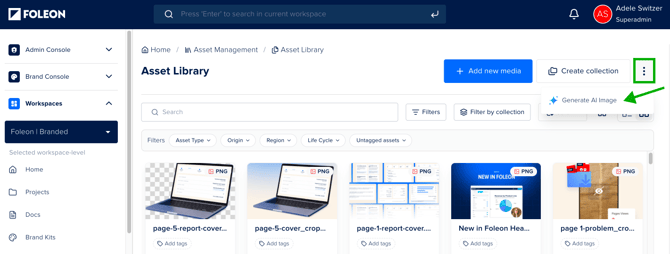
To generate an image with AI, click the three dots (⋮) and select Generate AI image.
📖 For more information on AI image generation, see Create visuals with the AI Image Generator.