![foleon_logo_white.png]](https://www.foleon.com/hs-fs/hubfs/foleon_logo_white.png?height=40&name=foleon_logo_white.png)
💡When you're working with the Content Builder, it's not possible to add the URL embed element to your page, as you can only build your page with block templates.
What can you embed?
You can embed a page that lives on its own URL. This means that you need a source URL for the embed element in Foleon to work properly.
⚠️ Not all external pages can be embedded; this depends on the settings of the source website.
Many popular external pages allow you to Share or Embed a page. Often you'll have to extract a source URL from a longer embed code. Let's use Instagram as an example.
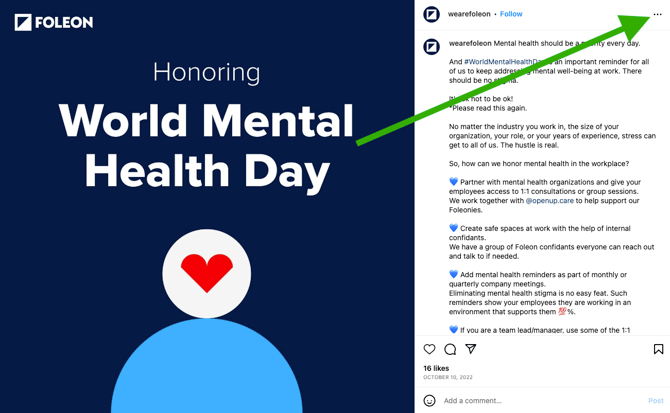
After clicking the three dots, click embed in the pop-up menu.
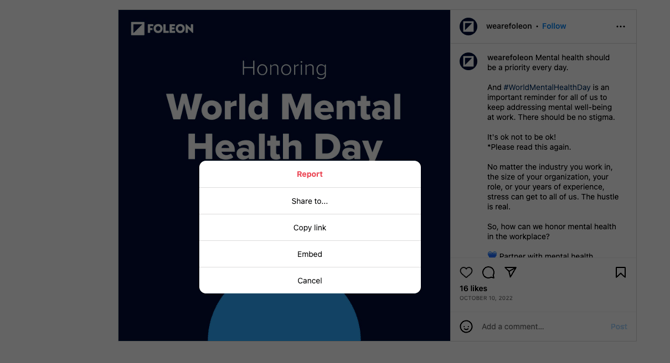
When you get the embed code from Instagram, the complete code will look something like this:
| <blockquote class="instagram-media" data-instgrm-captioned data-instgrm-permalink="https://www.instagram.com/p/CjiSfs0MlYl/?utm_source=ig_embed&utm_campaign=loading" data-instgrm-version="14" style=" background:#FFF; border:0; border-radius:3px; box-shadow:0 0 1px 0 rgba(0,0,0,0.5),0 1px 10px 0 rgba(0,0,0,0.15); margin: 1px; max-width:540px; min-width:326px; padding:0; width:99.375%; width:-webkit-calc(100% - 2px); width:calc(100% - 2px);"><div style="padding:16px;"> <a href="https://www.instagram.com/p/CjiSfs0MlYl/?... |
From this code, you'll need to extract the source URL. In this case, the source URL is this:
https://www.instagram.com/p/CjiSfs0MlYl
With some external pages, this URL is all you need to make the embed element function properly in Foleon. However, some external pages require some additional information in the URL to work. For Instagram, as an example, you need to add "/embed" to the end of this URL:
https://www.instagram.com/p/CjiSfs0MlYl/embedIf you have the correct URL, you're ready to paste it into the embed element. Read on in the next section to learn how to add an embed element.
How to add the Embed element
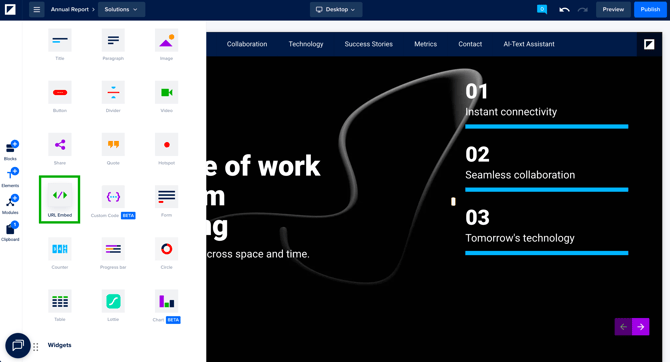
Drag the URL embed element into a column on your page.
💡When you're working with the Content Builder, it's not possible to add the embed element to your page, as you can only build your page with block templates.
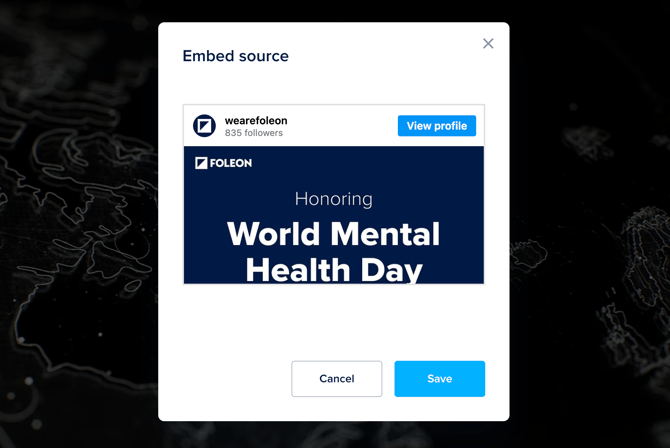
A pop-up will appear, where you can insert the source URL. Make sure to check that it's correct and that it contains "https://".
⚠️ If you encounter issues, keep in mind that not all websites can be embedded in an iFrame.
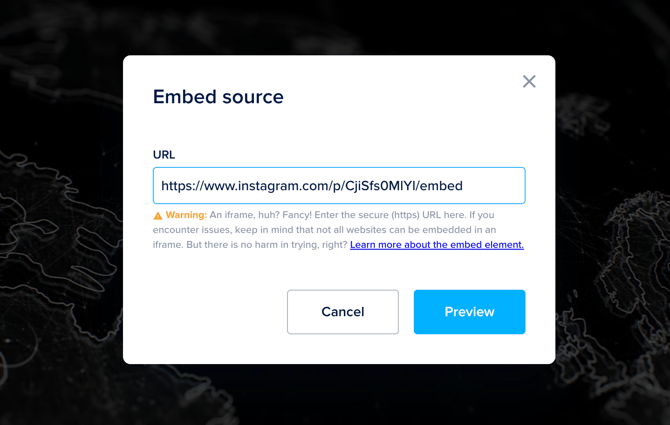
If the URL is correct, the preview button will appear. Click preview to see what your embed will look like.
If it works, click save to add the embed element to the page.
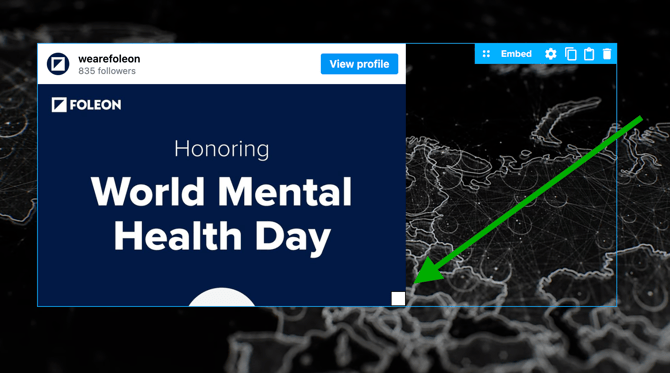
The content will be visible immediately. The size of the embed element can be adjusted by dragging the white square on the right bottom corner of the element. The size also depends on the settings of the block, column, and spacing.
💡 You can style your embed in the element settings.
Note that an inline frame (iframe) is a HTML element that loads another HTML page within the document. It essentially puts another webpage within the parent page. They are commonly used for advertisements, embedded videos, web analytics and interactive content.
Content Isolation
iframes also provide security. To provide protection to both the loading page (the one holding the iframe) and the loaded page (the one displayed inside the iframe), browsers implement a wall of protection between the two pages when they come from different sites. This wall prevents a frame from a different site from manipulating it's parent page, or vice versa.
Element settings
In the element settings of your embed element, you can style your embed the way you want to. Hover over the button and click on the cogwheel icon. A pop-up with the element settings will appear. We will go over each of the element settings below.
-
General settings
In the General settings, you have several options:
-
Source - Here, you can edit the source URL to change what the embed element is showing.
-
Scrolling - Here, you can control the scrolling behavior. By default, the embed element will be on Auto. This means that it will adapt to the content that is being embedded. You can also choose to display a scroll bar with scroll or hide it with hidden.
-
Dynamic height - With dynamic height, you can make your iFrame responsive. Dynamic height will enable the embedded content to grow or minimize information when a resize message is triggered.
If using self-hosted content, you'll need to adjust the code for the embed. If you're using another platform, like Infogram, it should already be coded correctly. In the code field below, we've created a script for self-hosted content that helps you set the correct height for your embed.
Change the script so it knows which element it needs to calculate the height for, as well as which height to set.
-
⚠️ The suggested script below will only work if you change the correct parameters. Make sure you know your code inside out before implementing it.
<script>
    const container = document.querySelector('.content'); <<< The height of which element you need to track.

    let lastHeight = 0;
    let lastWidth = 0;

    function checkHeightChange() {
        newHeight = container.offsetHeight;
        newWidth = container.clientWidth;

        if (lastHeight != newHeight ||
            lastWidth != newWidth) {

            // Assign the new dimensions
            lastHeight = newHeight;
            lastWidth = newWidth;

            window.parent.postMessage(
                JSON.stringify({
                  src: location.toString(),
                  context: "iframe.resize",
                  height: newHeight, // Dynamic height that will be set.
                }),
                "*"
            );
        }
    }
    let resizeObserver = new ResizeObserver(() => {
        checkHeightChange();
    });
    resizeObserver.observe(container);
</script>
-
-
Size - Here, you can manually control the size (in pixels) of the embedded container.

-
-
Border
The border option allows you to create a full border or a border on specific sides of your element. All sides at once is selected by default, which means that when you increase the Border thickness, the same amount of border will appear on all sides at the same time.When All sides at once is deselected, the option to increase the amount of the border for each side will appear. It is also possible to add more than one border. Every border will have the same color that is selected at the Border color picker.

-
Spacing
Spacing can be increased to create more space between the border of the element and the content within the element.

-
Alignment
With this option, you can change the alignment of the content within the element itself. The content can be aligned Left, Center, or Right.

Fix scrolling issues on phones
If visitors can’t scroll past your Embed on mobile view, the embedded content is probably taller than the Embed. The content then scrolls inside the Embed, and visitors won't be able to scroll further on the page.
To fix this, you'll need to adjust the height of the Embed. How you adjust the height depends on what best fits your content and how you want the page to look.
To open the height settings:
- Hover over the Embed and click the cogwheel icon ⚙️.
- Click General settings.
- Switch to the Mobile view mode.
Then adjust the height using one of these options:
- Turn on Dynamic height. The Embed will dynamically adjust to match its content, so nothing scrolls inside it and visitors scroll the page as normal. This only works if the embedded page reports its height to Foleon. If not, you'll need to manually adjust the height with one of the options below.
- Set a height taller than the content. Under Size, enter a Height that fits or is larger than the content at its longest. This ensures that the content fits completely inside the Embed, so there’s no scrolling inside it and visitors scroll the page as normal. The Embed shows some empty space below the content.
- Set a height shorter than the screen. Under Size, enter a Height that is shorter than a phone screen and shorter than your content. The content still scrolls inside the Embed, but there’s always part of the page visible above or below it. Visitors can scroll inside the Embed to read the content, or swipe on the page around it to move past.
After you make a change, republish your Foleon Doc and check the page on a phone.
💡 Dynamic height applies to all view modes, but the Height you set only applies to the view mode you set it in. After you make a change in Mobile view mode, switch back to Desktop view mode and check that the Embed still looks right.
Popular embeds
There's a wide variety of external pages that you can insert into your page with the embed element. Below you can see a list of a few popular embeds in Foleon: