![foleon_logo_white.png]](https://www.foleon.com/hs-fs/hubfs/foleon_logo_white.png?height=40&name=foleon_logo_white.png)
💡 Want to learn more about embeds? Check out our article All about the URL Embed element.
First, you have to make sure that the PDF document you'd like to embed has been uploaded to the Media Library. If you're not sure how to do that, you can read our article How to upload and link to a PDF.
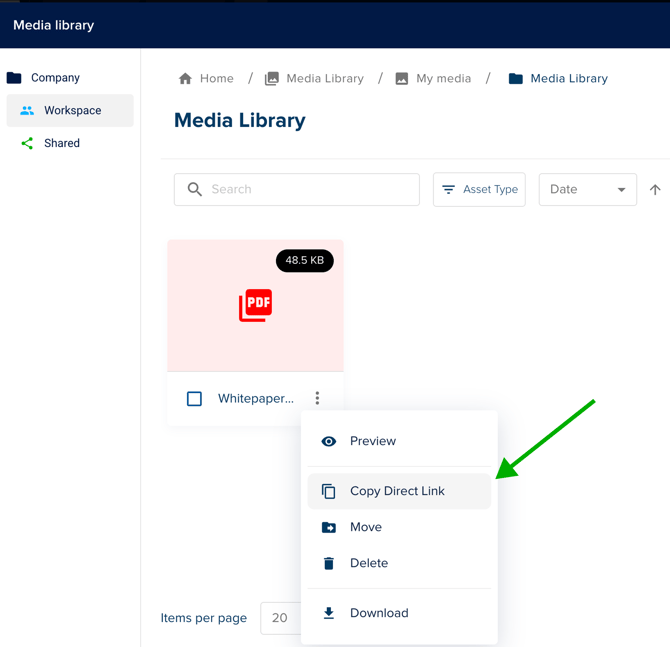
In the media library, select the PDF you want to embed and click the Quick Actions menu, click the three dots (⋮) in the bottom right corner of the PDF thumbnail. In this panel, click on the Copy Direct Link.
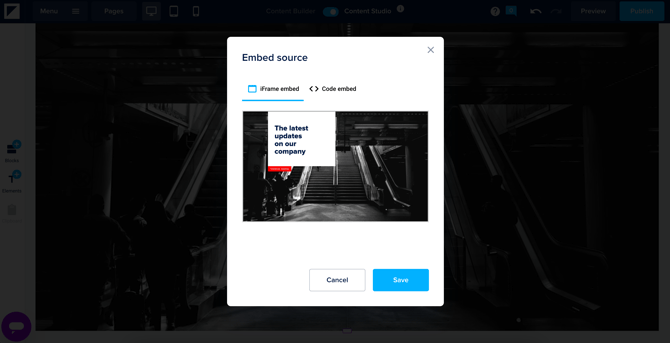
Go back to your Foleon Doc. Add a URL embed element to your column and paste this URL in the URL field. If the URL is correct, a preview of the PDF document will be visible. Click on Save to add it to your page.
💡 An embedded PDF document will not show on mobile devices. The PDF viewer that Foleon uses, Amazon Web Services (AWS), does not allow a direct embed in an iFrame on mobile. The content would be too wide for a nice user experience on mobile, which is why Amazon does not allow an embed on smaller screens.