
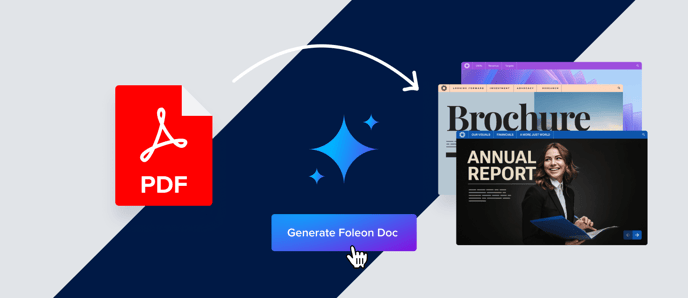
Turn static PDFs into engaging, editable Foleon Docs in just a few clicks. With our AI-powered PDF converter, you can breathe new life into legacy content by transforming old files into responsive, interactive, and brand-ready experiences.
⚠️ This feature is currently in a closed beta and not available for all accounts. If you're interested in accessing the AI-powered PDF to Foleon Doc converter, contact us here.
In this article
Why use the PDF to Foleon Doc converter?
Migrating legacy content into a modern format can be time-consuming, especially when dealing with a large library of static PDFs. The PDF to Foleon Doc converter simplifies this process by using AI to automatically rebuild your files into fully editable, responsive, and interactive Foleon Docs.
Here's why it's so valuable:
- Eliminate manual work: Upload your PDF and let the converter create your layout.
- Get editable output: Every converted page becomes fully editable content in Foleon, ready for personalization, analytics, and styling.
- Support your brand at scale: Converted Docs can be styled with your Brand Kit and enhanced with interactive elements and global content modules.
How to convert a PDF into a Foleon Doc
💡 For the best results, your account should be set up optimally for AI. Our team will help guide you through this process before you begin testing.
Step 1: Enable AI availability
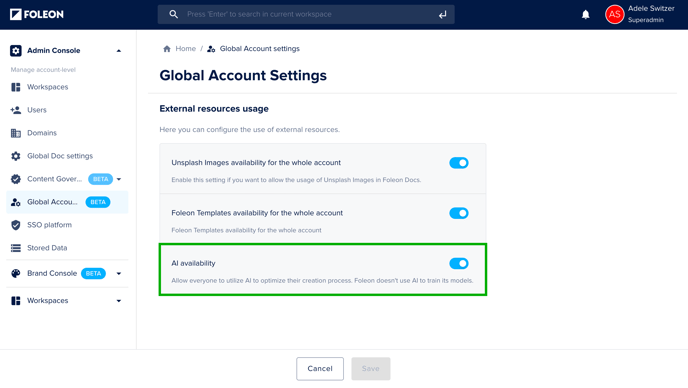
To use the converter, AI availability must be enabled for your account.
⚠️ Access to AI features is turned off by default. Only Admins can enable this option in the Admin Console.
-
Go to the Admin Console in the dashboard
-
Navigate to Global Account Settings
-
Toggle on the setting for AI availability
Step 2: Start a new Foleon Doc from a PDF
-
From your dashboard, click + Start new Foleon Doc
-
Fill out the General information and select a Project for your Doc
-
Under Template, choose PDF to Foleon Doc
-
Click Start new Foleon Doc
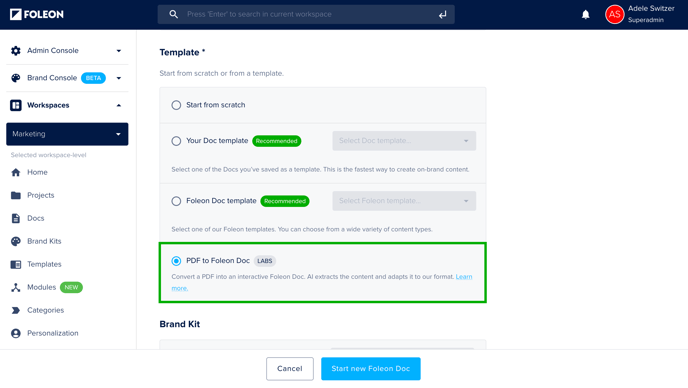
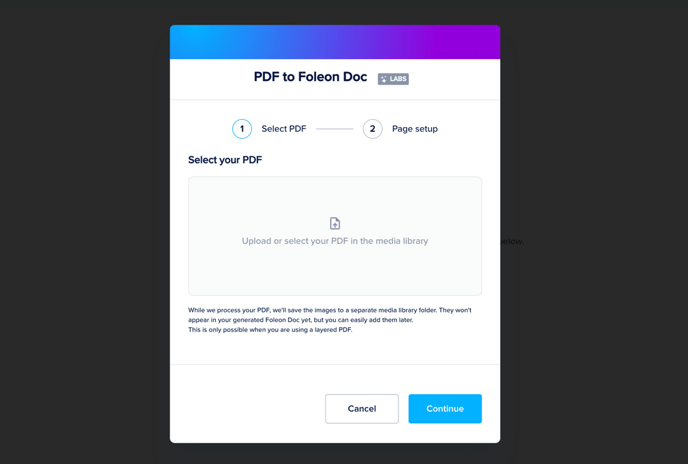
This will open the editor, where you can upload a PDF or select one from your media library. Once you've selected your PDF, click Continue.
💡 Use a layered PDF if you want images extracted automatically and added to your media library.
⚠️ Keep your browser open while the conversion runs. Depending on the file size, it may take several minutes.
Step 3: Upload and map your PDF pages
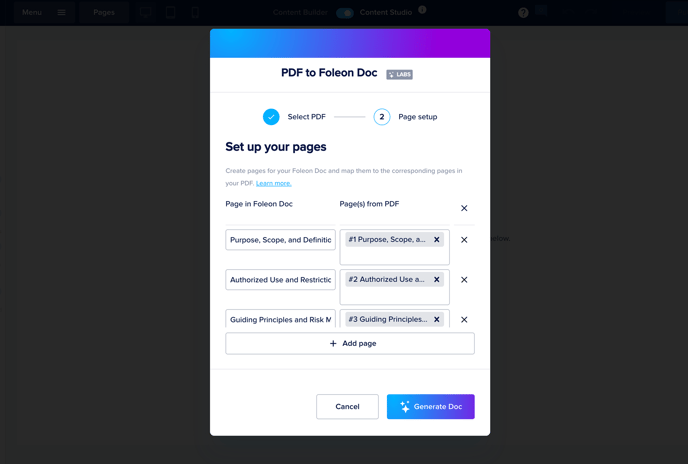
The converter automatically detects and maps each PDF page into individual Foleon blocks.
You can:
-
Add or remove Foleon pages
-
Reorder content
-
Adjust mapped sections as needed
Step 4: Review and finalize your Doc
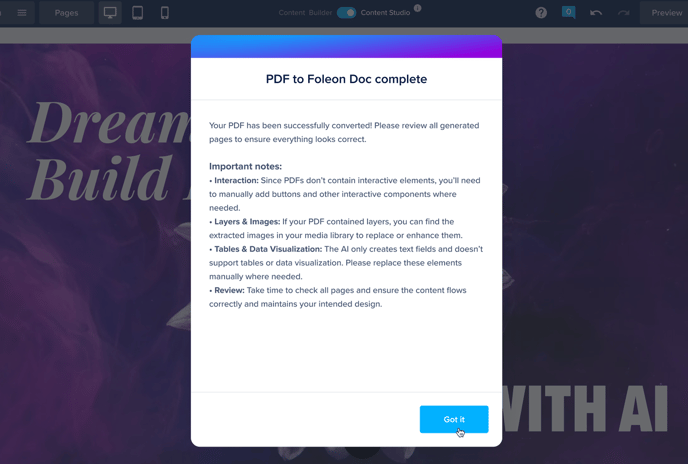
After your PDF has been converted, take time to review and refine the output. Here's what to check:
-
Interactive elements: Since PDFs don't contain interactive elements, you'll need to add buttons and other interactive components where needed manually.
-
Images and layers: If your PDF included layers, extracted images will be saved in your media library for reuse.
-
Tables and charts: The converter only creates text fields and doesn't support tables or data visualization. You'll need to replace these elements manually.
-
Flow and layout: Review the content for accuracy, layout balance, and brand consistency.
Tips for best results
While the converter does the heavy lifting, we have some tips to help ensure your converted Doc is polished and on-brand from the start. Here are some tips to get the best outcome:
- Use layered PDFs for more accurate image extraction.
- Review the layout and structure after conversion to ensure alignment with your design standards.
- Add global content modules and apply your Brand Kit to ensure visual consistency.
- Plan ahead: batch-converting multiple PDFs in one go is an efficient way to modernize your content library.
Known limitations
As this feature is in beta, a few limitations apply:
-
Brand Kits are not applied automatically — you’ll need to add them after conversion.
-
Media from flat PDFs won’t be pulled into the media library.
-
Layouts may appear repetitive and may require manual refinement.
-
Interactive elements such as buttons, overlays, and charts must be added manually post-conversion.
We're continuously improving this feature based on feedback. If you experience any issues, please contact our support team!