![foleon_logo_white.png]](https://www.foleon.com/hs-fs/hubfs/foleon_logo_white.png?height=40&name=foleon_logo_white.png)
A picture is worth a thousand words. Images make your content vibrant, easier to consume, and more engaging. In this article, we share how you can use the image element to spruce up your content.
💡 Want to learn more about background images? Check out our article Working with background images.
How to add an image to your page
Images are a great way to make your content stand out. With the image element, you can add images to a column. This also allows you to insert animations in the GIF format.
📖 If you want to add animated visuals to your Doc without the file size limits of GIFs, check out Lottie animations for a lightweight, scalable alternative.
In the elements tab on the left-hand side of the editor, you can drag the image element into a column.
💡When you're working with the Content Builder, it's not possible to add an image to your page. They're included in block templates for you to replace with your branded images.
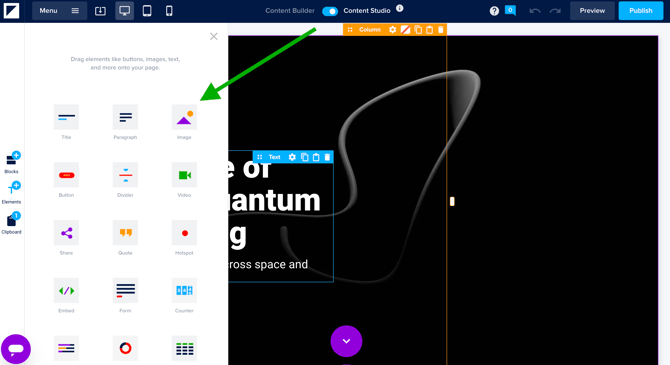
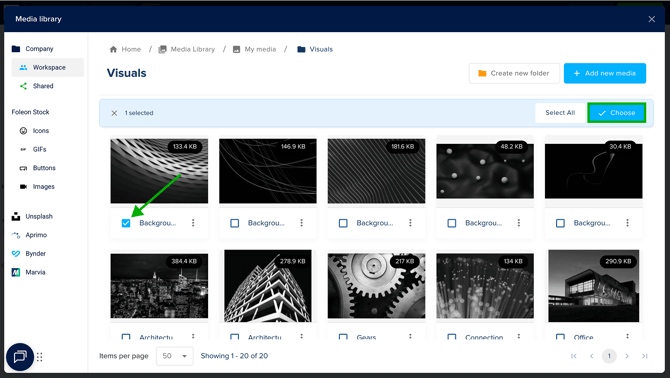
The media library pop-up will appear, where you can select the image you want to add to your column. After you've selected the right image, click on Choose to insert the image into your column.
💡 Do you need to crop your image? Learn how to use the crop tool.
You will then be directed back to your column, where you can find your image. The size of the image element can be adjusted by dragging the white square on the bottom right corner of the element. The size also depends on the settings of the block, column, and spacing.
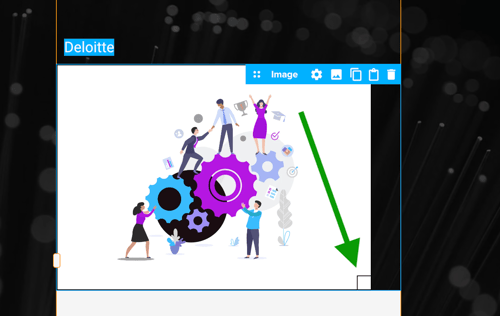
When adjusting the size of an image, a maximize icon appears when you hover over it. Clicking this icon will restore the image to its original size, fitting the column's layout.

How to add a new image to the media library
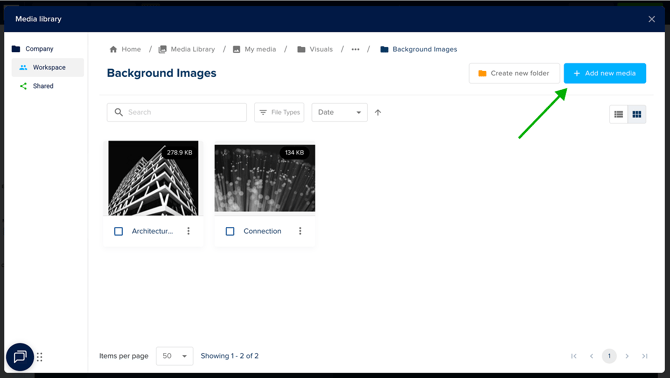
You can add images to the media library, which you can later use on your pages in an image element. Click on the button + Add new media in the top-right corner of your screen.
This will open a window where you can drag and drop your file or click Upload media to select it from your computer. You can add multiple files at one time.
Once ready, click Upload files to add them to your media library.
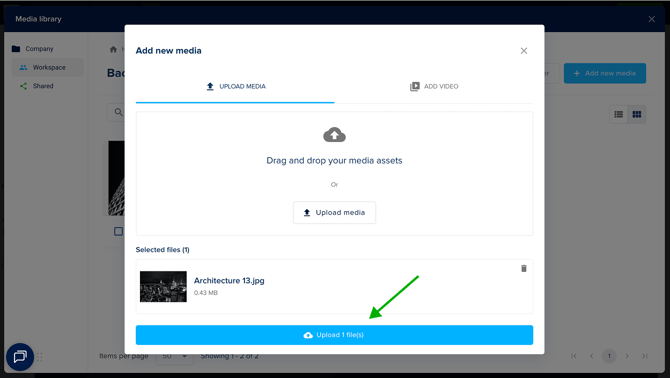
💡 You can also upload files by dragging and dropping them from your computer into the media library.
The media library supports a variety of image formats for uploading. Below you can find a list of supported file types for images:
- .jpg - Maximum file size 20MB.
- .png - Maximum file size 20MB.
- .webp - Maximum file size 2MB.
- .svg - Without additional formatting.
- .gif - Maximum file size 2MB.
When you’re editing your images with software such as Adobe Photoshop, make sure you save the image for the web.
📖 Want to learn more about how we compress your images? Learn more in our article All about the media library.
How to replace an image
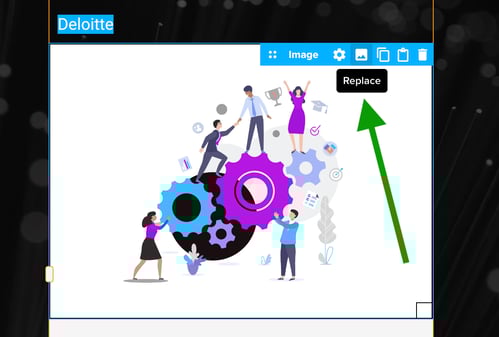
You can replace an image via the replace icon in the blue element bar. This will open up the media library, where you can select and choose a new image.
Element settings
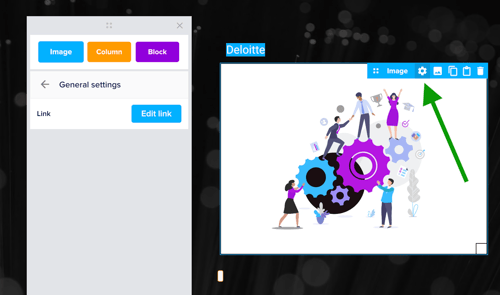
In the element settings of your image element, you can style your image the way you want to. Hover over the image and click on the cogwheel icon. A pop-up with the element settings will appear. We will go over each of the element settings below.
💡When you're working with the Content Builder, you'll have limited element settings. It's only possible to replace the image from a block template and add a link.
General settings
-
Link – In general settings, you can link an image to an external URL or another page. Click Edit Link to choose where it redirects when clicked.
-
Scale (%) – Resize an image precisely to your desired size, along with image masking.
-
Image Ratio – Choose from Landscape, Square, Original, or Circle. This reduces the need for pre-upload cropping. Use Image Focus to select which part of the image to display.
Border
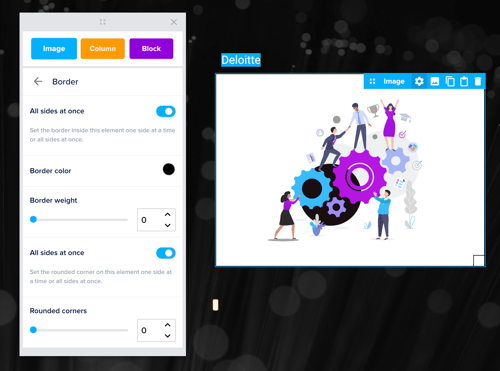
The border option allows you to create a full border or a border on specific sides of your element. all sides at once is selected by default, which means that when you increase the border thickness, the same amount of border will appear on all sides at the same time.
When all sides at once is deselected, the option to increase the amount of the border for each side will appear. It's also possible to add more than one border. Every border will have the same color that is selected at the border color picker.
Shadow
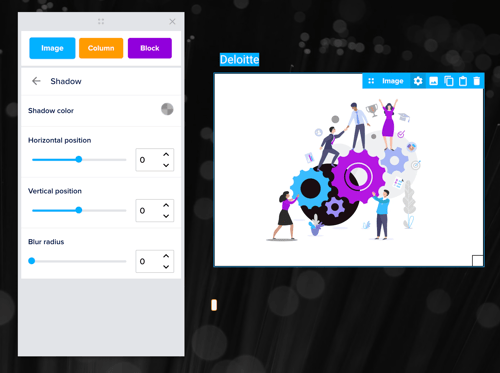
You can add a shadow to most of the elements. Choose the shadow color with the color picker. After selecting the color, you can choose the horizontal position and vertical position. The blur radius can be used to make the shadow less harsh and a bit more faded.
Spacing
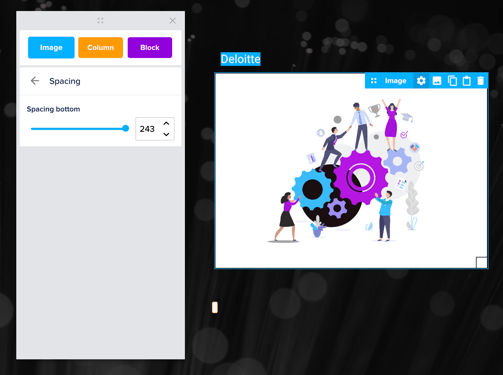
Spacing can be increased to create more space between the border of the element and the content within the element.
Alignment
With this option, you can change the alignment of the content within the element itself. The content can be aligned left, center, or right.

Visibility
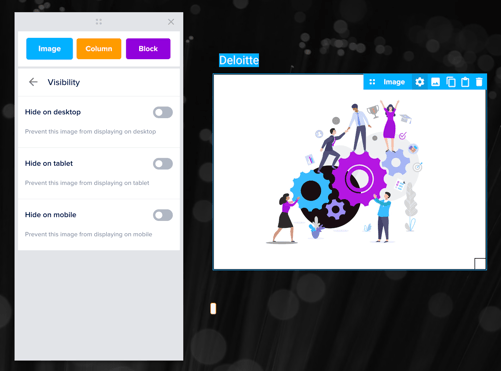
With this option, it's possible to choose in which view modes the image is visible. This allows you to show certain elements on desktop but hide them on mobile, or the other way around.
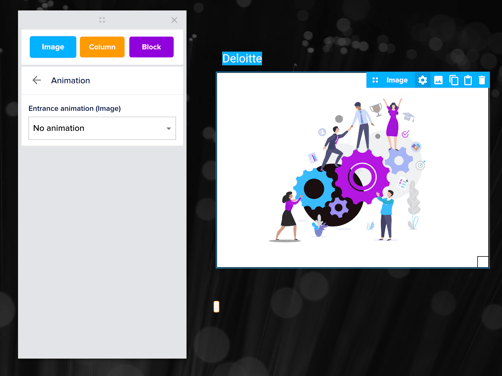
Animation
The entrance animation of the element can be selected in the drop-down menu. This animation will show once when the page is opened.