![foleon_logo_white.png]](https://www.foleon.com/hs-fs/hubfs/foleon_logo_white.png?height=40&name=foleon_logo_white.png)
⚠️ This feature is available as an add-on. If you'd like access to Foleon Video, contact us here.
In this article
Why use Foleon Video
Foleon Video lets you keep every part of your content experience fully on-brand and under your control. By uploading videos directly to your Foleon Media Library, you avoid external platforms like YouTube or Vimeo — eliminating third-party cookies, external branding, and compliance risks.
Here are some of the benefits of using Foleon Video over external videos:
- Stay on-brand: No YouTube or Vimeo logos, or ads, so your audience stays focused on your content.
- Privacy-friendly: Because no third-party tracking or cookies are used, you comply with strict privacy standards.
- Accessible: Support captions and subtitles to make your videos accessible for wider audiences or for those who prefer watching without sound.
- Empower your team: Anyone can upload videos directly to Foleon without needing access to external video platforms or editing tools.
- Fast & easy: No rendering, embedding, or copy-pasting links. Just upload, publish, and play for faster load times.
- Fully integrated: Videos flow naturally within your Foleon Docs. They autoplay smoothly, maintaining a cohesive design.
-
Responsive design: Videos hosted on Foleon scale better across devices, ensuring a consistent experience on desktop, tablet, and mobile.
How to upload your video
Supported file types and sizes
- File types: .mp4, .mov, .webm
- Maximum file size: 5GB
- Resolution: 4K uploads are supported. Videos play back at up to 1440p.
- Orientation: Vertical videos are supported and display in their original orientation.
Step 1: Add a video to your page
- In the editor, drag and drop a video element onto your page.
- Or, select a video as your block background.
Step 2: Upload your video
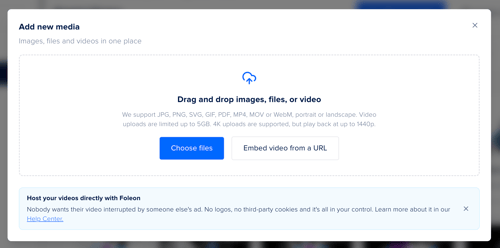
There are two ways to upload a video file. Drag and drop is the quickest. Use the Embed video from URL tab if you want to set the fallback image as part of the upload.
Upload with drag and drop
- Click + Add new media in the top-right corner of your library.
- Drag and drop your video file into the upload window, or click Choose files to select it from your computer.
- Wait for your video to finish uploading and processing.
A fallback image is generated for you. To use a different one, see Adjust the fallback image.
💡 Processing time depends on your file size. Longer videos will require additional processing time before they’re available.
Upload with the Embed video from URL tab
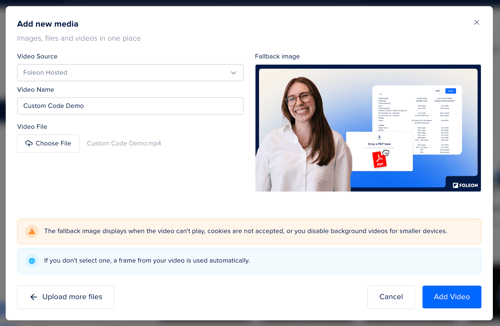
- Click + Add new media in the top-right corner of the Asset Library or Media Library.
- Select the Embed video from URL tab.
- Select Foleon Hosted under Video source.
- Name your video. Use a clear, descriptive name so your team can find it later.
- Click Choose file and select your video file from your computer.
- Add a fallback image. This is the image viewers see before the video plays.
- Click Add Video.
Step 3: Add your video to your Foleon Doc
- Once uploaded, click your video to select the file.
- Click ✓ Choose to add it to your Foleon Doc.
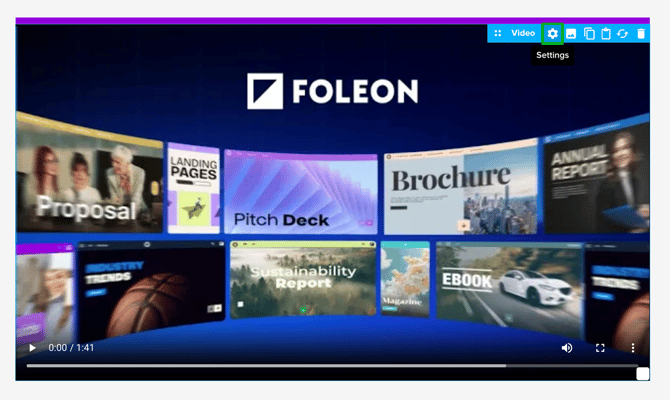
- After it's added, you can adjust the settings as needed:
- For video elements, customize spacing, alignment, and animation or enable autoplay.
- For background videos, adjust settings like looping and autoplay.
Step 4: (Optional) Add subtitles and captions for accessibility
Adding subtitles and captions helps make videos more accessible and supports multilingual audiences:
- Captions include background sounds, speaker labels, and audio cues, making them ideal for accessibility.
- Subtitles display the spoken words on screen. They are useful when viewers can’t turn on the sound, and also support multiple languages.
How to add subtitles and captions:
-
Go to your Media Library and find your video
-
Double-click the video, or click the quick actions menu (⋮) and select Preview
-
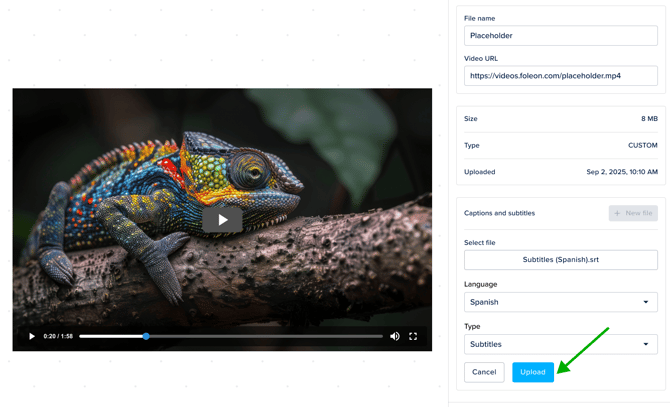
In the right-side panel, click + New file under the section Captions and subtitles
-
Click Choose file and select the SRT file from your computer
-
Select the language of the file and choose the type (caption or subtitle)
-
Click Upload to add the file to your video
-
Click Save
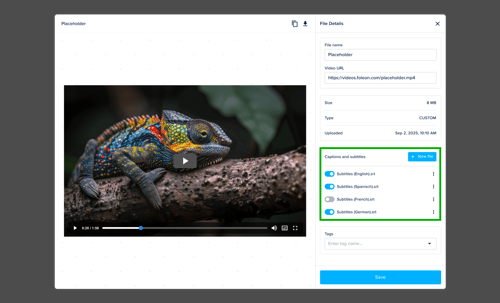
💡 You can upload multiple subtitle files for different languages, such as English, Spanish, French, and German.
How to manage subtitles and captions:
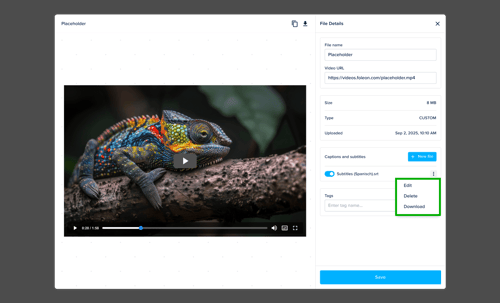
Once uploaded, subtitle files can be edited, downloaded, deleted, or disabled.
- Open the quick actions menu (⋮) to edit, delete, or download the file
- Use the toggle to enable or disable the caption or subtitle. Disabling the file removes it from the viewer's available options.
Adjust the fallback image
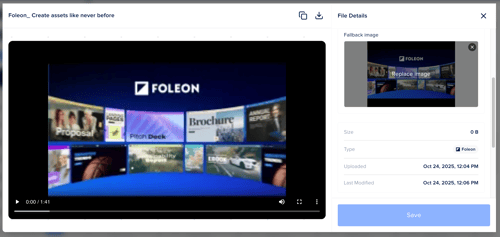
After your video has been uploaded, you can adjust the fallback image at any time. This image displays as the thumbnail before the video plays.
- Double-click the video to open the Preview.
- Hover over the fallback image in the settings panel on the right.
- Click Replace image.
- Select a new image from your library.
- Click Save.
Video experience for viewers
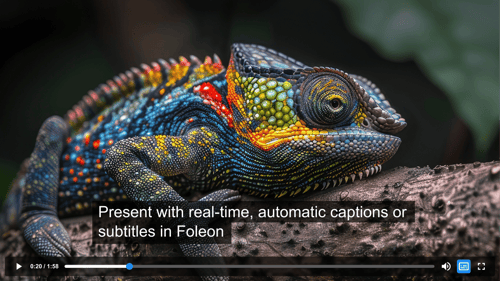
Foleon Video offers a clean, distraction-free viewing experience. Videos appear in a simple, responsive player with no external branding or ads. Playback controls appear on hover in a minimal interface.
If subtitles or captions are available, viewers can select their preferred language directly in the video player.
Video transfer credits
When you enable Foleon Video, you’ll choose from a range of add-on subscription options, each offering a specific amount of monthly bandwidth (measured in terabytes). As viewers stream your videos, credits are consumed based on the playback minutes.
Credits are automatically renewed monthly, based on your billing cycle. You can easily track your credit usage directly in your Admin Console under Plans & Billing > Credits.
📖 For more information, read our article: All about video transfer credits
What happens when a video is deleted
If a video is removed from your Media Library, the video element is automatically removed from any Doc it was placed in; you won't see it in the editor or the preview. When you republish the Doc, the video is also removed from the live version.