![foleon_logo_white.png]](https://www.foleon.com/hs-fs/hubfs/foleon_logo_white.png?height=40&name=foleon_logo_white.png)
In this article
⚠️ Workspace Admins can manage Workspace Doc Settings for their own workspace. Admins who have access to all workspaces can manage them in any workspace.
What are Workspace Doc Settings?
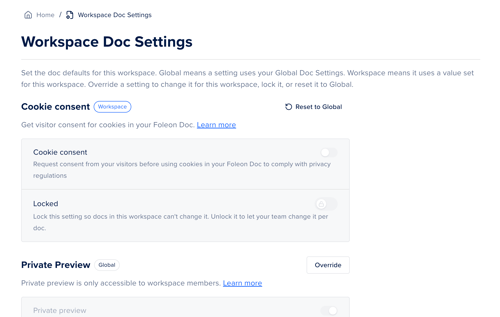
Workspace Doc Settings are the default settings for all Docs in one workspace. They're one of three levels of Doc settings in Foleon:
- Global Doc Settings apply to all Docs in your account. Admins with access to the Admin Console set them in the Admin Console. Learn more
- Workspace Doc Settings apply to all Docs in one workspace. A value you set here replaces the Global value for that workspace only.
- Doc settings apply to one Doc. Anyone editing the Doc can change a setting there, unless it's locked. Learn more
You can set these five settings per workspace:
- Cookie consent: Ask visitors for consent before your Docs use cookies. Learn more
- Private Preview: Choose whether only workspace members can open a Doc's preview, or anyone with the preview link. Learn more
- Search engine: Choose whether your Docs can show up in search engine results. Learn more
- Remarketing: Add tracking or remarketing code to your Docs. Learn more
- GTM: Add your Google Tag Manager container code to manage all your tags in one place. Learn more
💡 Other Doc settings, such as IP anonymization, Print and Custom 404/403 pages, can only be set in Global Doc Settings. Access control, such as password and SSO, can only be set per Doc.
📖 Read more about account-wide defaults in our article: Set account-wide Doc defaults with Global Doc Settings
Override a Global Doc setting
To set a value for this workspace only, you first override the Global Doc setting.
- Click Workspace Doc Settings on the menu. The page shows each setting with the value your workspace uses.
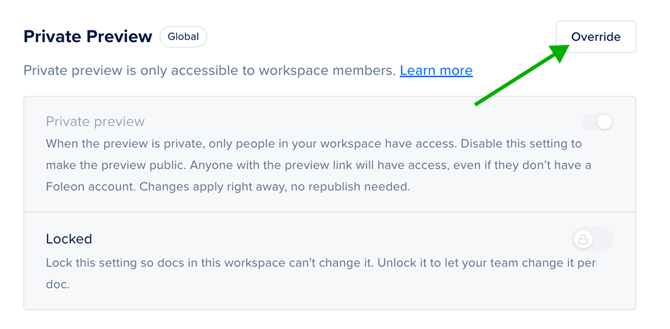
- Click Override next to the setting you want to change. The label changes from Global to Workspace, and you can edit the setting.
- Change the setting.
- Click Save at the bottom of the page.
💡 If a setting shows Locked by your account admin, it's locked in Global Doc Settings. You can't override it, and only Admins with access to the Admin Console can change it.
Lock a setting for your workspace
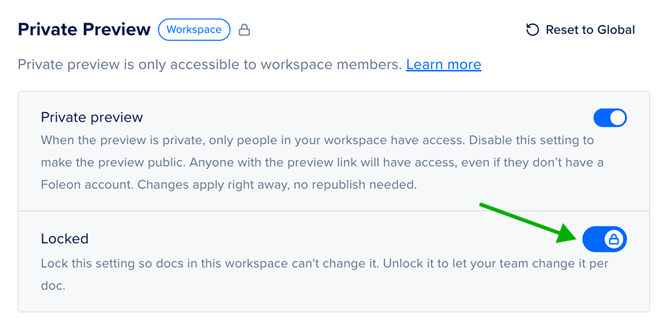
Lock a setting to stop people from changing it in individual Docs in this workspace. This is helpful when every Doc in a workspace must follow the same rule, such as showing the cookie banner. You can lock a setting once you've overridden it.
⚠️ The Locked option isn't available on all plans. If you're interested in adding this feature to your plan, contact us here.
- Open Workspace Doc Settings in your workspace.
- Click Override next to the setting, if you haven't already.
- (Optional) Change the setting.
- Turn on Locked.
- Click Save.
In each Doc in the workspace, the setting now reads Locked by your workspace admin.
Reset a setting to Global
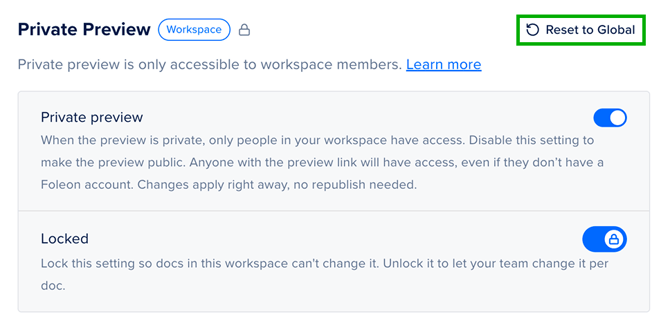
Reset a setting when you want the workspace to follow Global Doc Settings again. This removes the workspace value and its lock.
- Click Reset to Global next to the setting. The label changes back to Global.
- Click Save.
What happens to your Docs
When a Doc picks up your Workspace Doc Settings depends on how it was created.
- New Docs: They start with the values you set in Workspace Doc Settings. Every other setting comes from Global Doc Settings.
- Duplicated Docs: They keep the settings of the original Doc.
- Existing Docs: The new workspace value shows in the Doc settings right away. It goes live the next time you publish the Doc. If someone changed a setting manually in the Doc, that setting keeps its own value and no longer follows Global or Workspace Doc Settings.
⚠️ Docs that are already live keep their current settings until you republish them. You need to republish each Doc separately.
In a Doc's settings, the labels show where each value comes from:
|
Label |
What it means |
|---|---|
|
Global |
The value comes from Global Doc Settings |
|
Workspace |
The value comes from Workspace Doc Settings |
|
Locked by your account admin |
The setting is locked in Global Doc Settings |
|
Locked by your workspace admin |
The setting is locked in Workspace Doc Settings |
If you click Reset local overrides in a Doc, its settings go back to the workspace value. When the workspace has no value for a setting, it goes back to the Global value.
📖 Read more about Doc settings in our article: All about the Doc settings