![foleon_logo_white.png]](https://www.foleon.com/hs-fs/hubfs/foleon_logo_white.png?height=40&name=foleon_logo_white.png)
💡 Do you want to invite someone to review a Doc without giving them access to the platform? Read this article to learn how to invite external reviewers.
In this article
Enable review access across workspaces
Admins can choose whether users are allowed to invite others to review Docs from outside their workspace.
To enable these settings:
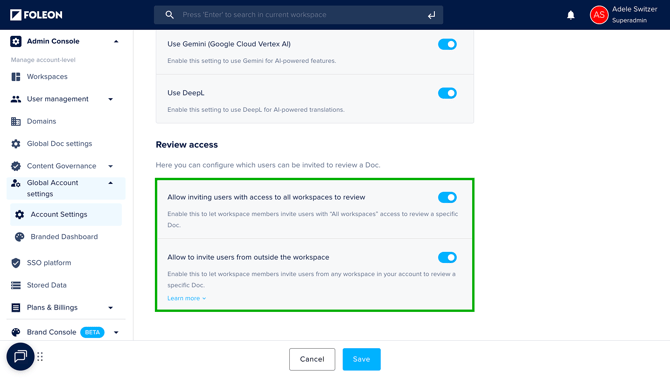
- Go to Admin Console > Global Account settings > Account Settings
- Under the section Review Access, you'll see two toggles that determine whether inviting reviewers outside your workspace is allowed:
- Allow inviting users with access to all workspaces to review
When enabled, users can tag colleagues who already have access to all workspaces. Without this enabled, these users cannot be tagged in a comment. - Allow inviting users from outside the workspace
When enabled, users can tag colleagues who don’t have access to the workspace the Doc belongs to. These users will only be able to review the specific Doc they're tagged in.
- Allow inviting users with access to all workspaces to review
- Enable one or both toggles and click Save
You'll now be able to invite others to review Docs outside their workspace!
Invite users to review your Doc
To invite a user outside of your workspace to review a Doc, you need to tag them in a comment in Review Mode.
📖 To learn more about Review Mode, read our article: Collect actionable feedback in Review Mode
There are two ways to access Review Mode:
- From the dashboard: Click the three dots on the bottom right corner of the Foleon Doc thumbnail to open the Quick Actions menu and select Review. Review Mode will open in a new tab.
- From the editor: After you've opened your Doc in the editor, click the comment icon 💬 in the top bar. Review Mode will open in a new tab.
To invite a user and tag them in a comment:
- In Comment mode, click anywhere on the page to leave a comment
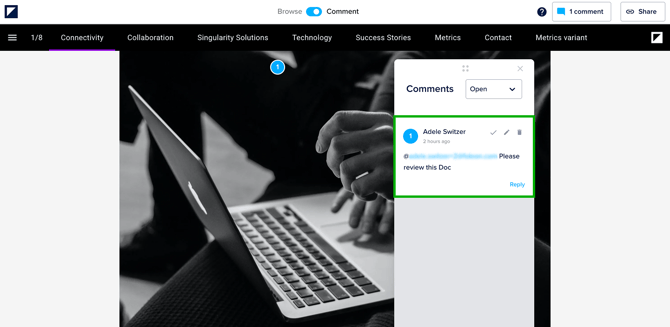
- Type @ and start typing the user's name or email
- Select the user from the dropdown
- Write your comment and click Post
Once you've mentioned someone and posted your comment, they'll receive a notification via email. The email will inform them that the Doc belongs to a different workspace.
How invited users access Review Mode
Tagged reviewers receive an email notification with a direct link to the Doc. From there, they can view the content in Review Mode, add new comments, resolve them, or reply.
👉 Users without access to all workspaces won't be able to access the Doc from their dashboard. To review the Doc, they need to click the link in the email.
👉 Users with access to all workspaces can either use the email link or open Review Mode from the dashboard.
How Admins manage and revoke review access
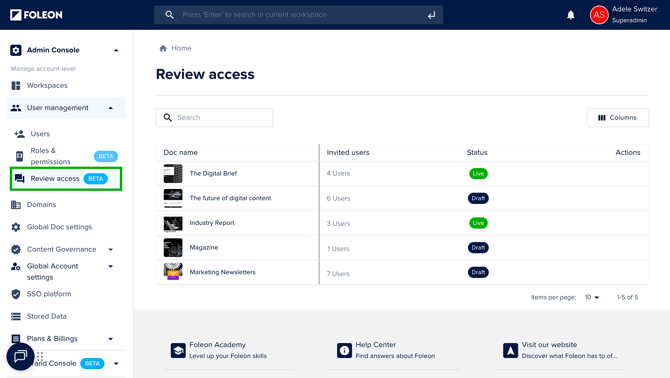
On the Admin Console, Admins can view and manage all users who’ve been invited to review specific Docs. This overview helps Admins maintain visibility across workspaces and understand who has access to what.
To access the list, go to Admin Console > User management > Review access
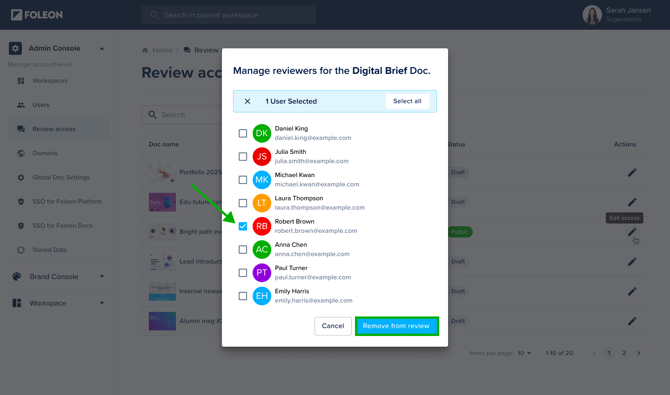
- Click the edit icon next to the Doc to open the overview of all users with review access
- Select the user(s) you want to remove
- Click Save
The selected users will immediately lose access to Review Mode for that Doc.