![foleon_logo_white.png]](https://www.foleon.com/hs-fs/hubfs/foleon_logo_white.png?height=40&name=foleon_logo_white.png)
⚠️ This feature is available on Team and Enterprise plans. If you would like to enable this feature, contact us here.
In this article:
What are Restricted Guest Reviewers?
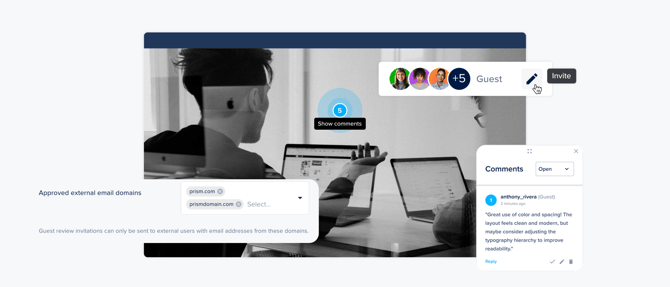
Restricted Guest Reviewers allow you to invite stakeholders to review a single Doc without giving them access to your workspace.
Invited reviewers can view the Doc in Review Mode and leave comments, but cannot access the Editor, Dashboard, other Docs, or workspaces.
This is ideal when working with clients, legal teams, or external partners who need to provide feedback without accessing your account.
How to invite Restricted Guest Reviewers
In order to invite restricted guest reviewers, an Admin with access to the Admin Console first needs to allow specific email domains. Once allowed, you can invite external users to review and comment on specific Docs.
How to set up domain allowlisting
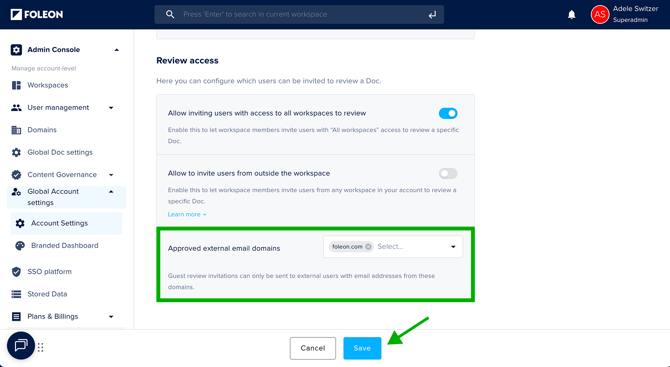
Before inviting external reviewers, Admins must configure the allowed email domains.
- Navigate to Admin Console > Global Account Settings > Account Settings
- Scroll to the Review Access section
- Add one or more email domains to the allowed domains list
- Click Save
💡 Only email addresses from approved domains can be invited as external reviewers. This ensures that review access is limited to explicitly authorized organizations.
How to invite reviewers to a Doc
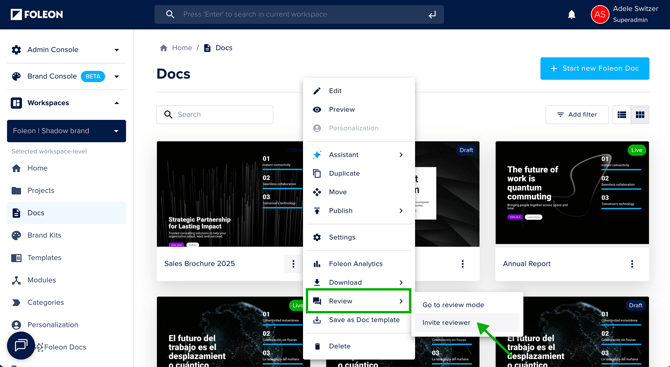
Reviewers can be invited to review a Doc from the Dashboard:
- Navigate to your Doc in the dashboard and click the quick actions menu (⋮)
- Select the option Review, then Invite reviewer
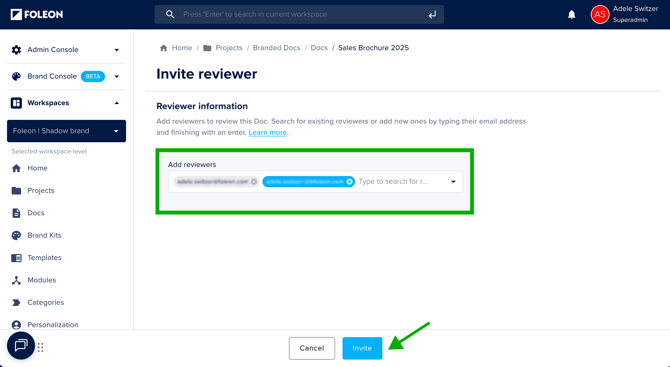
- Enter the email addresses of the people you want to review the Doc
💡 You can also add existing users to the review list from here. Existing users will appear highlighted in blue. New external users will appear in gray.
⚠️ If you try to add an email address from a domain that has not been allowed, you will receive an error message.
Reviewing and commenting
Invited reviewers will receive an email with a secure, one-time review link.
⚠️ Each review link is single-use. Once opened, it becomes invalid. If a reviewer attempts to reuse the link, they are redirected to an Expired Link page. A new email will be sent to the user.
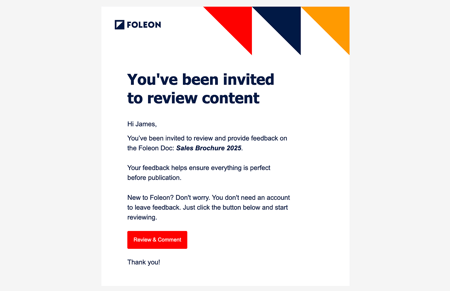
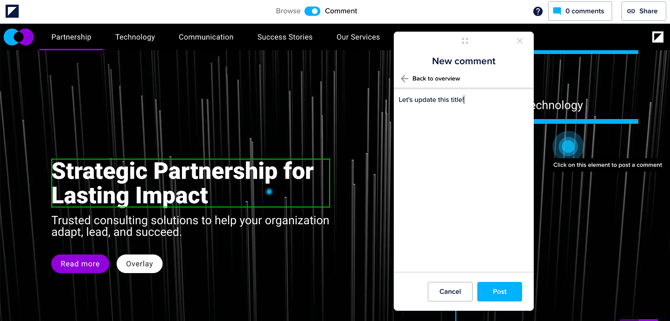
External reviewers can:
- Open the Doc directly in Review Mode
- View all content in the Doc
- Leave comments
External reviewers do not receive any access to the dashboard or editor. They will only be able to access Review Mode for the specific Doc they have been invited to.
Re-inviting reviewers
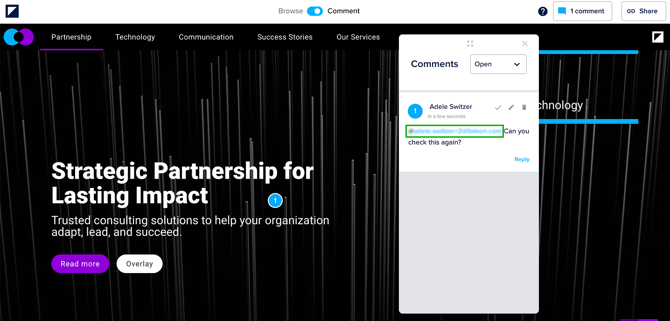
Anytime you mention a reviewer in a comment using @[email], a new one-time review link will be shared.
No new user is created. The existing restricted user receives renewed access to the Doc.
This makes it easy to re-engage reviewers without manually re-inviting them.
Managing reviewer access to individual Docs
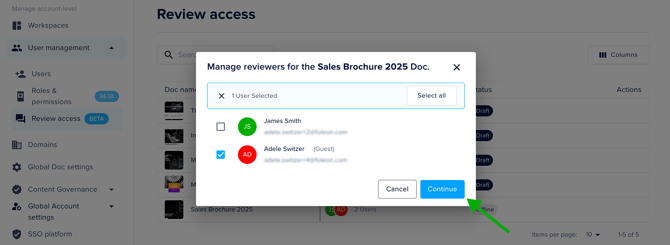
You can revoke an individual's access to a specific Doc without completely removing the User from the platform.
To manage reviewer access on a Doc:
- Go to Admin Console > User management > Review access
- Navigate to the Doc and click the pencil icon ✏️ under Actions
- Select the user(s) you want to remove and click continue
- Confirm you would like to remove the reviewer
⚠️ Revoking Doc access does not remove the user from User Management.
Managing restricted users
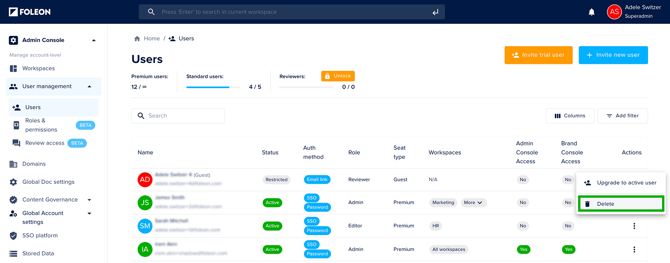
Once invited, external reviewers appear in User Management. They are clearly labeled as Restricted and Guest for visibility.

Removing a restricted user immediately revokes all review access.
To remove a restricted user:
- Go to Admin Console > User management > Users
- Use the search and/or filters to find the user
- Open the quick actions menu (⋮) and click Remove
💡 To maintain account hygiene, remove restricted users when they no longer need review access.
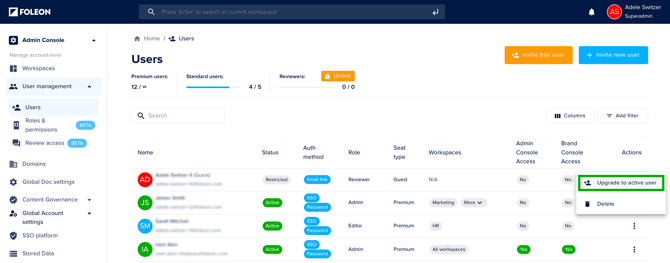
Upgrading a guest reviewer to an active user
If a reviewer needs broader access, you can upgrade them to another user seat.
⚠️ Upgrading a reviewer to an active user depends on available seats in your account. If you want to add additional seats to your plan, contact us here.
- Go to Admin Console > User management > Users
- Use the search and/or filters to find the user
- Open the quick actions menu (⋮) and click Upgrade to active user
- Assign a new role
- Assign one or more workspaces
- Apply SSO settings, if applicable
- Click Save
Upgrading converts the restricted guest into a regular user with access to the platform based on their assigned role and workspaces.