![foleon_logo_white.png]](https://www.foleon.com/hs-fs/hubfs/foleon_logo_white.png?height=40&name=foleon_logo_white.png)
There are two ways to create a template in Foleon: by saving existing content or starting from scratch. Templates help you save time and ensure every piece of content stays on brand.
In this article, we’ll walk you through how to create templates from Docs, Pages, Overlays, and Blocks, or build your own from scratch.
📖 For more guidance on where to manage templates and how to use them, read: Save time and stay on-brand with templates
In this article
Saving content as templates
You can save your content as templates to use again and again for content creation. Below, we'll walk you through the steps for saving templates from Docs, Pages, Overlays, and Blocks.
💡 Want to manage your template from the Brand Console? After saving your template, you can move it to the Brand Console for centralized access across teams.
⚠️ When saving your content as a template, the Share element won’t be included. This is because the Share element is designed to promote your Foleon Doc on social media. Since a template doesn’t represent a live Doc, there’s nothing to share—yet!
Save a Doc as a template
You've created a Foleon Doc that ticks all the boxes, and you want to use it as a starting point for new, compelling content. By saving your Doc as a template, you empower your team to create on-brand content with just a few clicks.
📖 Learn more about Doc templates in our article: Save your Doc as a template.
You can save your Doc as a template in two places: the dashboard or the editor.
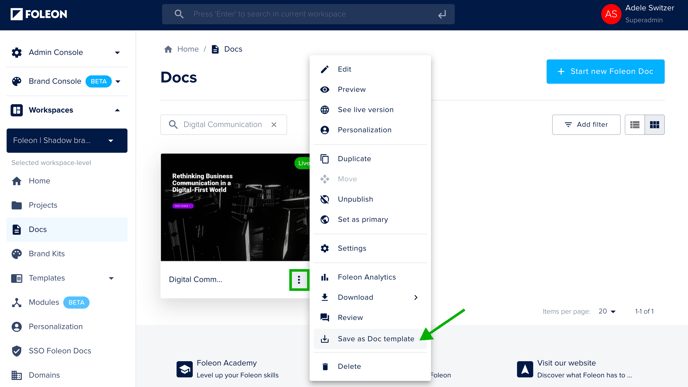
In the dashboard, click the quick actions menu on your Doc and select Save as Doc template. Give your template a name, choose the status, and click Save.
Alternatively, you can save your Foleon Doc as a template straight from your content editor. Click Menu, then Save this Doc as a template. Give your template a name, choose the status, and click Save.
💡Do you want to save this template to the Brand Console? Toggle on the option next to Save to Brand Console.

Save a Page as a template
Saving a page as a template allows you to save a combination of multiple blocks at once, which you can then use directly when creating new pages in your Foleon Docs.
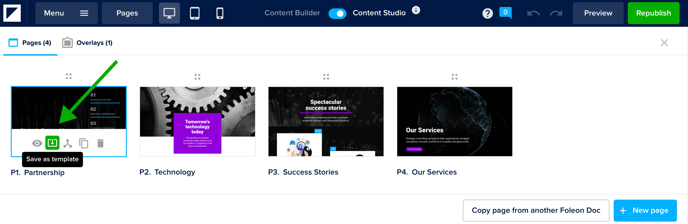
To save a page template, open up the Pages overview, hover over the specific page, and click on the Save as template icon. Give your template a name, choose a category and status, and click Save.
Save an Overlay as a template
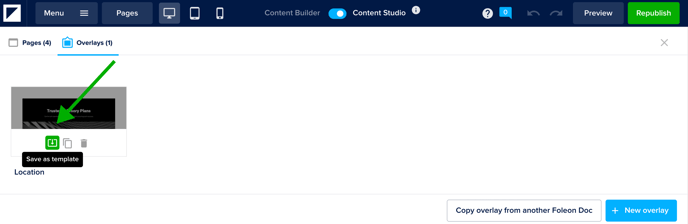
Open the Pages overview and click the Overlays tab. Hover over the specific overlay, and click the Save as template icon. Give your template a name, choose a category and status, and click Save.
Save a Block as a template
Saving a block as a template allows you to use that block across pages and overlays in all of the Foleon Docs in your account. For example, you can use the same header blocks on different spots in your Foleon Doc or reuse certain blocks in multiple Docs.
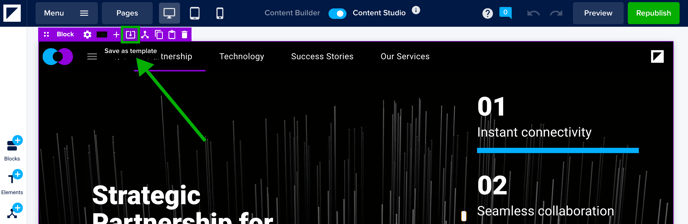
To save a block template, click Save as template in the purple block settings bar.
Give your template a name, choose a category and status, and click Save.
Start from scratch
You can also create a template from scratch. Navigate to either the Brand Console or the workspace where you want the template. Go to the Templates tab and click + Start new template.
Choose a content type from the dropdown: Doc, block, page, or overlay
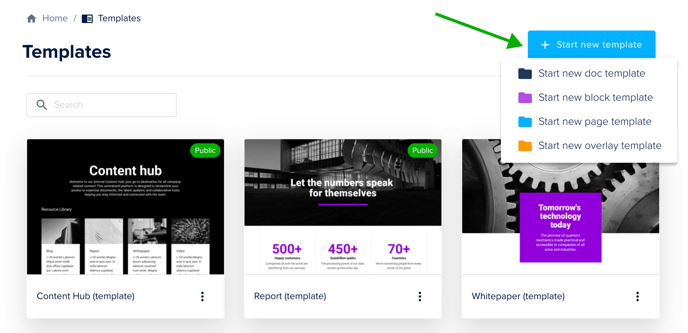
You’ll now need to configure the settings:
- Template name: Use a clear, descriptive name.
- Status: Choose Public or Draft. Public templates will be immediately available, while Draft templates will not yet be available.
- Template type: This will be preconfigured based on the chosen content type.
- Category: Assign categories to your template. You can add one or multiple categories.
💡 You don't have to add categories, but they can help organize your content. Read more about categories here.
Click Create to open the template editor.
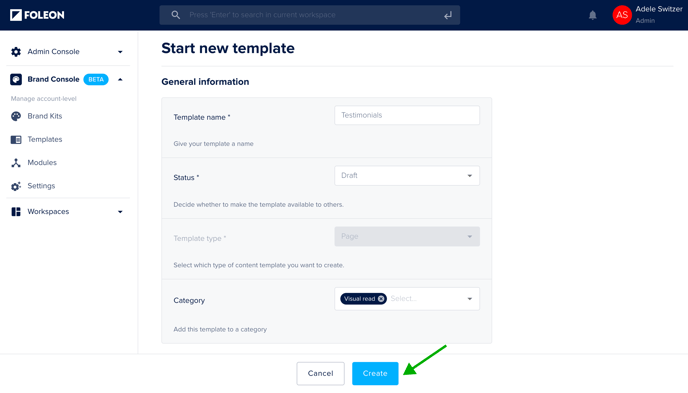
You can design your template in the template editor by adding blocks and elements.
⚠️ Custom fonts won’t show in the template editor, but when the template is used in a Doc, it will automatically inherit the brand’s fonts.
Once you’re done with your template, click Done to return to the dashboard. Your template will be saved!
💡 If you created your template in the Brand Console, be sure to assign your template to workspaces.