![foleon_logo_white.png]](https://www.foleon.com/hs-fs/hubfs/foleon_logo_white.png?height=40&name=foleon_logo_white.png)
In this article
- What is the Layout System?
- How to set up your Layout System
- What's inside the Layout System
- Let our Professional Services team set it up for you
What is the Layout System?
The Layout System is a specially designed Foleon Doc template that acts as your brand's content design system. It gives you a set of blocks — organized by type — so you can browse, customize, and save them as block templates for your entire team to use.
Once you've set it up, anyone on your team can start building Docs from ready-made, on-brand building blocks, no design experience needed.
👉 View the Layout System Template
👉 See an example of what you can create
💡 New to block templates? Block templates are pre-built blocks you can insert directly into any Doc. Learn more about working with blocks →
How to set up your Layout System
Follow these steps to create your library of branded block templates:
-
Create a new Doc from a template
-
On your dashboard, click + Start new Foleon Doc.
-
Under Template, select the option Foleon Doc template. Choose Lay-out System from the dropdown.
-
- Apply your Brand Kit
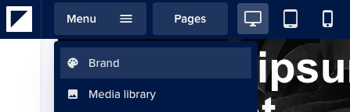
- Open Menu > Brand and make sure your Brand Kit is applied. This instantly updates all colors, fonts, and styles throughout the Doc to match your brand.
- If you haven't set up a Brand Kit yet, learn how to configure one here.
- Open Menu > Brand and make sure your Brand Kit is applied. This instantly updates all colors, fonts, and styles throughout the Doc to match your brand.
- Customize blocks to match your style
- Go through each section of the Layout System Doc and customize the blocks. Adjust imagery, copy, spacing, and styling to reflect how you want your team to use each layout.
- The Doc includes helpful descriptions for each block to guide you.
- Save blocks as templates
- Once the blocks are styled exactly how you want, save them as a template.
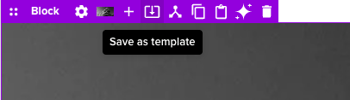
- Click Save as template on the block settings bar.
- Give your template a name, assign a category, and set the status to Public.
💡 Once your templates are saved, they become available as building blocks. Move your templates to the Brand Console and share them across workspaces so all teams can start using them directly — without needing to start from scratch or ask a designer.
What's inside the Layout System
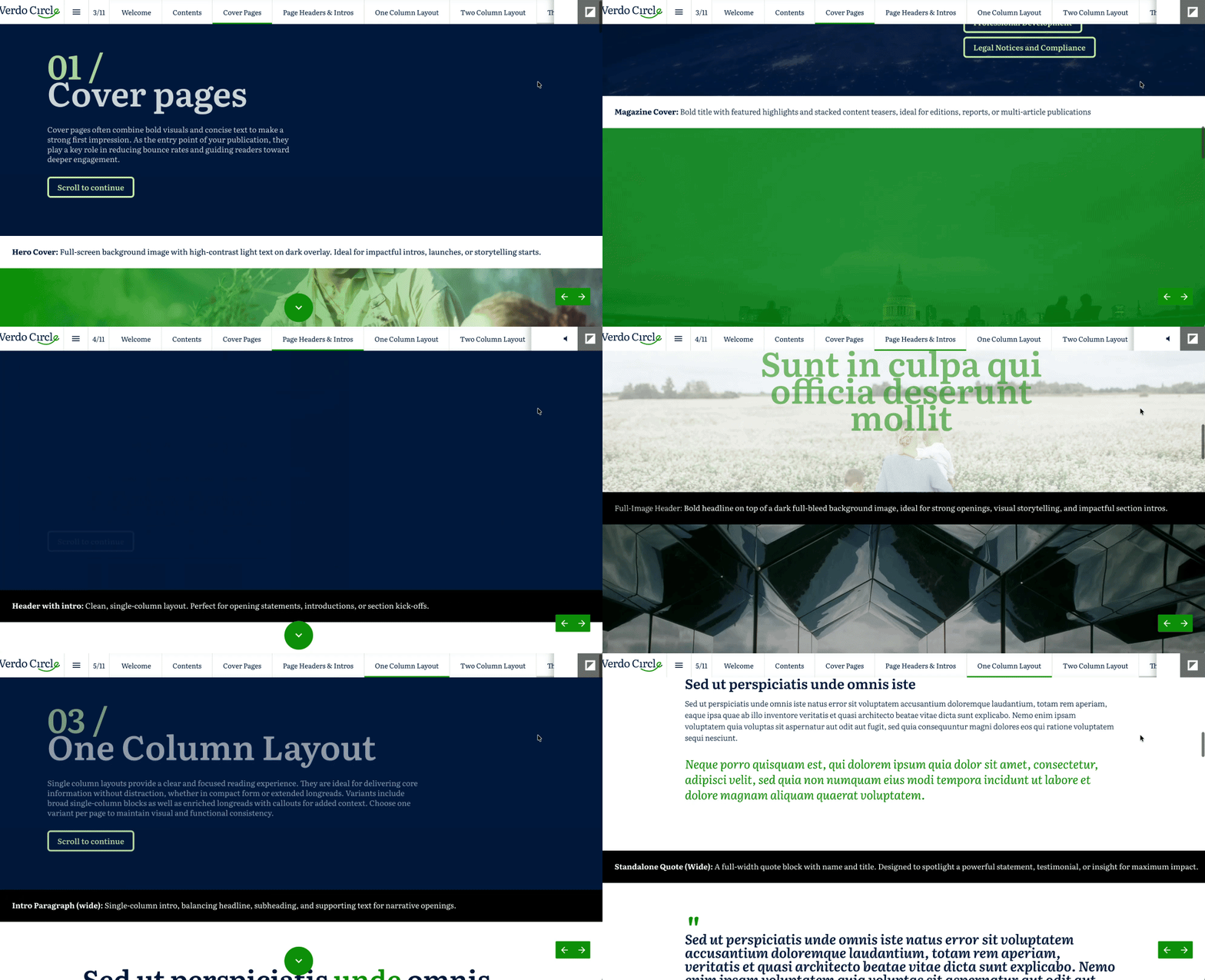
The Layout System Doc is organized into categories, each focused on a specific layout type. Here's an overview of what you'll find:
Cover Pages
A range of cover page designs to inspire you and showcase what's possible with Foleon layouts. Use these as the first page of any Doc to make a strong first impression.
Page Headers and Intros
Header blocks designed for the first block on content pages. Similar in concept to cover pages, but sized and styled for use inside a longer Doc.
One-, Two-, and Three-Column Layouts
Three dedicated pages — one for each column layout type. Each page shows how text, visuals, data, and embedded content can all work together within that column structure. Use these as the backbone for building full content pages, typically combined with a page header block.
Emphasis & Quotes
Standout blocks for high-impact moments: product shots, customer and employee quotes, video backgrounds, and tiled grid layouts. Great for breaking up long pages or adding visual depth.
Buttons, Forms & CTAs
A comprehensive collection of footer blocks, CTAs, and lead generation forms. Includes simple and split-screen call-to-action layouts, video CTAs, web footers, and embedded CRM forms such as HubSpot.
Card Grids, & Overviews
Carousels, card grids, and overview layouts that complement the column layout pages. Use these to display collections of content like case studies, team members, or product features.
💡 Each page in the Layout System includes inline descriptions that explain when and how to use each block type. It's designed to be self-explanatory, so you can work through it at your own pace.
Let our Professional Services team set it up for you
- Create faster
Skip the blank page and start with ready-made layouts - Stay consistent
Every document follows your brand guidelines automatically - Empower your team
Non-designers create confidently with guardrails in place - Scale across teams
Reuse templates across workspaces and use cases
How the Professional Services process works
- Asset hand-off
You share your brand guidelines, logos, fonts, color palette, and a selection of imagery, video links, and other assets. -
Expert setup & design
Our design team brings your brand to life in Foleon — configuring your Brand Kit and building out your branded block template library. -
Review & deployment
After a round of feedback, we finalize your templates and add them to your Template Manager. Your team can then drag, drop, and publish fully on-brand Docs straight away.