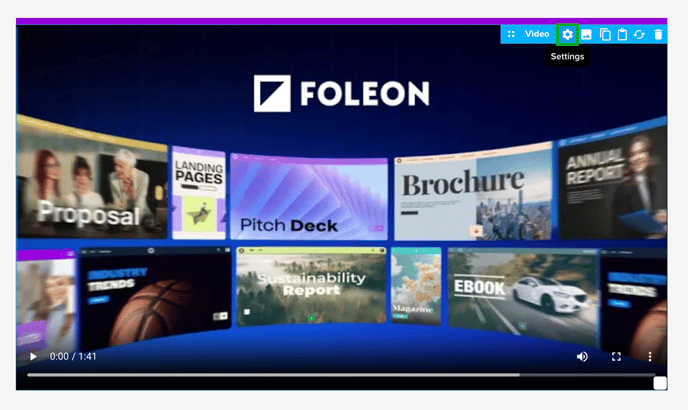
Foleon-hosted videos let you upload video files straight into your Foleon Media Library — no need for external platforms like YouTube, Vimeo, Wistia, or Brightcove. This means faster load times, full brand control, and a seamless viewing experience for your audience.
⚠️ This feature is available as an add-on. If you'd like access to Foleon-hosted videos, contact us here.
In this article
Why use Foleon-hosted videos
Foleon-hosted videos let you keep every part of your content experience fully on-brand and under your control. By uploading videos directly to your Foleon Media Library, you avoid external platforms like YouTube or Vimeo — eliminating third-party cookies, external branding, and compliance risks.
Here are some of the benefits of using Foleon-hosted videos over external videos:
- Stay on-brand: No YouTube or Vimeo logos, or ads, so your audience stays focused on your content.
- Privacy-friendly: Because no third-party tracking or cookies are used, you comply with strict privacy standards.
- Empower your team: Anyone can upload videos directly to Foleon without needing access to external video platforms or editing tools.
- Fast & easy: No rendering, embedding, or copy-pasting links. Just upload, publish, and play for faster load times.
-
Fully integrated: Videos flow naturally within your Foleon Docs. They autoplay smoothly, maintaining a cohesive design.
-
Responsive design: Foleon-hosted videos scale better across devices, ensuring a consistent experience on desktop, tablet, and mobile.
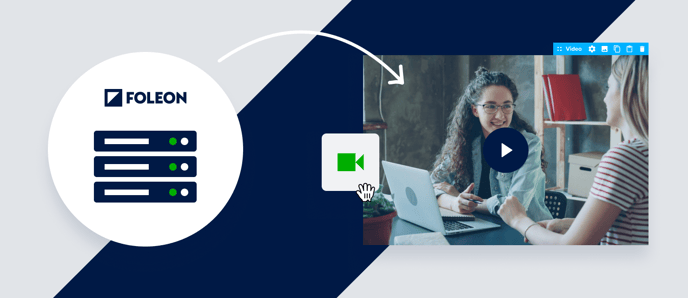
How to upload your video
Step 1: Add a video to your page
- In the editor, drag and drop a video element onto your page.
- Or, select a video as your block background.
Step 2: Add new media
- In your Media Library, click + Add new media.
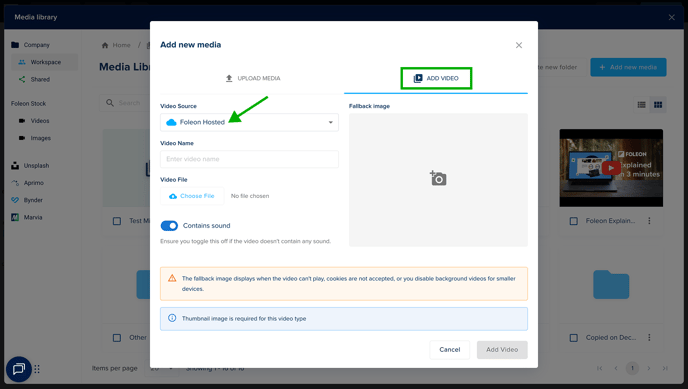
- Select the tab Add Video.
- Under Video source, select Foleon Hosted from the dropdown menu.
Step 3: Upload your video
- Name your video. Use a clear, descriptive name so your team can easily find it later.
-
Click Choose file to select your video file from your computer.
- If your video doesn't contain any sound, turn off the Contains sound toggle.
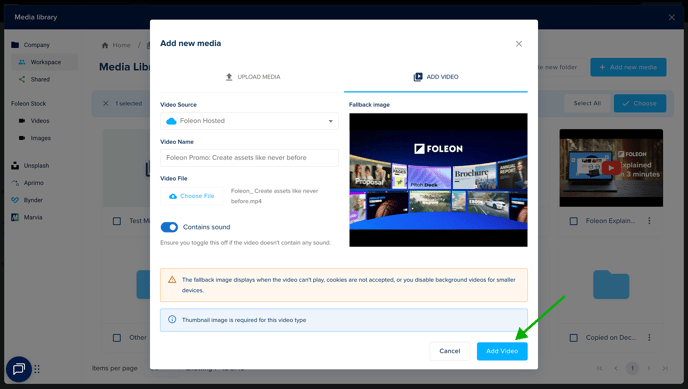
- Add a fallback image. Choose an image from your media library that will appear before the image plays.
- Click Add Video to upload it to your Media Library.
💡 A fallback image is required for Foleon-hosted videos. It displays as the thumbnail image before playing or when background videos are disabled on smaller screens.
Step 4: Add your video to your Foleon Doc
- Once uploaded, click your video to select the file.
- Click ✓ Choose to add it to your Foleon Doc. It may take a few minutes to process.
- After it's added, you can adjust the settings as needed:
- For video elements, customize spacing, alignment, and animation.
- For background videos, adjust settings like looping and autoplay.