
Bring your ideas to life with the help of AI image generation. Directly from the Media Library, you’ll be able to create visuals in seconds. No stock browsing or external tools required. Just type a prompt, and AI will generate unique images ready to use in your Docs.
In this article
How to generate an AI image
Step 1: Enable AI availability
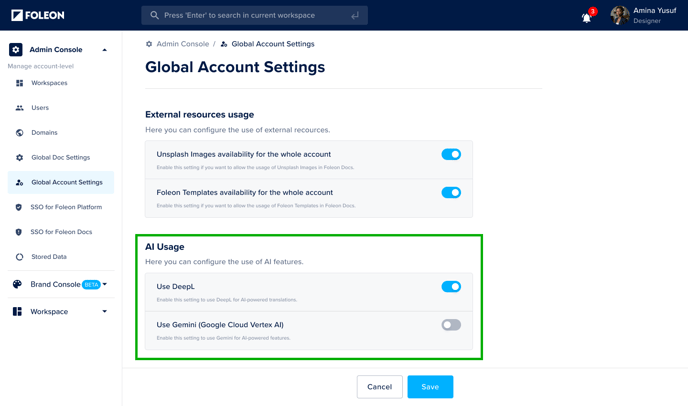
To use the AI Image Generator, the AI setting allowing the use of Gemini must be enabled for your account. This controls access to several AI-powered tools such as image generation, PDF conversion, and writing assistance.
⚠️ Access to the AI-powered features using Gemini is turned off by default. Only Admins can enable this option in the Admin Console.
To enable the use of Gemini:
-
Go to the Admin Console in the dashboard
-
Navigate to Global Account Settings
-
Toggle on the setting for Use Gemini and click Save
📖 For more information, read our article: Active AI for your Account
Step 2: Open the Media Library
Go to your Media Library from either the Dashboard or within a Doc in the Editor. Click Generate AI Image. 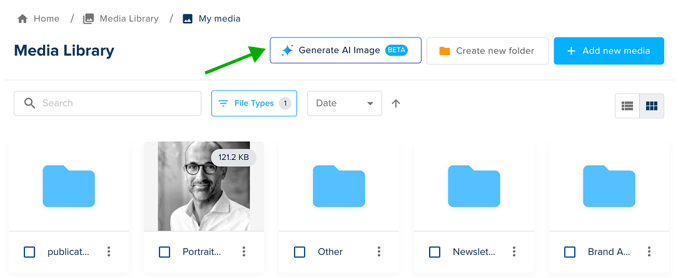
Step 3: Fill in your image prompt details
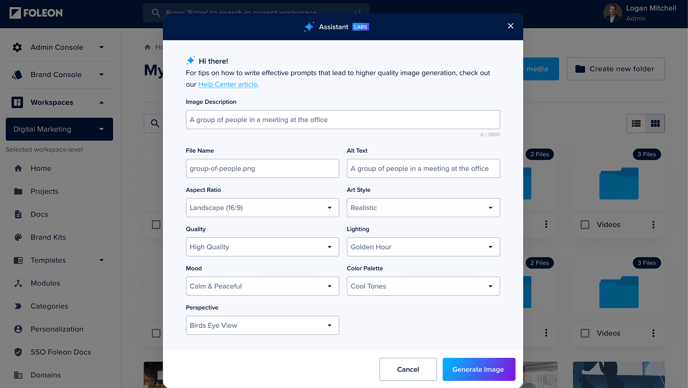
You'll now be prompted to complete several fields that help guide the image generator:
⚠️ For best results, write image generation prompts in English.
Google's AI models are primarily trained on English-language data. While they can understand prompts in other languages, including Spanish, French, German, Japanese, and Korean, using English typically produces more accurate and consistent outcomes.
This is because many prompt engineering techniques and best practices are developed in English. When using a different language, the model may automatically translate the prompt behind the scenes, which can result in a loss of nuance.
If you need to use another language, experiment to see if the model's output meets your expectations.
-
Image description: Describe the image you want created in as much detail as possible (up to 1,000 characters). Focus on the main subject, its surroundings, and any important composition details. Avoid repeating settings covered in the dropdowns.
- File Name: The name your file will be saved under in the Media Library. This will be auto-generated from the first 30 characters of your prompt, but you can modify it.
- Alt Text: Provide the description to be used as the alt text. This will be auto-generated from the first 100 characters of your prompt, but you can modify it.
- Aspect Ratio: Choose the image size. There are various landscape, portrait, and square options to choose from.
Then, customize your image further using the style settings below:
-
🎨 Art Style: Controls the visual style of your image. Choose from options like photorealistic, cartoon, watercolor, sketch, photography, and more.
-
🌟 Quality: Determines the level of visual detail from standard, high, or ultra.
-
💡 Lighting: Sets the lighting environment, such as natural light, dramatic, studio, or cinematic.
-
🎭 Mood: Establishes the emotional tone of the image. Choose from options like happy, serious, energetic, or professional.
-
🌈 Color Palette: Choose your color scheme from options like vibrant colors, warm tones, monochrome, pastels, and more.
-
🔍 Perspective: Dictates the angle or viewpoint of your image, such as close-up, wide shot, bird’s eye view, macro, etc.
💡 Be thoughtful about your selections as they influence how the image is generated! Continue reading for best practices on writing prompts for the image generator.
Once everything is filled out, click Generate image. The AI will begin generating your image. This may take up to 30 seconds.
⚠️ If you don't have enough AI credits available, the Generate button will be disabled.
Where to find, edit, and manage AI-generated images
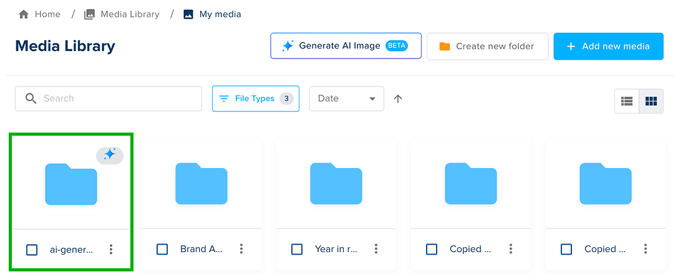
All AI-generated images are automatically saved in a folder called ai-generated in your Media Library. There are a few important things to note about this folder:
- You cannot rename or recreate this folder.
-
You can delete the folder if needed. It will be automatically recreated the next time you generate an AI image.
-
You cannot manually create a new folder with the same name.
-
You can move AI images to other folders.
Once generated, your AI image behaves like any other image in your Media Library. You can crop, rotate, flip, and edit its details.
📖 For more information, read the article: All about the Media Library
Best practices for writing AI prompts
A well-written prompt helps the AI understand exactly what kind of image you want to generate. Below are some tips and examples to help you generate the best results.
What to focus on in your prompts:
- Be concise, but descriptive: You have a 1000-character limit, so use it wisely!
- Main subject: Be clear about the central object or character — “Golden retriever puppy with red ball” is better than “a dog.”
- Specific visual details: Include defining features, materials, or interactions.
- Background elements: Mention what surrounds the subject — furniture, landscapes, props, or scenery.
- Composition: Is the subject centered? Are there other elements in the frame?
What to avoid in your prompts:
-
Redundant phrasing that mirrors your chosen specifications. For example, don't say:
❌ "Photorealistic portrait of a person with dramatic lighting"
❌ "Vibrant colorful landscape with warm tones"
❌ "Close-up shot of a flower with soft mood"Instead, follow these examples:
✅ "Portrait of a person with kind eyes and gentle smile"
✅ "Mountain landscape with pine trees and lake reflection"
✅ "Delicate flower with intricate petals and dewdrops"
Good Examples
Business/Corporate:
-
"Modern office building with glass facade and geometric architecture, surrounded by green landscaping"
-
"Professional team meeting in bright conference room with whiteboard and city view"
-
"Clean minimalist product display on white background with soft shadows"
Lifestyle/People:
-
"Happy family having picnic in sunny park with colorful blanket and basket"
-
"Young woman reading book in cozy coffee shop with warm lighting"
-
"Children playing soccer on grass field with trees in background"
Products/Objects:
-
"Vintage red bicycle leaning against brick wall with flowers nearby"
-
"Fresh fruits arranged in wooden bowl on rustic kitchen table"
-
"Modern smartphone with sleek design on marble surface"
System Behavior Examples
The system combines your text with the selected specifications to send the final prompt. Below are two examples.
Example #1:
- Image description: "Golden retriever puppy playing with red ball"
- Options selected: Art Style: Photorealistic, Lighting: Natural, Mood: Happy
- Final prompt sent to system: "Golden retriever puppy playing with red ball, photorealistic style, natural lighting, bright and cheerful mood"
Example #2:
- Image description: "Modern kitchen with island and stainless steel appliances"
- Options selected: Art Style: Default, Lighting: Studio, Color Palette: Warm
- Final prompt sent to system: "Modern kitchen with island and stainless steel appliances, studio lighting, warm color tones"