![foleon_logo_white.png]](https://www.foleon.com/hs-fs/hubfs/foleon_logo_white.png?height=40&name=foleon_logo_white.png)
In this article
Translate your content
With Foleon, you can translate your content in two ways using AI. Before using either option, you must ensure that AI functionality is enabled for your account. Once AI is available, choose the method that fits your goal:
Option 1: Translate your entire Doc
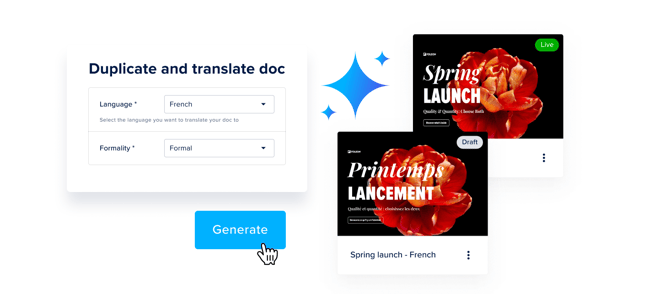
Use this when you want to create a fully translated copy of your Doc for another market or audience. This option duplicates your Doc and translates all pages at once, keeping your original version unchanged.
Option 2: Translate a page
Use this when you only need to translate a specific page or overlay. This option works directly inside the editor and replaces the content of the page you’re currently editing.
Enable AI Availability
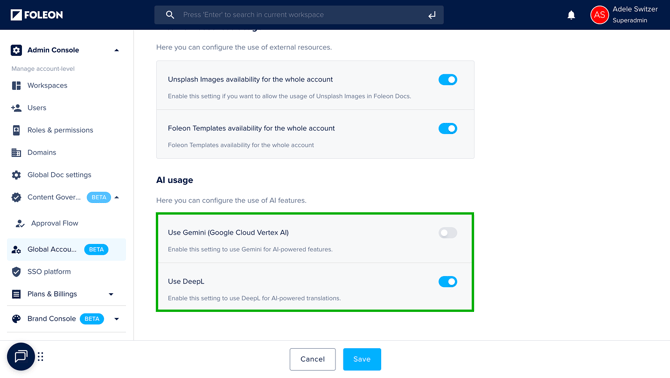
To use the AI translation features, the AI setting allowing the use of DeepL must be enabled for your account.
⚠️ Access to the AI-powered features using DeepL is turned ON by default. Only Admins can enable this option in the Admin Console.
📖 For more information, read our article: Active AI for your Account
Option 1: Translate your entire Doc
📹 In the video below, we show you how to duplicate and translate an entire Foleon Doc.
How to translate a Doc:
-
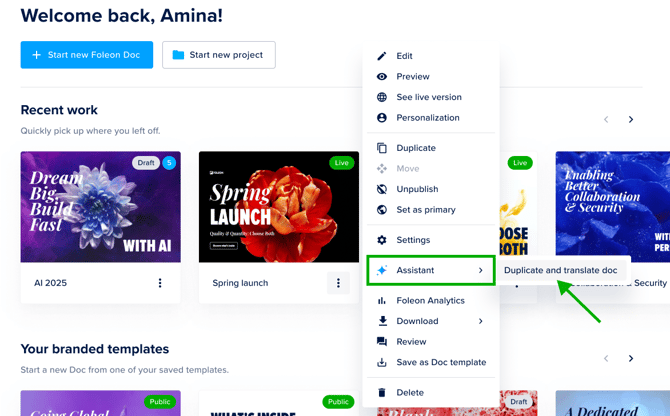
Click the quick actions menu (⋮) on the Doc you want to translate.
-
Select Assistant, and then choose Duplicate and Translate.
-
Choose the language. For some languages, you can also select the desired formality. Finally, select the project where you want to save the translated version.
-
Click Generate. The system will duplicate and translate the Doc. This may take a few minutes, depending on the size of your Doc.
-
That's it! Your Doc is now translated.
⚠️ Modules and cookie consent are not currently included in the translation. Be sure to update these manually.
Option 2: Translate page-by-page
📹 In the video below, we show you how to translate your page to create a one-pager that is available in multiple languages.
How to translate a page:
-
Navigate to the page or overlay you want to translate.
-
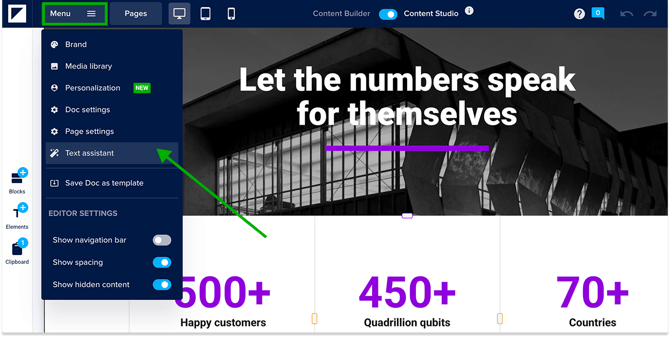
Open the Menu and select Text Assistant.
-
Select Translate this page under Assistance type.
-
Select your target language from the dropdown.
-
Choose your preferred formality: Informal or Formal.
-
Click Save. Your page is now translated! 🎉
⚠️ Translating a page will replace the original content. If you would like your page available in multiple languages, duplicate it first before translating.
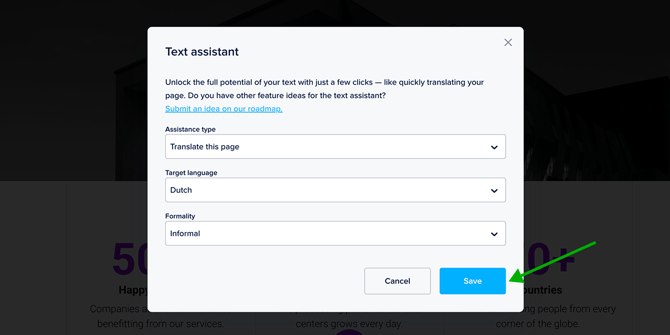
💡 These steps translate only the page or overlay you’re currently editing. Repeat these steps for each page or overlay you want to translate.
Supported languages
Below you will find an overview of the supported languages.
⚠️ Our translation tool is powered by DeepL. For an always up-to-date list of supported languages, visit DeepL's documentation.
|
Afrikaans
Albanian Arabic Aragonese Armenian Assamese Aymara Azerbaijani Bashkir Basque Belarusian Bengali Bosnian Breton Bulgarian Burmese Catalan Chinese (simplified) Chinese (traditional) Croatian Czech Danish Dutch English (American) English (British) Esperanto Estonian Finnish French Galician Georgian German Greek Guarani Gujarati |
Haitian Creole
Hausa Hebrew Hindi Hungarian Icelandic Igbo Indonesian Irish Italian Japanese Javanese Kazakh Korean Kyrgyz Latin Latvian Lingala Lithuanian Luxembourgish Macedonian Malagasy Malay Malayalam Maltese Maori Marathi Mongolian Nepali Norwegian (bokmål) Occitan Oromo Pashto Persian Polish |
Portuguese (Brazilian)
Portuguese (European) Punjabi Quechua Romanian Russian Sanskrit Serbian Sesotho Slovak Slovenian Spanish Spanish (Latin American) Sundanese Swahili Swedish Tagalog Tajik Tamil Tatar Telugu Thai Tsonga Tswana Turkish Turkmen Ukrainian Urdu Uzbek Vietnamese Welsh Wolof Xhosa Yiddish Zulu |