![foleon_logo_white.png]](https://www.foleon.com/hs-fs/hubfs/foleon_logo_white.png?height=40&name=foleon_logo_white.png)
⚠️ Modules are not available on all plans, and the number of modules you can create depends on your plan. If you're interested in using this feature or increasing your module limit, contact us here.
In this article:
Modules vs. Templates: What's the difference?
A template is a starting point. It comes with placeholder content (the kind you might know as Lorem Ipsum text) so you can see the structure before you add your own words and images. Once you add a template to your Doc, it's yours: edit it however you want.
📖 Learn more about templates: Save time and stay on-brand with templates
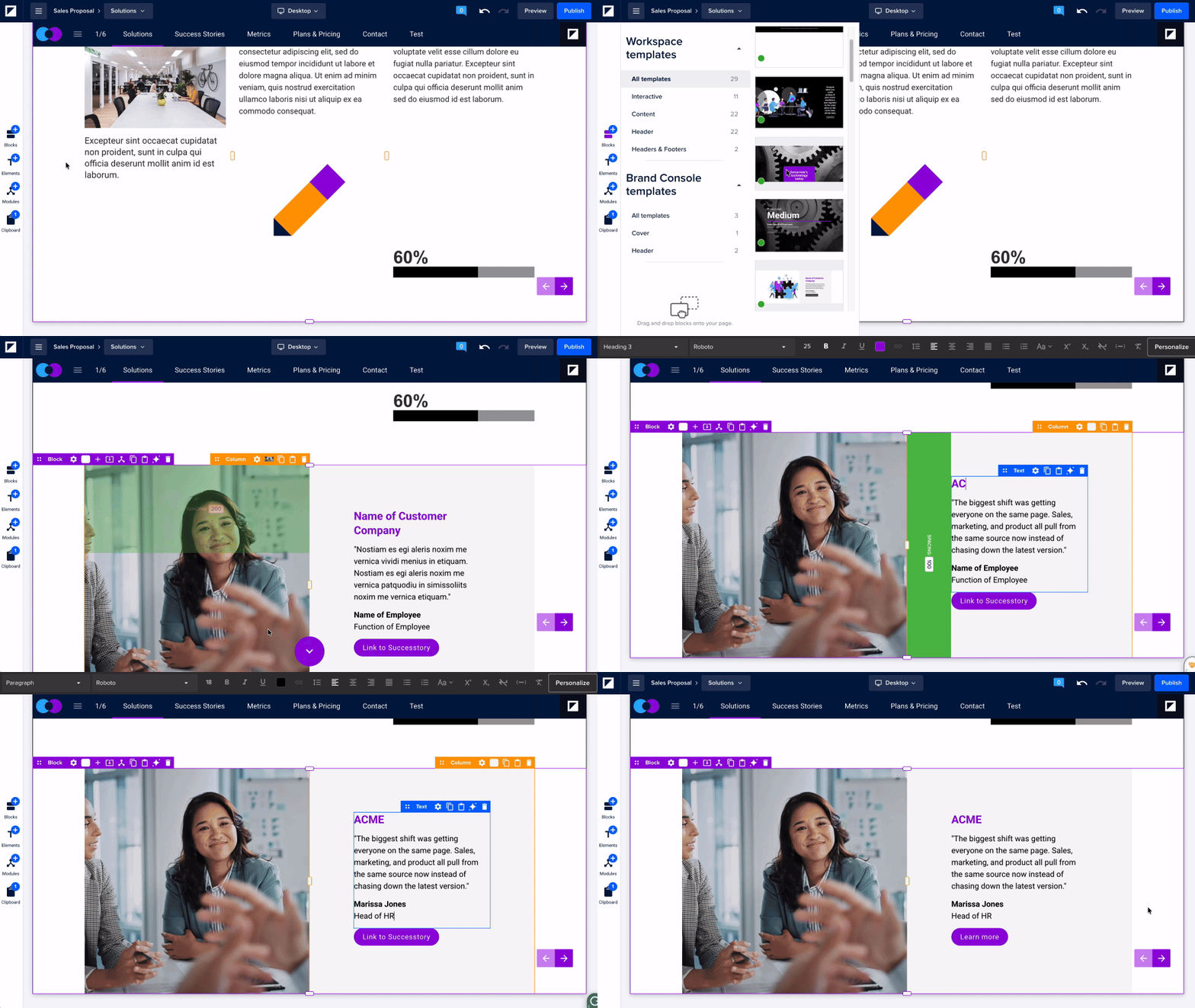
A module works differently. It's the final, correct version of a piece of content, managed centrally to ensure it's always accurate. Because it needs to show the exact same content everywhere it's used, you can't edit it directly in a Doc, only in the Module editor, by an Admin or Designer.
📖 Learn more about modules: All about global content modules
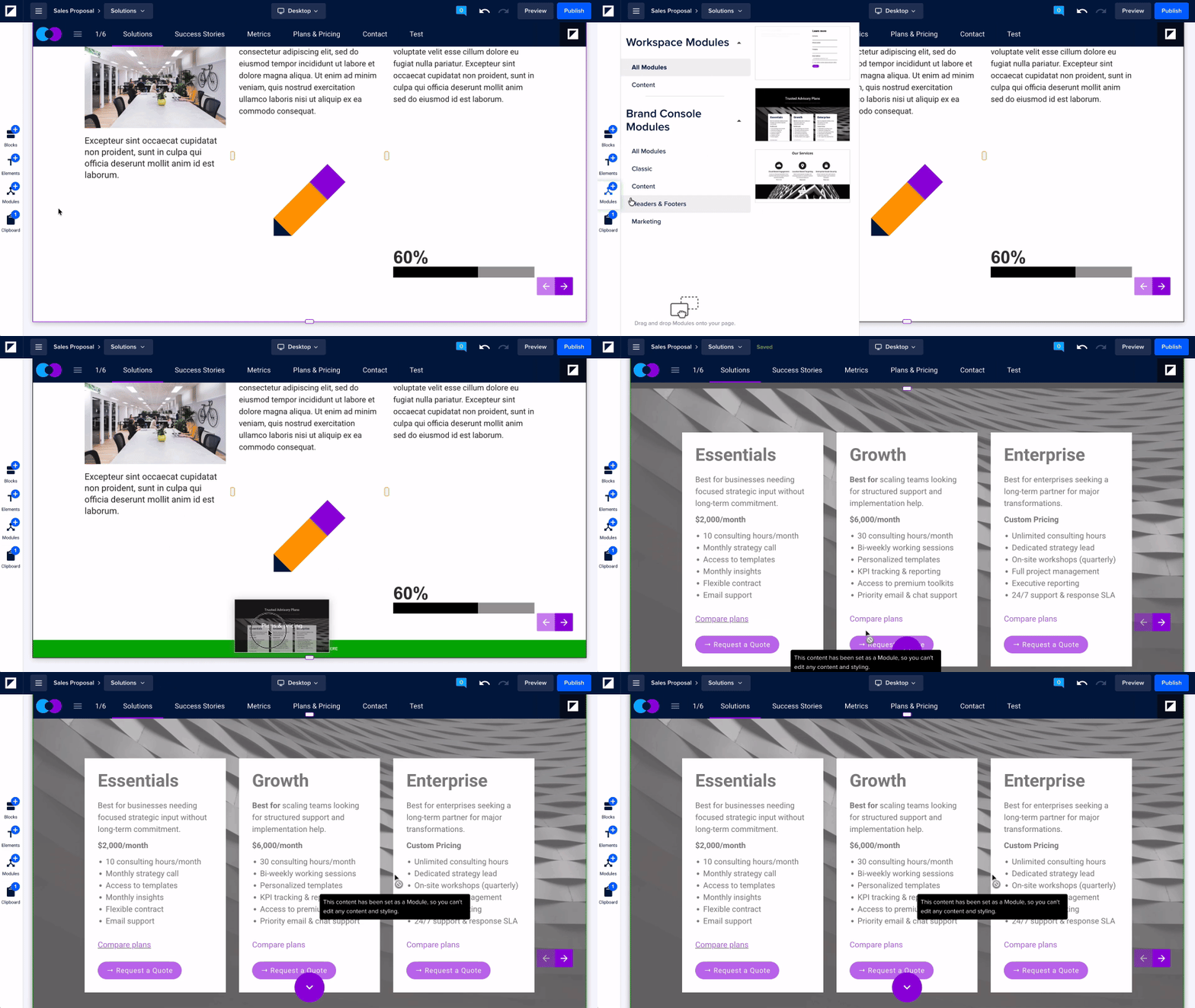
Both can be created for different types of content. Templates can be a full Doc, a page, an overlay, or a single block. Modules can be a single block or several blocks combined to make a larger section or a full page.
Comparison at a glance
| Template | Module | |
| What it is | A reusable starting point for content creation | Finished, centrally managed content |
| What you start with | Placeholder content, that you can edit and update as needed | Finished content, ready to use as is |
| Editable in your Doc? | Yes | No, only in the Module Editor |
| Who can create or edit it | Admins, Designers, and Publishers (for templates in your workspace); Admins and Designers (for templates in your Brand Console) | Admins and Designers only |
| What happens when the template/module is updated | The current places where it's used won't be updated. The updated version will be used only when you add a new template to your page. | Every Doc using the module is updated instantly, no republishing needed |
| What you can create | Doc, page, block, or overlay templates | Individual blocks or several blocks combined to create a larger section or a full page |
| Plan restrictions | Unlimited, available on every plan | Scale, Team, Enterprise |
| Best for | Layouts and starting points teams customize per Doc | Content that must stay identical everywhere, updated from one place |
| Examples | Case studies, sales decks, testimonial blocks | Footers, customer logos, pricing tables, contact us sections |
Choosing the right one
Ask yourself: is this something people should customize for each Doc, or does it need to show the exact same, correct information everywhere?
-
Use a module if it needs to be correct and identical everywhere. One update keeps every Doc accurate.
-
Use a template if it's a helpful starting point for your content that you can edit and adjust for your own purposes.
Choose a module for these types of content:
-
A footer with contact details, social links, or a legal disclaimer
-
Gallery of resources, with links to external sources
-
Pricing tables or compliance content that must always show the current, correct version
- KPIs or company metrics that need to be updated on a monthly basis
Choose a template for these types of content:
-
A case study or customer story, where each version is different
-
A sales deck structure that your team fills in for each new prospect
-
A block layout, like a testimonial design, that teams reuse but personalize
Frequently Asked Questions (FAQs)
Can I turn a template into a module?
You can rebuild your template as a module:
-
In the template editor, hover over the block you want to convert to a module.
-
Click Save as module to create a new module from that block.
-
If your module needs more than one block, copy the remaining blocks to your clipboard.
-
Open the module in the Module editor and paste in the rest of your content to complete it.
Why can't I edit a module directly in my Doc?
Because a module needs to show the exact same, correct content everywhere it's used. Editing it in a single Doc would break that consistency, so changes are made only centrally in the Module editor by an Admin or Designer.
If I edit a template, does it update Docs where I've already used it?
No. A template is only a starting point. Once you add it to a Doc, that Doc has its own separate copy. Editing the original template only affects future uses of the template.
Are there limits on how many templates or modules I can create?
Templates are unlimited on every plan. Module limits vary by plan; how many you can create depends on your plan. Contact us to check your limit.