![foleon_logo_white.png]](https://www.foleon.com/hs-fs/hubfs/foleon_logo_white.png?height=40&name=foleon_logo_white.png)
📖 Want to create a 404 page? Follow these steps to create one for your project.
In this article
Offline redirect options
By default, if a visitor tries to open a broken or offline link, they are redirected to the most recently published Doc in the project. However, this may not always be the best experience.
You might want to redirect visitors to:
-
A Foleon Doc: You can redirect users to a content hub showcasing your latest Docs or a branded 404 page. You can set a primary Doc per project.
- A redirect URL: You can redirect users to a URL, such as your main website or a support page. You can set this on the account level.
Foleon allows you to manage this behavior. When someone tries to access an offline or broken Doc URL, Foleon checks the redirect settings in the following order:
-
Primary Doc (Project level)
If a primary Doc is set for the project or domain, visitors are redirected there. -
Global Redirect URL (Account level)
If no primary Doc is configured, Foleon checks the Global Doc settings for a redirect URL. -
Last published Doc (Default)
If neither option above is configured, visitors are redirected to the most recently published Doc in the project.
Option 1: Set a Primary Doc for your Project
With the Set as primary option, you can choose which Foleon Doc visitors see by default when navigating to your project's root URL.
If someone visits a broken link or tries to open a Doc that has been taken offline, they will be redirected to the primary Doc instead.
Enable a primary Doc
-
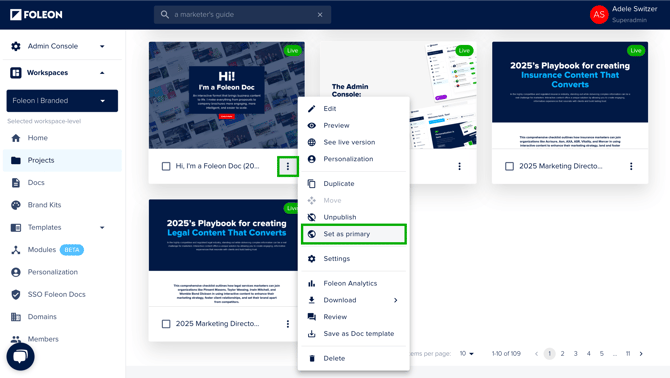
Navigate to the Doc you want to set as your primary.
-
Click the three dots (⋮) to open the quick actions menu.
-
Select the option Set as primary.
-
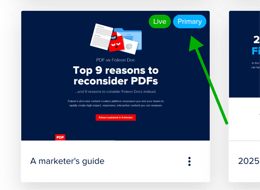
Once set, an icon will appear indicating that this Doc is the Primary Doc for your project.
You can change the primary to another Doc at any time. To do this, navigate to the new Doc you'd like to set as primary, and follow the steps above. Alternatively, you can disable the primary Doc if you want to use the account-wide redirect URL.
Disable a primary Doc
If a project already has a primary Doc, it will always take priority over the account-wide redirect URL. To allow the account-wide redirect URL to apply instead, you can disable the primary Doc:
-
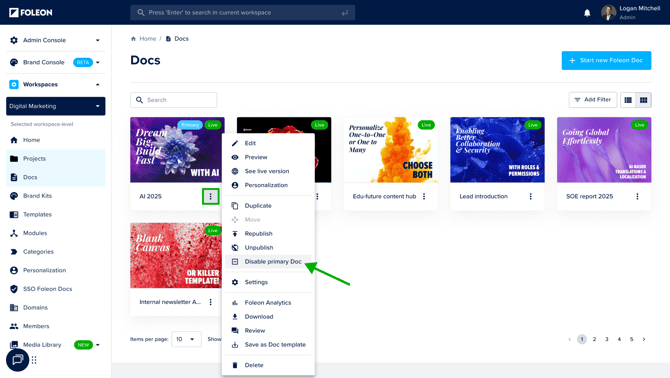
Navigate to the Doc that is currently set as the primary Doc.
-
Click the three dots (⋮) to open the quick actions menu.
-
Select Disable primary Doc.
-
Confirm the action in the pop-up by clicking Disable primary Doc.
Option 2: Set an account-wide redirect URL
Admins can configure a redirect URL that applies across the entire account. This ensures visitors are redirected to a consistent destination when they try to access a Foleon Doc that has been taken offline.
This setting is especially useful for organizations managing many projects and Docs, as it removes the need to configure redirects one-by-one per project.
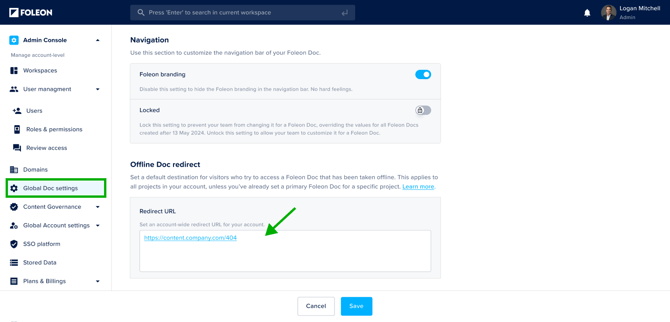
- Navigate to Admin Console > Global Docs Settings
- Find the section Offline Doc redirect
- Enter the URL in the text field
- Click Save
The redirect will now apply to all projects in your account unless a primary Doc is configured.
⚠️ This redirect only applies if no primary Doc is set for the project. If a project already has a primary Doc, you’ll need to disable the primary Doc first.
Best practice: Create a Content Hub Doc
Using Set as primary is a great way to make your project’s root URL useful, especially when paired with a well-designed content hub.
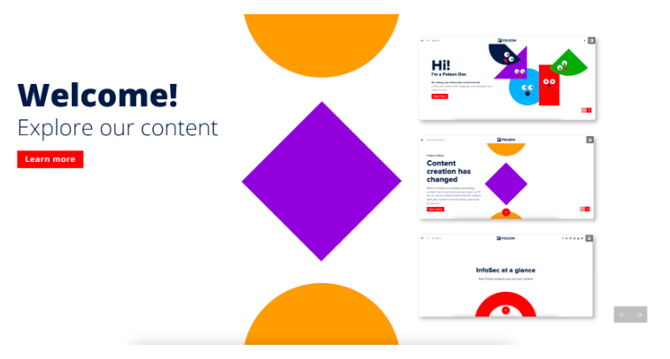
A content hub is a single-page overview of your most inspiring Docs. It’s a helpful destination if a visitor hits a broken or outdated link.
Tips for designing a strong content hub:
- Keep it simple: Disable the navigation bar and page arrows for a clean, one-page experience.
- Use visuals: Add screenshots of key Docs and link them to the full versions. A subtle shadow around images can help them stand out.
- Stay on-brand: Use your Brand Kit to ensure the hub matches your overall look and feel.