![foleon_logo_white.png]](https://www.foleon.com/hs-fs/hubfs/foleon_logo_white.png?height=40&name=foleon_logo_white.png)
Learn how to manage your personal information and login details.
In this article
Manage your profile
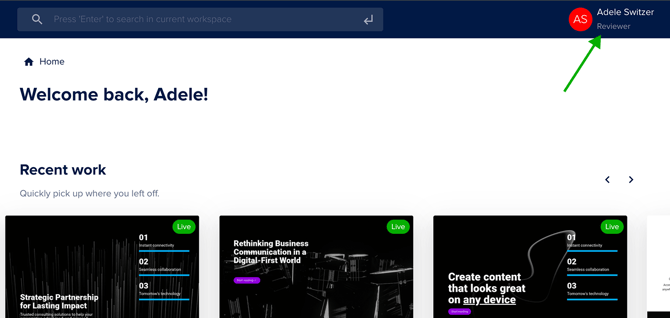
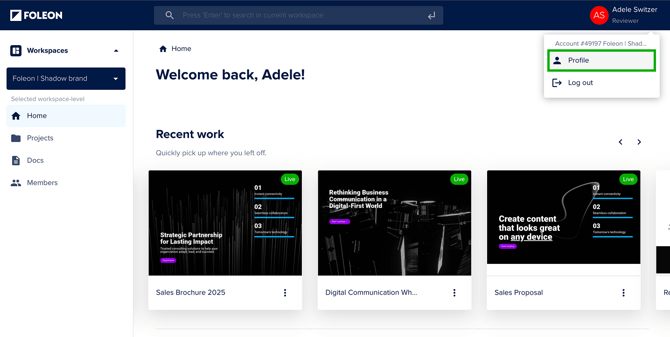
To access your profile settings, click on your initials in the top right corner of the dashboard. Then click on Profile.
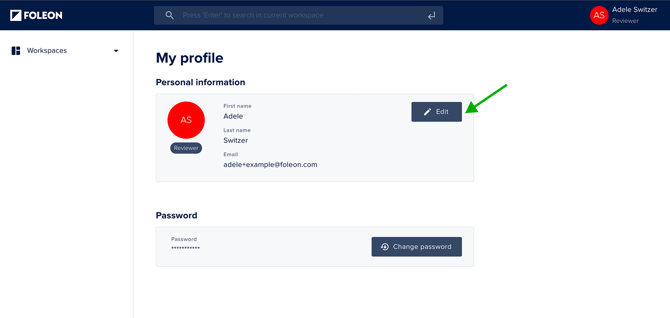
Edit your personal details by clicking on the Edit button. You can edit your first name, last name, and email address.
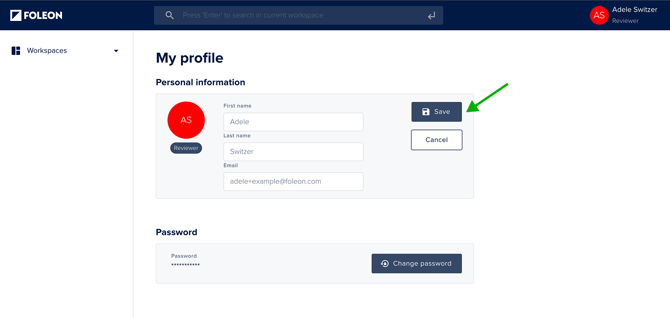
Click Save to save your changes.
Email address login
When you create a Foleon account or you've been added to an account by an admin user, you will use an email address. This email address will also be used as your account username.
You can change your email address from your Profile. To activate a new email address, click on the activation link sent to your email address. Until you’ve activated the new email address, it won’t yet be visible in your profile, and you can continue using your current email address to log in to your Foleon account.
📖 Read more on managing users in our article: Set up Users and roles
💡 Do you need to reset your password? Or did you forget your password? Read the instructions here.
User roles
Different user roles in Foleon determine what you have access to. You can check your role in the top right corner under your name.
Only admin users with access to the Admin Console can change a user's role.
💡 Learn more about user roles in the article: Setting up Users and roles