![foleon_logo_white.png]](https://www.foleon.com/hs-fs/hubfs/foleon_logo_white.png?height=40&name=foleon_logo_white.png)
📖 If you're an Admin with access to the Admin Console, see: Set up users and roles in the Admin Console
⚠️ Your plan determines which roles you can access and how many users you can add per seat type. To upgrade your plan or add additional seats, contact us here.
In this article
The Members page
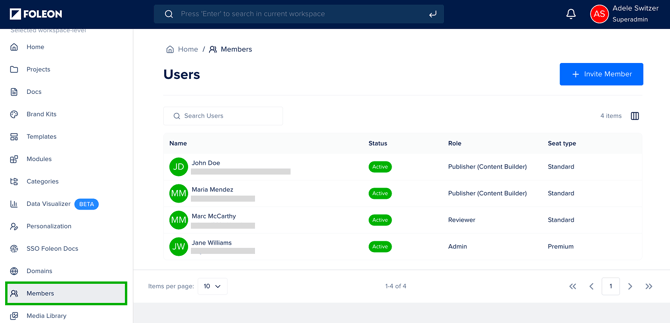
The Members page gives you an overview of everyone in your workspace. Open your workspace and click Members.
From here, you can search for users, sort the list, and manage members using the context menu next to each user.
💡 Managing users on this page is available only to Workspace Admins. For all other roles, the Members page is view-only.
Invite members
- Click + Invite Member.
- Select one of the options:
Add an existing member - Adds a user who already has a Foleon account to your workspace.
- Search for the user by name.
- Select them from the results and click Add.
- If you've set up single sign-on (SSO), click the checkbox to allow the user to log in with SSO.
- Enter their First name, Last name, and Email.
- Select a Role.
- Click Invite. The user will receive an activation link by email.
Remove members
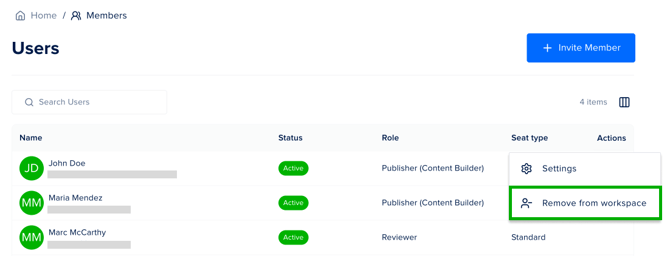
- Find the user in the Members list.
- Click the quick actions menu (⋮) next to their name.
- Click Remove from workspace.
⚠️ If you remove a user from their last remaining workspace, they will be permanently deleted from the platform. A confirmation prompt will appear before this action is completed.
What Workspace Admins can and can't do
Workspace Admins can set a new user's role when inviting them. However, there are some limitations:
- Workspace Admins cannot edit the role of a user who belongs to multiple workspaces.
- Workspace Admins cannot change a user's workspace assignments.
- Agency and partner account users are excluded from workspace-level user management.
To make these changes, an Admin will need to update the user from the Admin Console.
📖 For a detailed overview of each role and what they can do, check out our article: All about user role privileges.