![foleon_logo_white.png]](https://www.foleon.com/hs-fs/hubfs/foleon_logo_white.png?height=40&name=foleon_logo_white.png)
In this article
What the AI Text Assistant can do
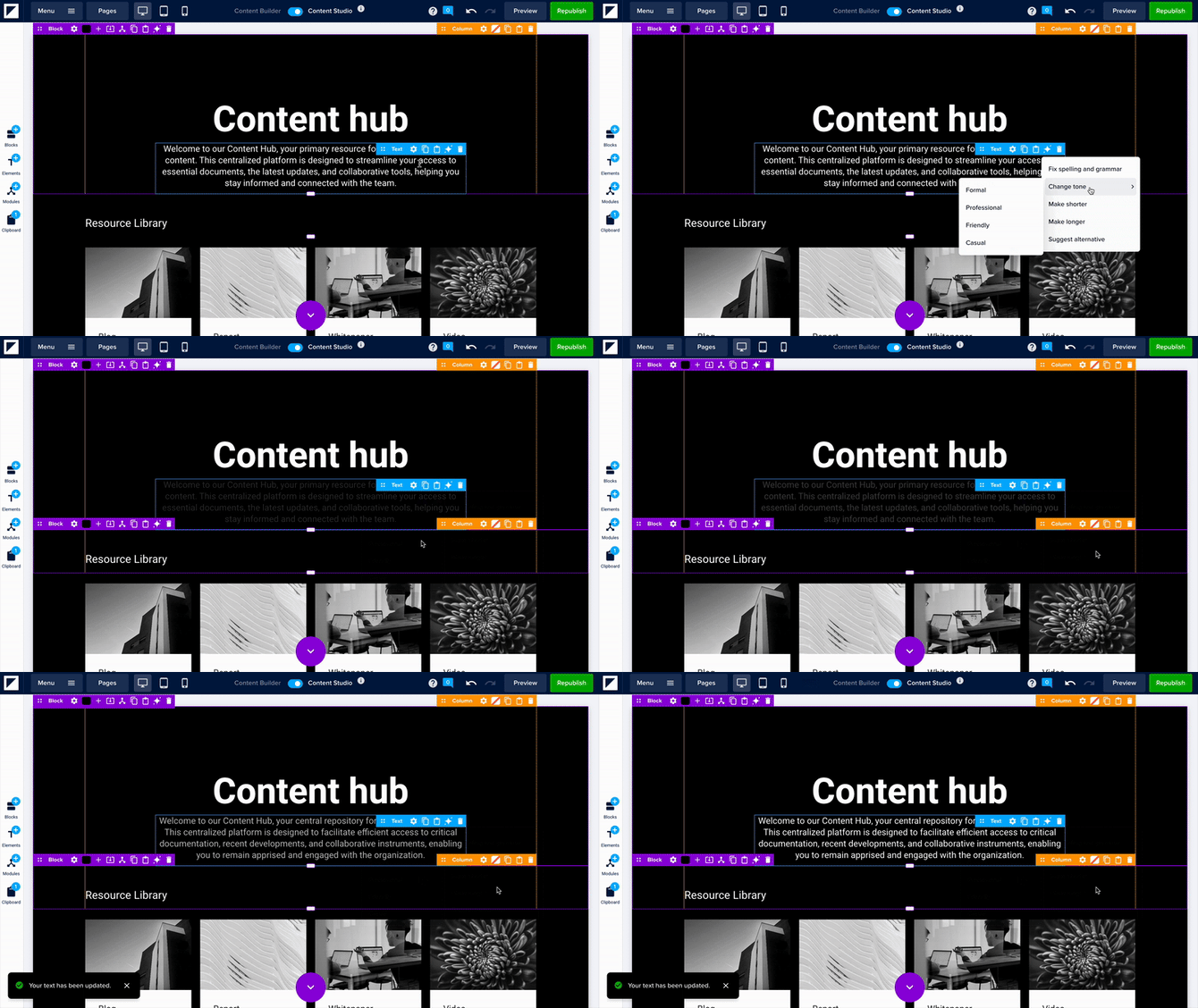
Once enabled, the AI Text Assistant appears on any page, block, or text element. Use it to rewrite, polish, or adjust content with one click. The table below provides an overview of all the actions you can perform with the AI Text Assistant.
|
Action |
Description |
|---|---|
|
Fix spelling and grammar |
Corrects grammar issues and typos |
|
Change tone |
Adjust the tone of your text. Choose from formal, professional, friendly, or casual |
|
Make shorter |
Summarizes or condenses longer text |
|
Make longer |
Expands short text with more detail |
|
Suggest alternative |
Rewrites the text with a new phrasing option |
How to use the AI Text Assistant
Step 1: Enable AI availability
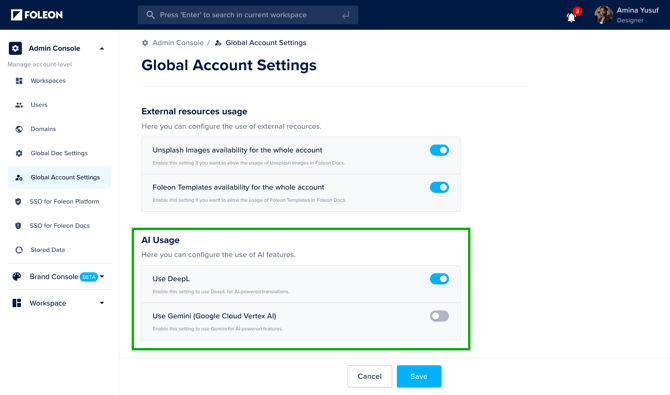
To use the text assistant, you’ll need to enable the use of Gemini for your account.
⚠️ Access to the AI-powered features using Gemini is turned off by default. Only Admins can enable this option in the Admin Console.
To enable the use of Gemini:
-
Go to the Admin Console in the dashboard
-
Navigate to Global Account Settings
-
Toggle on the setting for Use Gemini and click Save
📖 For more information, read our article: Active AI for your Account
Step 2: Use the Text Assistant in the editor
Once enabled, the AI icon will appear when editing any page, block, or text element in your Foleon Doc.
Here’s how it works:
-
Open your Foleon Doc in the editor
-
Hover over any page, block, or text element
-
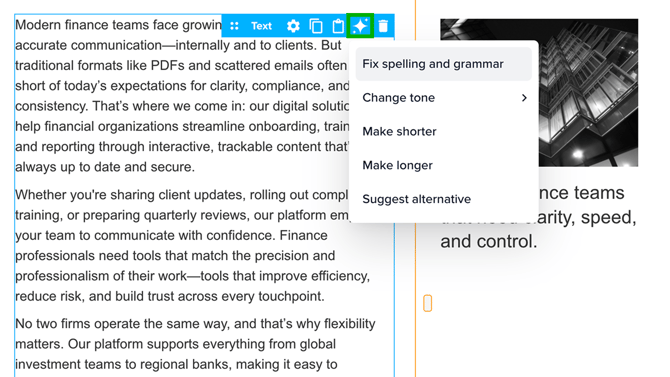
Click the ✨ AI icon in the settings bar
-
Select an action from the dropdown list
-
The selected text will pulse briefly to show it’s being updated
-
You'll receive a confirmation when the action is complete
💡 AI credits are consumed each time you make a change. The more text you adjust with AI, the more credits you consume. Learn more about AI credits.
Step 3: Edit or undo the changes
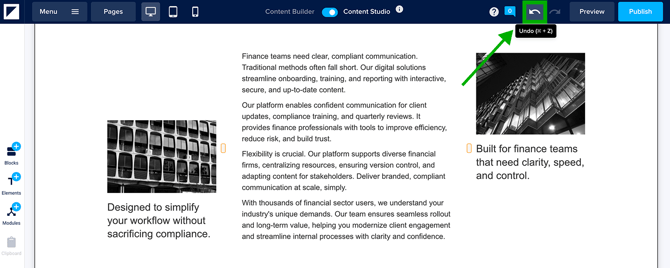
After your text has been updated, you can make any manual edits you’d like by clicking into the text box. To undo the change, simply click the Undo button in the top-right corner