![foleon_logo_white.png]](https://www.foleon.com/hs-fs/hubfs/foleon_logo_white.png?height=40&name=foleon_logo_white.png)
📖 To upload images to the Media Library, see Upload and manage assets in the Media Library.
In this article:
Image formats
Different image formats are suited for different content and design needs:
- PNG — supports transparent and semi-transparent backgrounds. Use for logos, layered designs, and elements with shaped edges.
- JPEG — best for photographs and illustrations with many colors.
- SVG — ideal for logos and simple vector illustrations. Animated SVG files are also supported.
⚠️ For best results, keep images at 2000px wide or less and under 20MB.
💡 Animated SVGs can be animated within the file's own code, but not with custom CSS. To ensure the animation plays when a reader reaches the block, add a native block animation so the SVG loads as soon as the block does.
Image compression
To keep your Foleon Docs loading quickly, large images are automatically compressed on upload:
- Under 2MB — uploaded without compression. No dimension restrictions.
- 2MB to 20MB — automatically resized to a maximum width or height of 3840px (4K), with original proportions preserved. File size may also be reduced.
- GIFs — accepted up to 2MB with no dimension restrictions.
- SVGs — not resized.
Background image dimensions
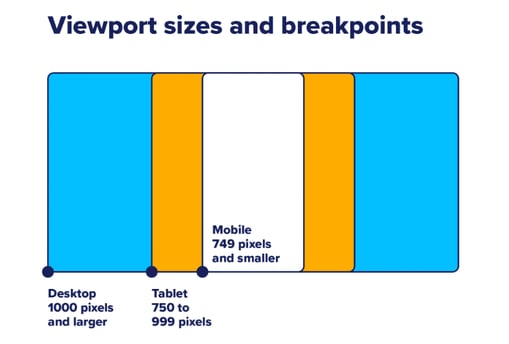
Background images scale automatically to fill their container as screen sizes change. This makes the aspect ratio more important than the exact pixel dimensions.
- Desktop: 16:9 — suggested dimensions: 1920×1080px
- Tablet: 1:1 — suggested dimensions: 1024×1024px
- Mobile: 9:16 — suggested dimensions: 1080×1920px
💡 The viewport breakpoints below show the portion of your background image that will be visible on smaller devices (without adjusting block height for tablet or mobile).
Crop, rotate, and flip images
You can make quick edits to images directly in the Media Library without needing external tools.
- Double-click an image, or select Preview from the quick actions menu (⋮).
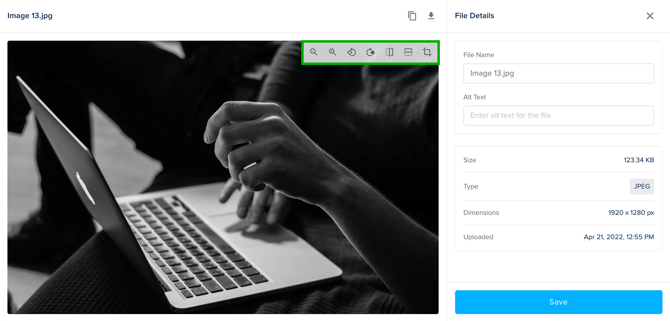
- Use the editing tools at the top of the preview window:
- Rotate left / right — rotates the image 90° at a time
- Flip horizontal / vertical — flips the image along the selected axis
- Crop — select a portion of the image. Resize it freely or lock to a specific ratio, then click Apply Crop
- Click Save.
A new version of the image is saved to the Media Library. Rename it to distinguish it from the original.
💡 Cropping and editing are not available for GIFs.
Add alt text to an image
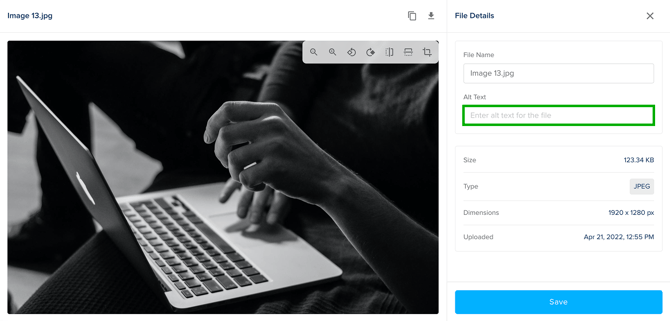
Alt text describes the content of an image for screen readers and helps search engines understand your visuals. Adding it improves both accessibility and SEO performance.
- Double-click a file, or select Preview from the quick actions menu (⋮).
- In the File details panel on the right, enter or edit the alt text.
- Click Save.