![foleon_logo_white.png]](https://www.foleon.com/hs-fs/hubfs/foleon_logo_white.png?height=40&name=foleon_logo_white.png)
In this article
Doc overview
There are two ways to get to the overview of your Docs:
1. Go to the Docs page on your dashboard for a full overview of every Doc across your account.
2. Go to the Projects page, open a project, and you'll see only the Docs that belong to that project — already filtered for you.
From either view, you can search, filter, sort, and browse your Docs to quickly find what you're looking for.
Once you've found your Doc, you can use the quick actions menu to perform actions, such as edit, preview, personalize, etc.
💡 If you're working within a single campaign or topic area, opening a project first is the fastest way to scope your view to the right Docs straight away.
Change the layout of your page
You can customize how your Docs are displayed to suit the way you work. Switch between grid and list view, and fine-tune what you see within each layout.
Toggle between grid and list view using the view controls at the top of any supported page.
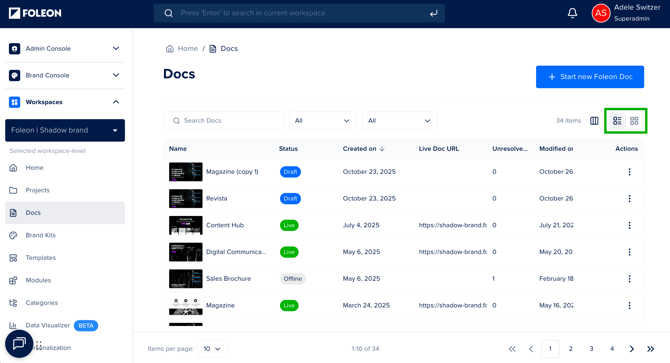
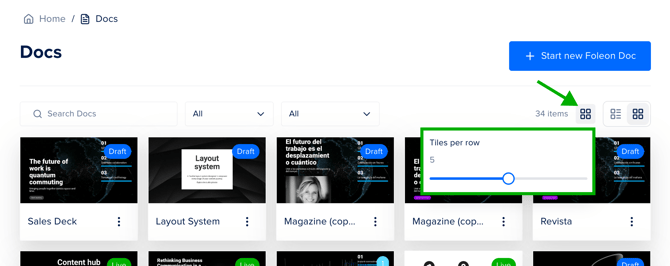
Grid view
Control how many tiles are displayed per row across your dashboard. This lets you see more Docs at a glance or focus on fewer with larger previews.
List view
List view gives you more flexibility over which data is shown and how it's arranged:
-
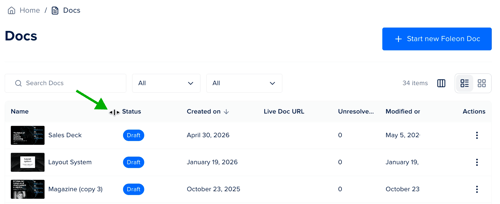
Resize columns: Drag the edge of any column header to adjust its width and prioritize the data that matters most to you.
-
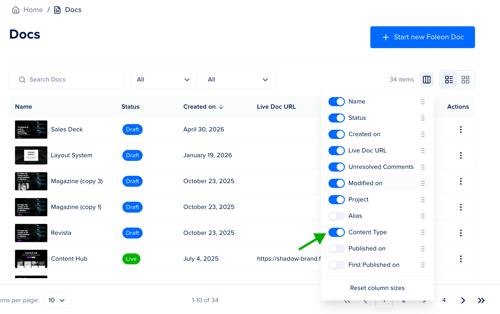
Show or hide columns: Click the columns icon in the top-right area of the list to toggle individual columns on or off.
-
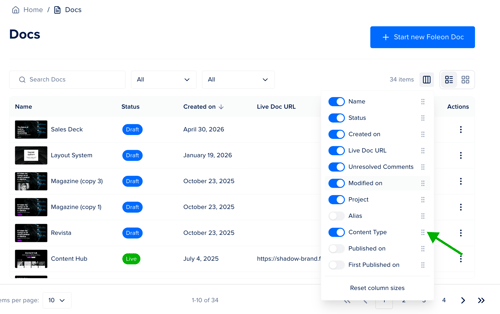
Reorder columns: In the same columns panel, drag and drop column names to change the order in which they appear.
Pagination
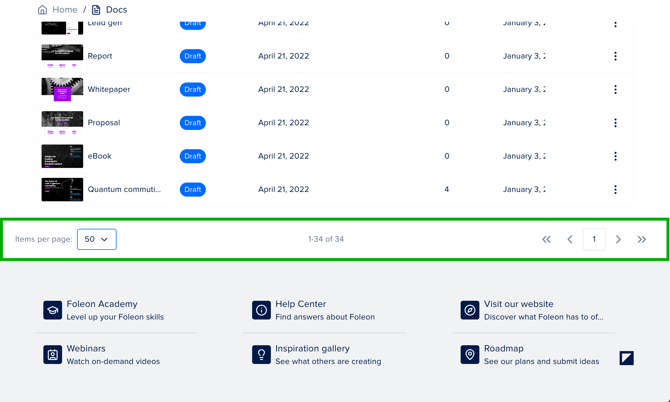
At the bottom of the page, you can control how many Docs are displayed at once.
Use the dropdown to select 10, 25, 50, or 100 items per page, and use the page arrows to move between pages.
Search, filter, and sort
Search
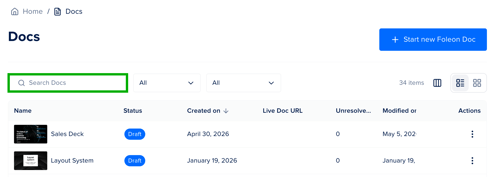
Use the search bar at the top of the Docs overview to find a Doc by name. Results update as you type.
Filter
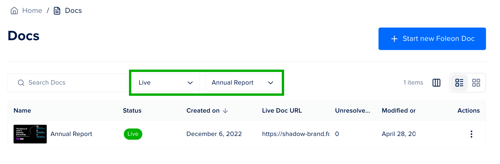
Use the filters at the top of the overview to narrow down your Docs. You can filter by:
-
Status: All, Offline, Draft, Live, or Deleted
-
Content type: Filter Docs by the type of content they contain.
Sort
You can sort your Docs by any column that contains a date. Click the column header to sort by that field:
-
Created on: The date each Doc was first created
-
Modified on: The date each Doc was last edited
-
Published: The date each Doc was last published
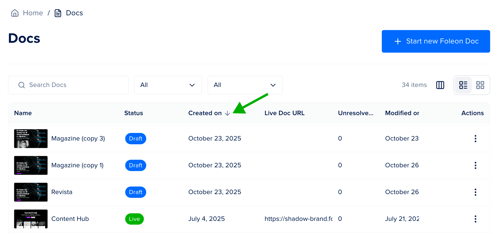
Click a column name once to sort. The arrow direction tells you the current sort order:
-
Arrow pointing up (↑) — Sorted oldest to newest
-
Arrow pointing down (↓) — Sorted newest to oldest
💡Combining filters with sorting is a great way to quickly find your most recently modified published Docs.