![foleon_logo_white.png]](https://www.foleon.com/hs-fs/hubfs/foleon_logo_white.png?height=40&name=foleon_logo_white.png)
In this article:
What are Editions?
When Editions is enabled on a Doc, a dedicated Editions tab appears in the menu of the live Doc. Readers can browse and open all other published Docs in the same project from that tab.
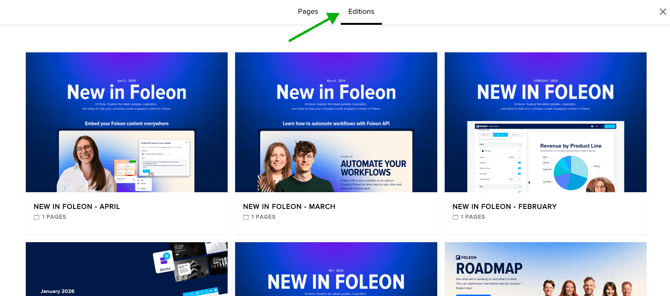
How to enable Editions
💡 Before you start: your project must have at least two published Docs for Editions to be activated.
To enable Editions for your Doc:
- Open the Doc in the editor.
- Click the Menu in the top-right corner and select Doc Settings.
- Go to the Navigation section.
- Toggle on Page menu button. If this is turned off, readers won't see the Editions tab even when Editions is enabled.
- Under Page overview, toggle on Editions.
- Click Save at the end of the Navigation section.
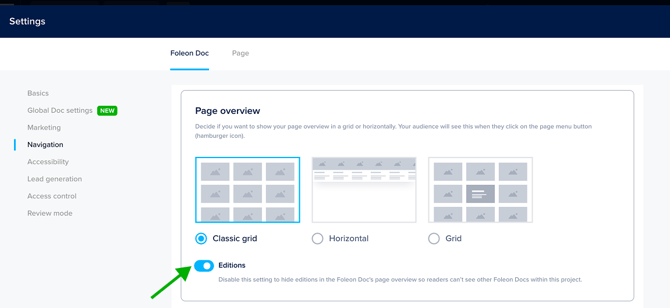
Each Doc in a project has its own Editions setting. Turning Editions off on one Doc only affects what readers see when they visit that Doc. It does not remove it from the Editions list on other Docs where Editions is still enabled.
For example, imagine you have three Docs in a project: January, February, and March. You turn off Editions in the January edition. Readers visiting January won't see the Editions tab. But readers visiting February or March will still see the Editions tab, and January will still appear in that list, because it's published in the same project.
⚠️ If you want to hide the Editions tab across an entire project, you need to turn off Editions on every Doc in that project individually.
Access Editions as a reader
Once Editions is enabled for a Doc, readers can access them following these steps:
- Open the live URL of the Doc.
- Click the navigation menu (☰) on the top left.
- Click the Editions tab.
- Click Preview on any edition to open it.
💡 Editions are sorted by creation date, newest to oldest. This order is fixed and cannot be changed.