![foleon_logo_white.png]](https://www.foleon.com/hs-fs/hubfs/foleon_logo_white.png?height=40&name=foleon_logo_white.png)
In this article:
Supported integrations
The following DAM integrations are available in Foleon:
- Bynder
- Aprimo
- Sitecore Content Hub
- MediaValet
- Marvia
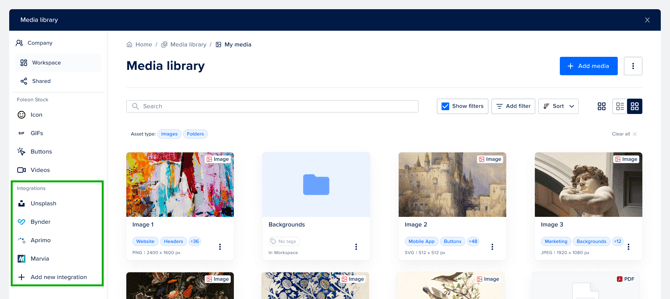
Each integration appears in the Media Library sidebar with its own branded icon once enabled by an admin.
⚠️ Integrations are off by default and must be enabled by an Admin. Some integrations may not be available on your current plan. Contact us here to learn more.
How to enable an integration
Integrations are configured once at the account level in the Admin Console. Once an Admin enables an integration, it becomes automatically available to all users in the account.
⚠️ Only Admins with access to the Admin Console can enable an integration.
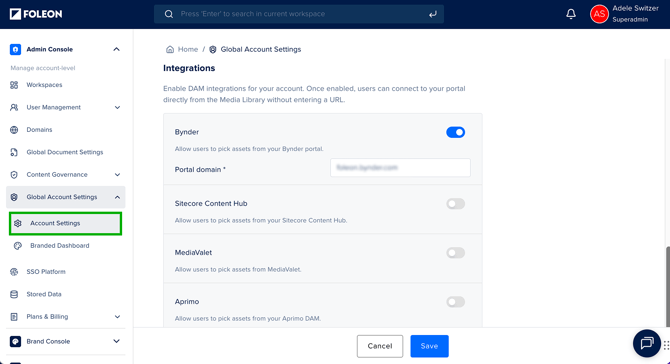
- Navigate to Admin Console > Global Account Settings > Account Settings.
- Scroll to the Integrations section.
- Toggle on the integration you want to enable.
- Enter the domain, if required (for Bynder, Sitecore, and Aprimo).
- Click Save.
💡 When viewing the Media Library from the editor, you'll also see a button + New integration. Clicking here will bring you directly to the Account Settings in the Admin Console.
How to access your DAM in Foleon
Once an integration is enabled, any user with access to the Media Library can browse and import assets from it.
- Open the Media Library from the editor — either by dragging an image or video element onto the page, or by replacing an existing media element.
- In the left sidebar, under Integrations, click the integration you want to use.
- Browse or search for the asset you need.
- Click the asset to preview it.
- Click Insert media to add it to your page.
💡 Integrations are only accessible when adding or replacing media in the editor. You will not see the Integrations sidebar section when opening the Media Library from the dashboard.