![foleon_logo_white.png]](https://www.foleon.com/hs-fs/hubfs/foleon_logo_white.png?height=40&name=foleon_logo_white.png)
⚠️ Integrations are off by default and must be enabled by an Admin. Some integrations may not be available on your current plan. Contact us here to learn more.
📖 For a full overview of all available DAM integrations, see Connect your DAM to Foleon.
What is Bynder?
Bynder is a Digital Asset Management (DAM) system. This means it's a tool to centralize, organize, and share all your digital media files.
Does your company have a Bynder account? Foleon offers a native integration in our Media Library, which enables you to use the images that you manage in Bynder.
💡 Foleon's integration with Bynder allows only Bynder images to be used in Foleon Docs. Although Bynder videos are visible in the pop-up, it's only possible to add their fallback images into the Foleon Doc, not the videos themselves.
How to enable the Bynder integration
Bynder is configured once at the account level in the Admin Console. Once enabled, it becomes automatically available to all users in the account.
⚠️ Only Admins with access to the Admin Console can enable an integration.
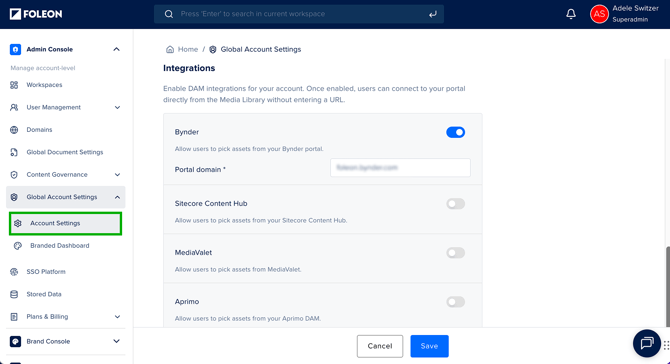
- Navigate to Admin Console > Global Account Settings > Account Settings.
- Scroll to the Integrations section.
- Toggle on the Bynder integration.
- Enter your Bynder Portal domain. The domain follows the format https://yourorganisationname.bynder.com.
- Click Save.
💡 Make sure to add https:// in the URL.
If your organization uses a custom Bynder domain, contact your system administrator to confirm the correct URL before completing step 4.
How to access Bynder in Foleon
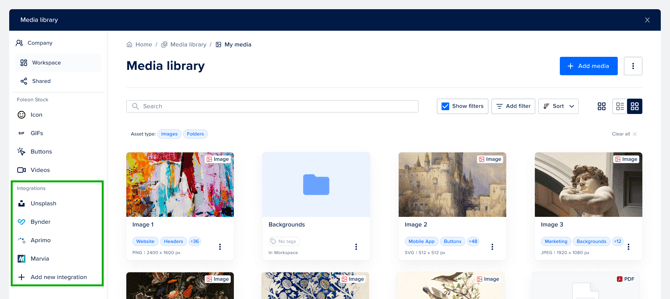
Once the Bynder integration is enabled, any user with access to the Media Library can browse and import assets from it.
- Open your Doc in the editor.
- Add or replace an image — either by dragging an image element onto the page, or by clicking Replace on an existing image or background.
- In the Media Library sidebar, click Bynder under Integrations.
- Browse or search for the asset you need.
- Click the asset to preview it.
- Click Insert media to add it to your page.
💡 The Bynder integration is only accessible when adding or replacing media in the editor. You will not see the Integrations sidebar section when opening the Media Library from the dashboard.