![foleon_logo_white.png]](https://www.foleon.com/hs-fs/hubfs/foleon_logo_white.png?height=40&name=foleon_logo_white.png)
In this article:
What is the Custom Code Element?
The Custom Code Element lets you drop any AI-built widget, calculator, or interactive tool straight into your Doc. It runs inside its own isolated iFrame, so nothing it does can break the layout or slow down the rest of your Doc, and it resizes automatically to fit the page. No separate hosting, no dev time, just add your code and publish.
You can build your widget in any AI tool that generates HTML, such as Claude, ChatGPT, Gemini, Lovable, Bolt, or Replit. If you're using a different AI tool, be sure to check if it can generate standalone HTML.
What can you create?
Below are some examples of different types of interactive widgets you can create and embed on your page:
- ROI calculator
Let prospects calculate the value of your product based on their own inputs. Useful for sales and demand generation content.
- Pricing configurator
Help buyers build their own package and see costs in real time. Useful for product-led or self-serve sales content. - Knowledge quiz
Test reader understanding at the end of a training or onboarding Doc. Useful for L&D and enablement content. - Product recommender
Guide readers to the right solution based on a few simple questions. Useful for product marketing and sales support content. - Assessment tool
Let readers score themselves against a benchmark or maturity model. Useful for thought leadership and lead generation content. - Interactive checklist
Help readers track progress. Useful for onboarding, implementation, and customer success content.
The widget runs in its own contained iFrame, so it can't affect the rest of your page, and it resizes itself automatically as its content changes.
📖 Only need to embed a link or external page, not your own code? Use URL Embed instead. Learn more in All about the Embed element.
💡 Want Foleon to help you build the widget for you? Our Professional Services team can help! Contact Professional Services to get started.
Add a Custom Code Element to your Doc
Once you've built your widget in an AI tool like Claude or ChatGPT, you can add it to your Foleon Doc.
- Copy the HTML code for your widget from your AI tool.
💡Share the prompt template below with your AI tool for the best results. - Open your Foleon Doc in the Editor.
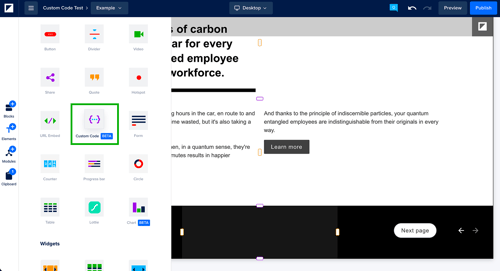
- Go to Elements and drag the Custom Code element onto your page.
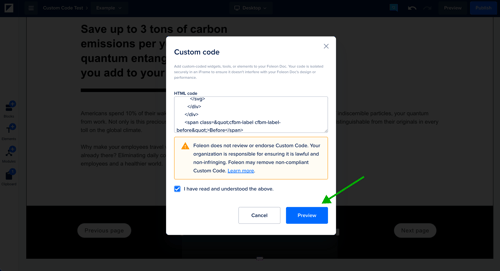
- Paste your HTML code into the code field.
- Select I have read and understood the above to confirm you've read the responsibility notice.
- Click Preview to make sure the widget has loaded properly.
- Click Save to add the element to your page.
💡 A custom widget doesn't automatically pick up your Doc's Brand Kit styling. If you want it to match your brand, include your colors and fonts in the code itself, or ask your AI tool to styleit that way.
⚠️ Foleon doesn't review, endorse, or support Custom Code you add. Your organization is responsible for ensuring your code is lawful and non-infringing, and Foleon may remove non-compliant Custom Code.
Prompt template for your AI tool
Copy the instructions below and share them with your AI tool before asking it to build your widget. These instructions give the AI the technical context it needs, like sizing, structure, and navigation, so the widget it builds works inside Foleon's Custom Code element.
💡 This prompt was built and optimized for Claude, so it performs most reliably there. It also works with other AI providers, but quality can vary, since each one follows instructions a little differently (Claude, for example, sticks closely to "don't do this" rules, while others often do better with direct, positive instructions). Foleon hasn't benchmarked results across every provider.
# Custom Code — master prompt instructions

You are building a self-contained widget that will be pasted into Foleon's **Custom Code** element.
Foleon wraps your code in a sandboxed iframe and automatically sizes that frame to your content's height.

So the two rules that matter most: **don't wrap it in your own iframe**, and **don't set a height on `html` or
`body`**. Almost every broken widget breaks on one of those two.

---

```
STRUCTURE
1. Output one complete HTML document — or a bare HTML snippet if I ask for one, which
   Foleon wraps in a document for you, margin reset included. For a document: start with
   <!DOCTYPE html> and set <html lang="…">. Reset the body margin yourself with
   body { margin: 0 } — your document is used as written apart from one small
   height-reporting <script> Foleon inserts before your </body>, so without your own
   reset the browser's default 8px body margin shows as a gutter.
2. Either way, inline all CSS in a <style> tag and all JavaScript in a <script> tag —
   you can't ship separate files.
3. Never output an <iframe>, a srcdoc attribute, or wrap the whole widget in a data: URL.
   Foleon creates the frame; a nested one renders at the ~150px default and clips your
   widget inside it. (data: URIs for individual images and icons are fine — see 18.)

HEIGHT
4. Never set a height on html or body — not height, min-height or max-height, in any
   unit. Pinning them stops Foleon noticing when your content changes size later, so the
   frame freezes at whatever it measured first. Heights on your own elements are fine
   (rule 7).
5. Don't size layout with viewport units — vh, svh, lvh, dvh, vmin or vmax. Inside the
   frame they read the frame's own height, which Foleon is deriving from your content, so
   they feed a loop: a 100vh section with anything below it grows the frame, which grows
   the section, and the widget climbs to thousands of pixels without settling. For a tall
   section use padding instead, e.g. padding: 96px 24px. (vw is safe.)
6. Never set overflow (hidden, auto, scroll) on html or body, and don't build your own
   scrolling — the frame is exactly as tall as your content and the Foleon page scrolls.
   overflow: hidden on a box that has a pixel height, to clip rounded corners say, is
   fine.
7. Fixed pixel heights are fine and encouraged, on inner elements and on your outermost
   container alike: .compare { height: 400px } as body's only child measures correctly.
   What breaks is a height on html or body (rule 4), or viewport height units anywhere
   (rule 5).
8. Never use position: fixed. position: absolute is fine — filling a sized parent with
   inset: 0 is a normal pattern — as long as that parent is a position: relative element
   with its own height, sitting in flow. What breaks is positioning against the page
   itself: inset, bottom or height: 100% with no positioned ancestor measures the frame
   you're trying to size. position: sticky won't engage either — the frame has no
   scrollbar of its own for a sticky element to stick within. And don't build overlays
   that grow past the frame — an absolutely positioned dropdown, tooltip or modal is
   clipped at the frame's edge, and opening it doesn't make the frame grow. Render menus
   inline in flow, or open them upward inside the existing bounds.
9. Don't animate the document's height on a timer or loop — animate transform and
   opacity instead. Height changes from a user action, like opening an accordion, are
   fine; the frame follows.
10. Never include a Content-Security-Policy <meta> tag. Foleon's height-reporting script
    is inline, so any CSP without 'unsafe-inline' blocks it, no height is ever reported
    and the frame stays at ~150px. Never use document.write after load either — it wipes
    the document and that script with it.

WIDTH
11. The frame is as wide as its Foleon column. Design fluid, 320px to 1600px, with
    flexbox/grid and max-width:100%. No fixed width on the root.
12. Media queries inside your document measure the FRAME's width, not the device's —
    a narrow column gets your mobile layout, which is usually what you want. But never
    read window.innerHeight or the frame's own height in JavaScript: Foleon sets that
    after your document loads, so an early reading is meaningless and changes under you.
    Measuring your own elements with getBoundingClientRect is fine.

WHAT THE SANDBOX CHANGES
13. Browser storage is unavailable: localStorage, sessionStorage, indexedDB, caches and
    cookies. Don't feature-detect it and don't wrap it in try/catch — there's no working
    path, and an unguarded access takes the rest of your script down with it, leaving the
    widget blank. Keep all state in JavaScript variables, and if I ask for something to be
    remembered between visits, say it isn't possible here rather than shipping code that
    fails.
14. alert(), confirm() and prompt() never display anything, and they don't throw —
    confirm() returns false and prompt() returns null, so `if (confirm(…))` always
    takes the cancel branch. Render messages into the DOM.
15. File downloads are blocked. No "export to CSV/PDF" buttons, no
    URL.createObjectURL downloads, and note that <a download href="https://…">
    navigates the frame to the file instead of downloading it.
16. Fullscreen, camera, microphone, geolocation and pointer lock are unavailable. For
    copy-to-clipboard, try navigator.clipboard.writeText and fall back to
    document.execCommand('copy') on a hidden textarea — Chrome blocks the first here
    and the second is deprecated, so keep the text visible and selectable as well.
17. You can't read the surrounding page: parent.document, window.top.document and
    parent.location all throw.

ASSETS AND NETWORK
18. No relative URLs. A relative path resolves against the Foleon page's address, not
    yours, so ./img/x.png requests a path that doesn't exist. Use absolute https://
    URLs or data: URIs.
19. Inline your own CSS, JS and SVG. External https assets do load — CDN scripts,
    stylesheets, web fonts, images — and fetch() works against APIs that send
    Access-Control-Allow-Origin: *. But requests arrive with no origin and no cookies,
    so anything needing a login, a domain-locked key or an origin allowlist is
    rejected. Prefer system fonts, inline SVG icons and hard-coded data.
20. Photos are the exception to inlining: keep the whole paste to roughly 1MB. Very
    large base64-inlined images are the usual reason a paste fails to save. Reference
    photos by absolute https URL, or draw them with CSS/SVG.

NAVIGATION
21. No navigation: no location.*, no target="_top" or "_parent". One embed is one
    document.
22. No href="#section" links. They don't jump to a section — the link resolves against
    the Foleon page's address, so the frame navigates there and your widget is replaced
    by the Foleon page. For internal movement use a <button> plus
    element.scrollIntoView({ behavior: 'smooth', block: 'center' }) — this scrolls the
    Foleon page, and 'start' would land the target under the doc's navigation bar.
23. Forms submit for real, with no origin and no cookies, and the response replaces
    your widget in the frame. Handle submits in JavaScript with preventDefault.
24. External links: <a href="https://…" target="_blank" rel="noopener noreferrer">.
    They open, but the new tab inherits the sandbox and has no cookies or storage, so
    most real sites misbehave there.

QUALITY
25. The frame composites over the Foleon block, so with no body background the block's
    colour shows through automatically. Give body its own background only if the widget
    needs its own surface — and then tell me which colour, so I can match the block.
26. Use real <button> elements for anything that behaves like a button; a div with an
    accurate role (role="slider", role="tab") is fine where that role is the right one.
    Label interactive controls, keep everything keyboard reachable, and respect
    prefers-reduced-motion. If your widget has keyboard controls, remember the frame
    doesn't have focus until the reader clicks it — put the listeners on a focusable
    container and focus it on first interaction, rather than relying on document-level
    keydown. Give anything driven by hover or keyboard a tap/click alternative; these
    docs get read on phones.
27. Keep it light: no heavy blur, no backdrop-filter, no more than one or two shadows on
    a single element, no continuous canvas redraw loops.

BEFORE YOU ANSWER, VERIFY
- No <iframe> and no srcdoc. The widget itself isn't wrapped in a data: URL (data: URIs
  for images are fine).
- Nothing precedes <!DOCTYPE html>, and the body margin is reset.
- No vh/svh/lvh/dvh/vmin/vmax used for layout. No height of any kind on html or body —
  heights on your own elements are fine. No overflow on html or body. Nothing positioned
  against the page itself, and no overlay that grows past the frame.
- No localStorage, cookies, alert, confirm, prompt, file download, document.write or CSP
  meta tag.
- No relative URLs. No href="#…". No location.*. No form without preventDefault.
- One self-contained widget, around 1MB or less.

Now build: <describe your widget here>
```

---

## Check it in five seconds

Search whatever the AI gave you for these. Each one is a bug:

1. `<iframe` — delete the wrapper.
2. `vh` or `vmin` — replace with padding.
3. any `height` on `html` or `body` — remove it (heights on inner elements are fine).
4. `localStorage` — remove it.
5. `href="#` — replace with a button and `scrollIntoView`.
6. `src="./` — make it absolute.

## Height: dynamic by default, fixed once you resize

Height is dynamic by default — Foleon sizes the frame to your content and keeps re-measuring as it changes.

Resizing the element in the editor switches it to a **fixed** height. If you make it smaller than your content,
a scrollbar appears inside the widget. If you just want it to fit, don't resize it.

For an edge-to-edge widget, turn on the block's **Full-width** option and set the **column** spacing to 0 on
all sides — that's also where any leftover margin on tablet and mobile comes from.

If the doc has a top navigation bar, it overlays roughly the first 57px of page content — same as the URL
embed. Add a spacer above the widget, or give it top padding.
Troubleshooting
Foleon doesn't provide troubleshooting or support for the code you add to a Custom Code element. If your widget isn't working the way you expect, we recommend going back to the AI tool you used to build it and describing the issue you're seeing. Your AI tool can update the code based on that description.
Legal Disclaimer
Custom (often AI-generated) code you add runs in a sandboxed frame. You’re fully responsible for the code and everything it does. AI-generated code can be insecure or reproduce third-party code, so you must ensure it respects third-party IP and open-source licence terms.
Your code may load third-party content that uses cookies or similar technologies, which Foleon can’t identify. If your Doc has a Foleon cookie banner, Custom Code is only shown to readers who accept all cookies; without a banner, it always displays. This is a safeguard, not compliance on your behalf.
If your code or the services it loads collect reader data (IP, device, behaviour, cookies, identifiers, form inputs), you are the data controller and must: have a legal basis and your own privacy notice; get prior consent for non-essential cookies or tracking and list them in your own cookie policy (Foleon’s covers only Foleon’s cookies); safeguard transfers outside the EEA; and handle readers’ data rights. Foleon stores only your embed configuration and may disable Custom Code that harms readers or breaks the law.