![foleon_logo_white.png]](https://www.foleon.com/hs-fs/hubfs/foleon_logo_white.png?height=40&name=foleon_logo_white.png)
In this article
What is Foleon DataViz?
DataViz allows you to create, manage, and reuse charts directly within your workspace. Charts are centrally stored, easy to update, and automatically stay aligned with your Brand Kit.
With Foleon DataViz, you can:
-
Create different types of bar, column, line, and pie charts
-
Import data via CSV or edit values directly
-
Apply Brand Kit styling
-
Make charts available across your workspace
-
Update charts without re-uploading files
📹 In the video below, we walk through the complete flow, from creating a chart to adding it to a Foleon Doc.
📖 For more inspiration and examples, view our DataViz Foleon Doc.
Style your charts in the Brand Kit
Before creating charts, you can define their default styling in your Brand Kit. When you add a chart to your Doc, it inherits the styling from the Brand Kit applied to that Doc.
📖 For more information, read the article: Govern your brand with a Brand Kit
To set the default style in your Brand Kit:
- Open your Brand Kit
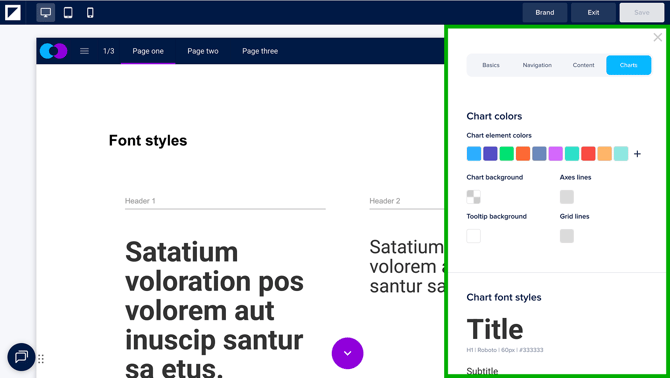
- Navigate to the Charts tab
- In this tab, you can configure the following settings:
- Chart colors
- Chart background color
- Tooltip background color
- Axes lines
- Grid lines
- Fonts
- General chart settings
- Click Save to update your Brand Kit
How chart colors work:
You can define up to 10 chart colors. The order of these colors determines how they are applied. For example, if a pie chart requires four colors, the first four colors defined will be used.
How fonts work:
Chart text inherits its styling from the text styling in the Basics tab:
- Chart title → copies the style from Header 1
- Chart subtitle → copies the style from Header 4
- Axes labels, legend, tooltip, and data labels → copies the style from paragraph
You can manually adjust text styling on the top bar if needed.
How to create a chart with DataViz
Step 1: Start a new chart
💡 The following user roles can create charts: Admins, Designers, Publishers
-
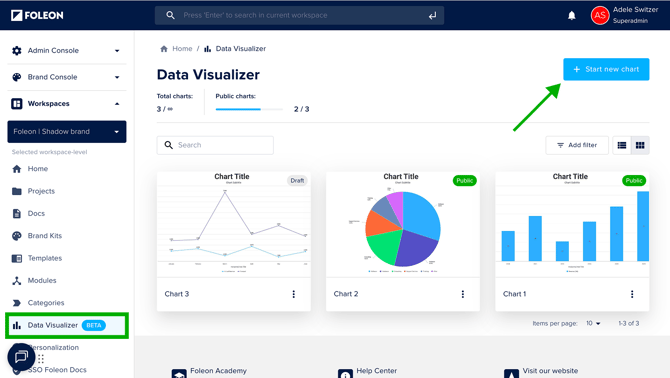
In the dashboard, navigate to your workspace and open Data Visualizer from the menu
-
Click Start new chart in the top right corner
-
Give your chart a descriptive name and click Create
Step 2: Choose your chart type
-
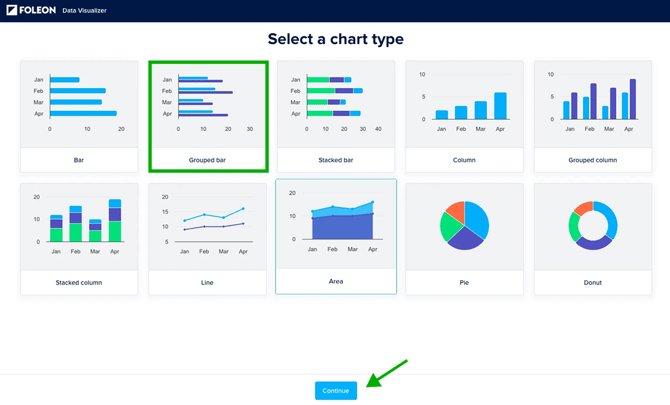
Select one of the available chart types. Choose from a range of chart types to best represent your data:
- Click Continue to configure your chart
💡 You can change your chart type later if needed
Step 3: Add your data
On the Data tab, you can upload or edit the data in your chart.
To upload your data from a CSV:
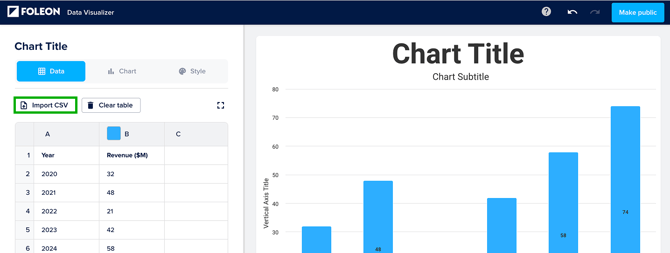
- Click Import CSV
- Select the CSV file from your computer. Once uploaded, your chart will be automatically generated based on your dataset.
If values change later, you can edit them directly in the table, no need to return to Excel and re-import your file.
To manually update your data:
- Click into any cell and adjust the value
- Click Clear table to remove all data
💡 For large datasets, click Expand table to make the table full screen.
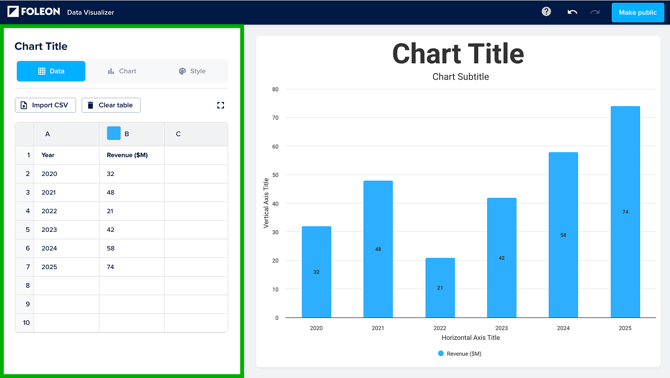
You can also adjust dataset colors here. We recommend applying your Brand Kit first, then making manual adjustments if needed.
⚠️ If you manually change the styling, you will override the Brand Kit settings for that chart.
Step 4: Configure your chart
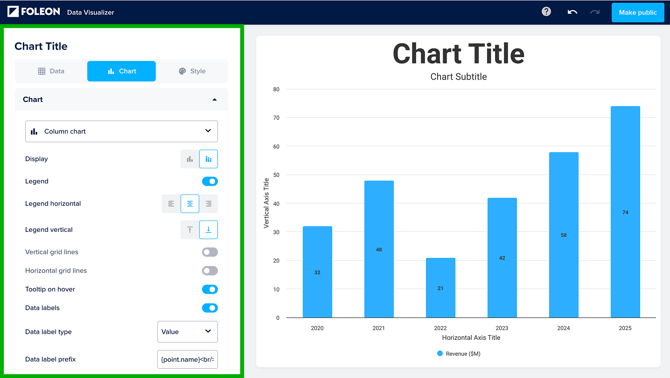
Open the Chart tab to control how your data is displayed.
Click the dropdown to switch chart types. The chart automatically adjusts based on your selection.
You can adjust other settings:
-
Show or hide the legend
-
Adjust grid lines
-
Configure tooltips
-
Enable or disable data labels
-
Adjust axes (and set a custom data range)
-
Modify text, titles, and alignment
Step 5: Style your chart
Open the Style tab to apply your branding.
Select a Brand Kit to apply predefined styling. Your chart will automatically update to match the selected Brand Kit.
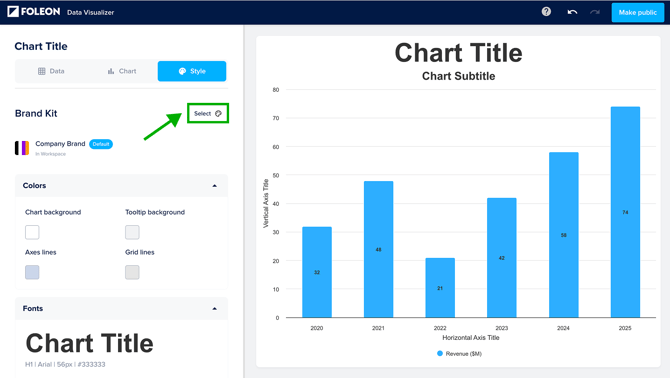
You can manually adjust:
-
Chart background: Click on the color icon to open the color picker
-
Tooltip background: Click on the color icon to open the color picker
-
Axes lines: Click on the color icon to open the color picker
-
Grid lines: Click on the color icon to open the color picker
-
Font size: Click on the font size and adjust the slider to make your text bigger or smaller
-
Font color: Click on the color icon to open the color picker
-
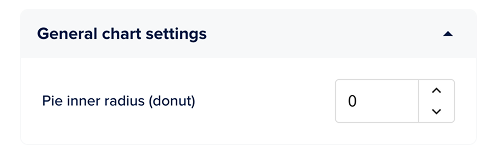
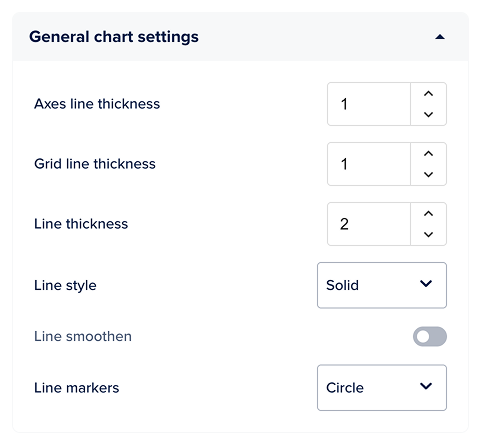
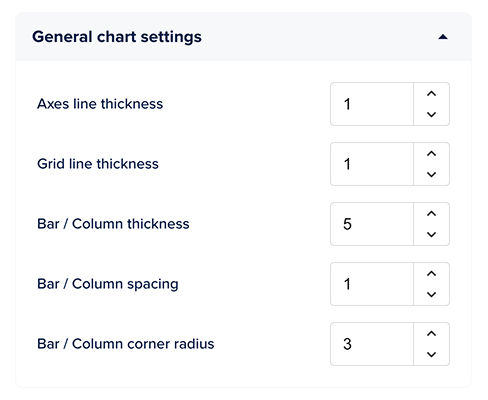
General chart settings specific to your chart type:
| Pie & Donut Chart Settings | Line & Area Chart Settings | Bar & Column Chart Settings |
|
|
|
To change the colors of the data on your chart, go back to the Data tab and adjust them in the table.
⚠️ If you manually change the styling settings, you will override the Brand Kit settings for that chart.
To reapply your Brand Kit, go to the Style tab and click Reset.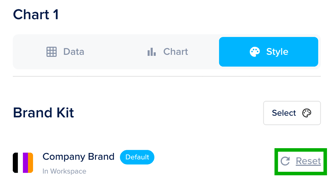
Step 6: Make your chart public
Once your chart is ready, you need to make it public before it can be used in a Foleon Doc.
💡 During the beta, you can make up to 3 charts public. To publish more charts, purchase the DataViz add-on. Contact us here if you are interested!
To make your chart public:
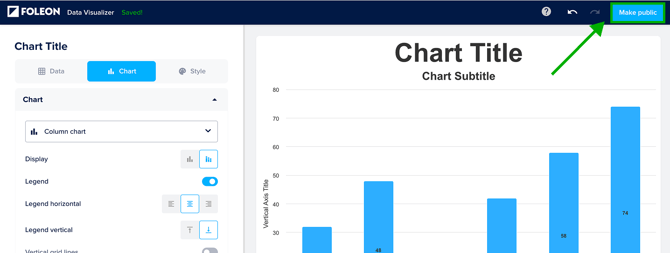
- Click Make public on the top right corner
- Confirm you want to make your chart public
This makes the chart available to others in your workspace and allows it to be added to Foleon Docs.
Add a chart to your Foleon Doc
- Open your Foleon Doc in the Editor
- Go to Elements and drag the Chart element onto your page.
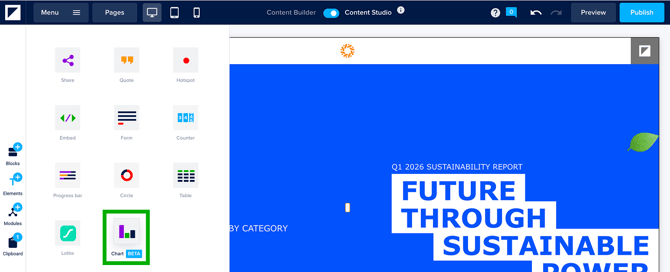
- Select your chart from the list and click Continue.
-
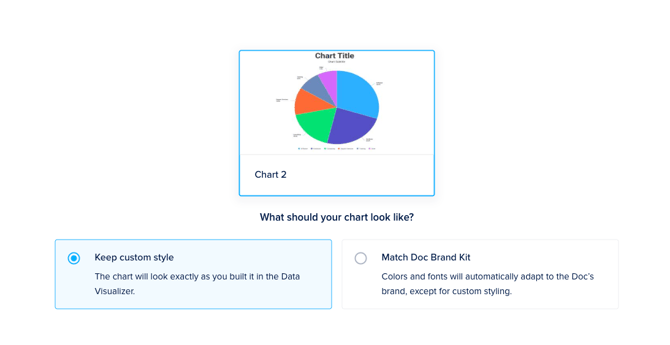
Choose whether to keep your custom design or match the Doc Brand Kit
-
Keep custom style: The chart will look exactly as you built it in the Data Visualizer.
-
Match Doc Brand Kit: The chart’s colors and fonts will automatically adapt to the Brand Kit settings of this Foleon Doc
-
-
Click Import chart to add the chart to your page.
💡 Your chart must be public in order to use in a Foleon Doc. Learn how to make a chart public here.
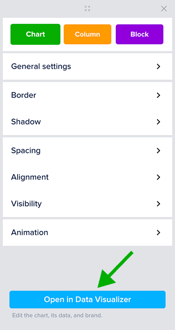
Click the settings icon ⚙️ on the chart element to adjust the following:
- General settings (size)
- Border
- Shadow
- Spacing
- Alignment
- Visibility
- Animation
These settings affect how the chart behaves on the page, not the chart data itself.
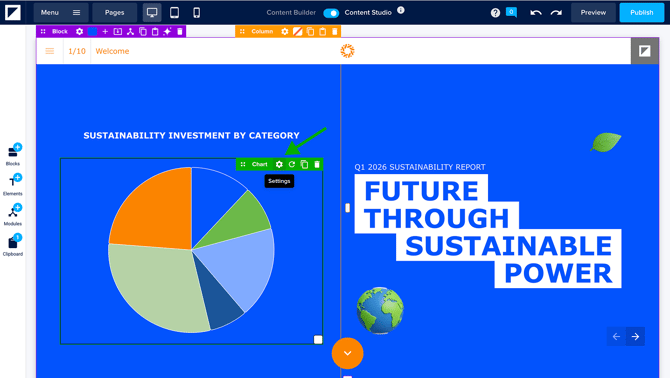
To edit the chart data or style, open the element settings and click Open in Data Visualizer. This will open the chart in Data Visualizer, where you can update it.
Update your chart
One of the biggest advantages of DataViz is centralized updates. You create your chart once and use it across all your Docs. When your data changes, simply update the chart in one place. The chart is automatically refreshed everywhere it’s used, so you can be confident your data stays accurate and consistent.
To update a chart:
-
In the dashboard, open the Data Visualizer page in your workspace
-
Select the chart you want to edit
-
Make your changes
-
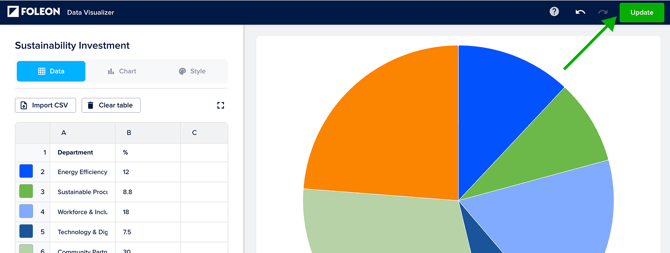
Click Update. You'll see an overview of where your chart is used
-
Confirm you'd like to update your chart
If the chart is used in one or more Foleon Docs, the updated version will automatically reflect everywhere it’s added. This keeps your data accurate and consistent across all Docs, without manual updates.
Embed charts outside your Foleon Doc
You can embed charts created in Foleon on external platforms such as websites or landing pages. This allows you to display interactive, branded charts beyond your Foleon Doc.
All charts are created and managed in Foleon, so you can use them both in your Docs and across other platforms. Simply copy and paste the embed code. This is ideal for sharing dashboards, KPI updates, or campaign results, while keeping everything centralized and easy to manage.
How to embed a chart
Your chart must be public to generate and use the embed code. Draft charts cannot be embedded.
-
Open Data Visualizer and find the chart you want to embed
-
Open the quick actions menu (⋮) on the chart and select Embed
-
Copy the generated embed code
-
Paste the embed code into your website, landing page, or any external environment where you want the chart to appear
.png?width=670&height=386&name=Quick%20actions%20menu%20-%20embed%20(1).png)
Download your chart as an image
If you want to reuse your chart outside of Foleon, you can download it directly as an image. This is useful for presentations, reports, or sharing visuals across other channels.
💡 You can only download charts that are set to public.
To download your chart as an image:
- Open your public chart in the Data Visualizer
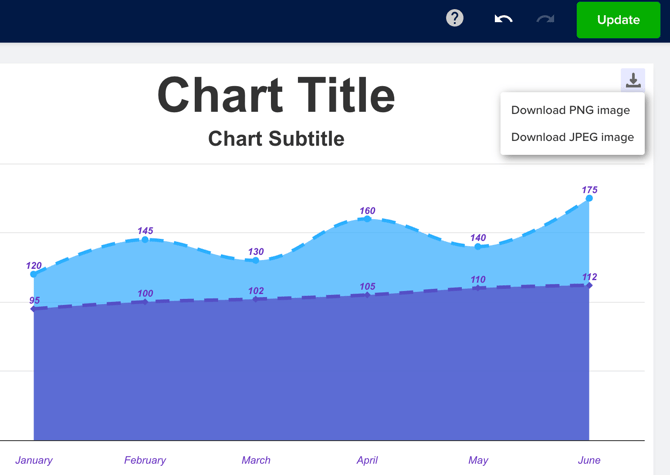
- Click the download icon in the top right corner
- Select either JPEG or PNG. Your chart will be downloaded to your computer.