![foleon_logo_white.png]](https://www.foleon.com/hs-fs/hubfs/foleon_logo_white.png?height=40&name=foleon_logo_white.png)
In this article
Animation types
In Foleon, you can apply different types of animations depending on the effect you want to create:
- Entrance animations: Introduce elements when the page loads
- Repeat animations: Add subtle looping motion to draw attention
- Cinematic animations: Apply slow zoom effects to (background) images
- Scroll animations: React to how readers move through the page
How to apply animations
Animations are applied the same way across blocks, columns, and elements, such as images, text, buttons, and data.
- Go to your element, block, or column and click on Settings in the element bar
- In the styling panel, open the Animation tab
- Choose from the available animations: Entrance, Repeat, Cinematic, or Scroll. Customize the settings where available.
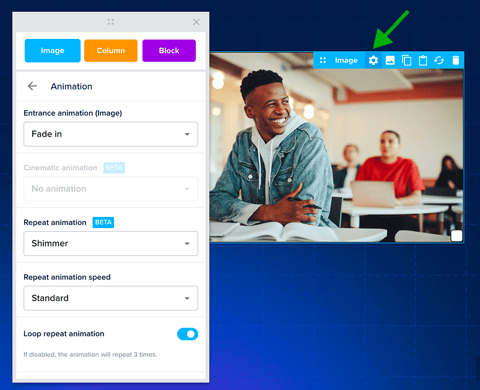
⚠️ Parallax (Scroll Speed) settings for blocks have been moved to the Animation tab. This keeps all motion-related controls in one place.
Entrance animations
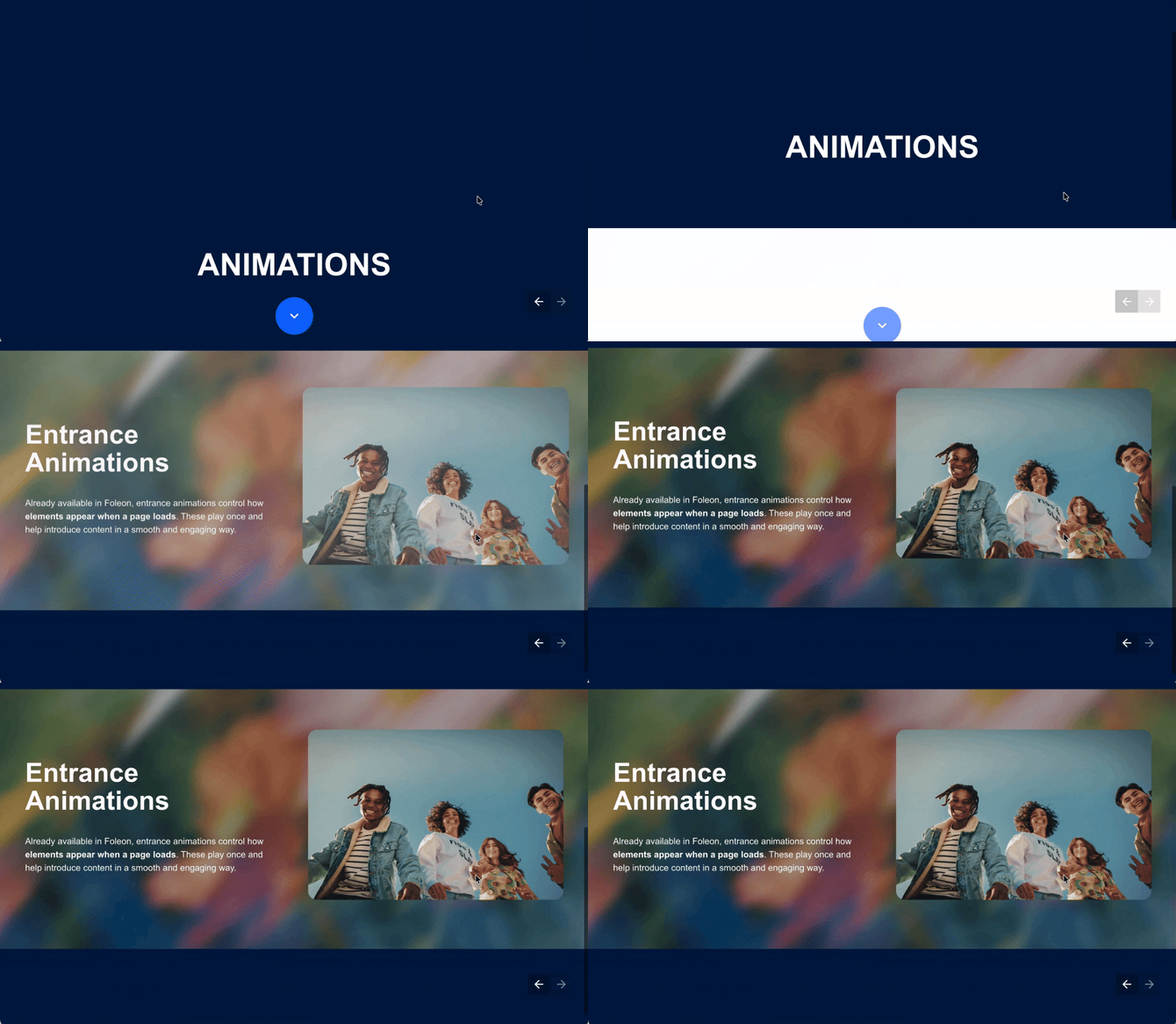
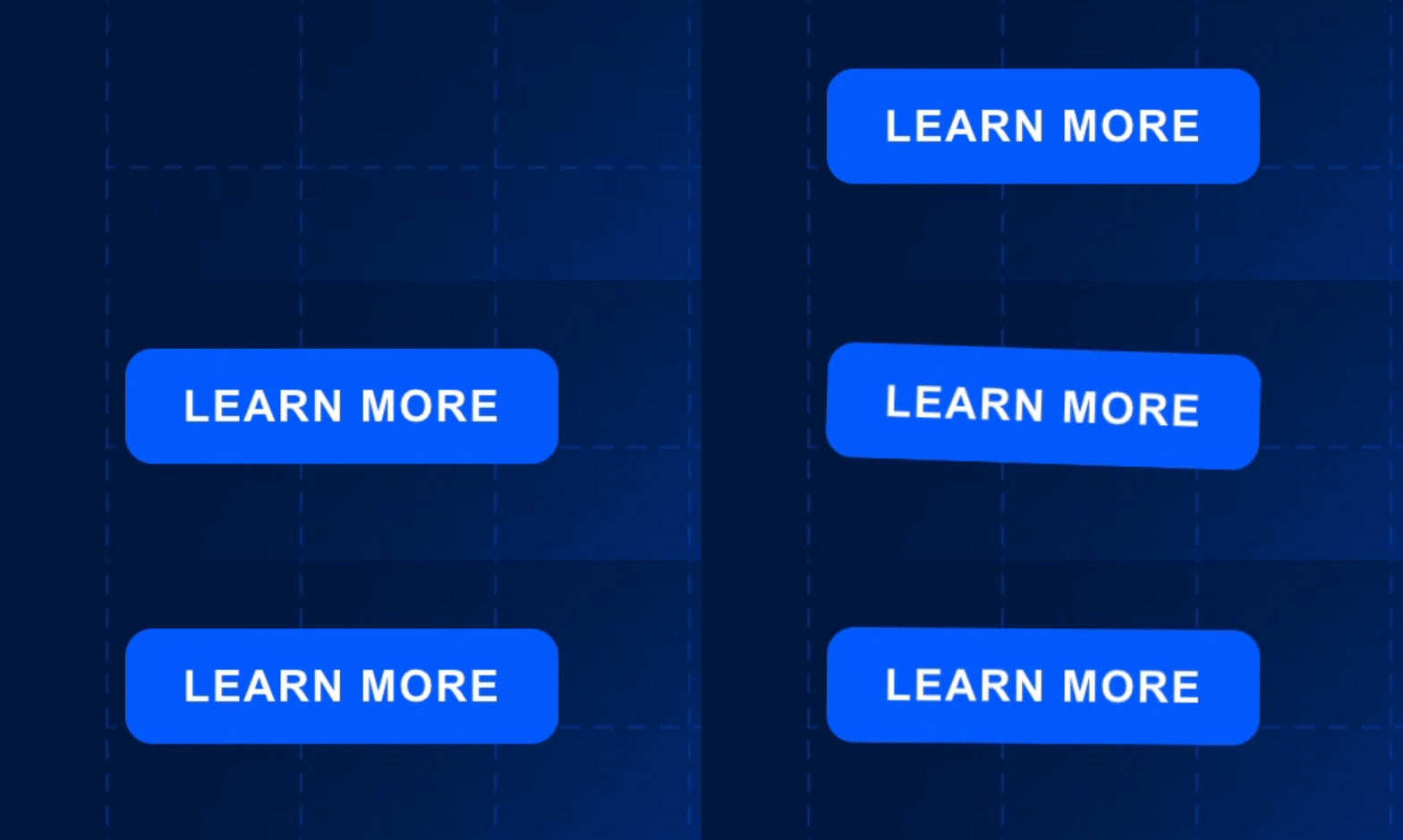
Entrance animations control how elements appear when a page loads. These animations play once and help introduce content in a smooth and engaging way.
💡 For blocks, the setting to repeat the entrance was previously labeled Animate only once. It's now called Repeat entrance animation. When enabled, the entrance animation will replay.
[image]
Works on:
Blocks, columns, text, images, buttons, dividers, videos, share elements, quotes, forms, and data
Available options:
- Fade In: Gradually fades the element into view
- Zoom In: Scales the element up from a smaller size
- Blur In: Starts blurred and sharpens into focus
- Fly In: Moves the element into view with motion
- Fade In Down: Appears while moving downward
- Fade In Up: Appears while moving upward
- Fade In Left: Appears from the left side
- Fade In Right: Appears from the right side
- Reveal In Left (text only): Reveals text from left to right with a color
- Reveal In Right (text only): Reveals text from right to left with a color
Repeat animations
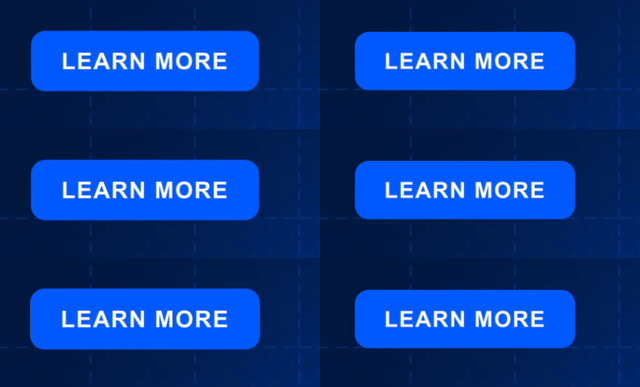
Repeat animations create continuous loops that draw attention to key elements without requiring user interaction.
Works on:
Buttons and images
Available options:
- Pulse: Gently scales the element up and down
- Bounce: Moves the element up and down to create a playful motion
- Shake: Quickly shifts the element side to side
- Float: Smoothly lifts and lowers the element
- Shimmer: Adds a light sweep across the element
Customization:
- Duration: Controls how fast the animation plays
- Interval: Defines the pause between loops
💡 Subtle effects like Pulse or Float work well for CTAs, so they stay visible without distracting from the content.
Cinematic animations
Cinematic animations apply a slow zoom effect to images, helping bring static visuals to life.
Works on:
Image elements and background images on blocks and columns
Available options:
- Slow Zoom-In: Gradually zooms into the image
- Slow Zoom-Out: Slowly pulls back from the image
- Zoom-In-Out: Continuously zooms in and out
💡 Use a slow zoom-in on a hero image to create a more dynamic first impression.
Scroll animations
Scroll animations add motion that responds to how readers move through your page. They help guide attention and reveal content progressively.
Works on:
Background images on blocks and columns
Available options:
- Parallax (scroll speed): ⚠️ Available for blocks only (not columns), this animation creates a background scroll effect. Learn more about the parallax effect here.
- Fade In: Transitions from transparent to visible as the element reaches the center of the screen
- Scroll Zoom (Ken Burns): Scales the image as the user scrolls
💡 Use Fade In on backgrounds to create a reveal effect as readers move through your content.

Combine animations
Multiple animation types can be applied to a single element.
For example:
- Apply an Entrance animation to introduce the element
- Add a Repeat animation to keep it subtly moving
The animation sequence works as follows:
- The entrance animation plays first
- Once complete, the repeat animation begins
This allows you to layer motion while keeping the experience smooth and intentional.
Known limitations
⚠️ Animation combinations
Scroll and cinematic animations cannot be combined with each other or with entrance animations.
⚠️ Scroll animation support
Scroll animations are currently limited to background images.
⚠️ Full-height columns
Scroll animations may not trigger correctly when used with full-height columns.