![foleon_logo_white.png]](https://www.foleon.com/hs-fs/hubfs/foleon_logo_white.png?height=40&name=foleon_logo_white.png)
💡 This effect is also known as the "Parallax Effect" or "Floating Text".
Why would I choose a scroll speed?
Changing the background scroll speed allows you to put focus on a certain area of the page, whether it's the background image itself or the element that sits on top of the image. Having a moving image is engaging to the viewer to break up lengthy content on a page.
Where can I change this setting?
In the Foleon Editor, navigate to the Doc you want to update and select the block with the background image.
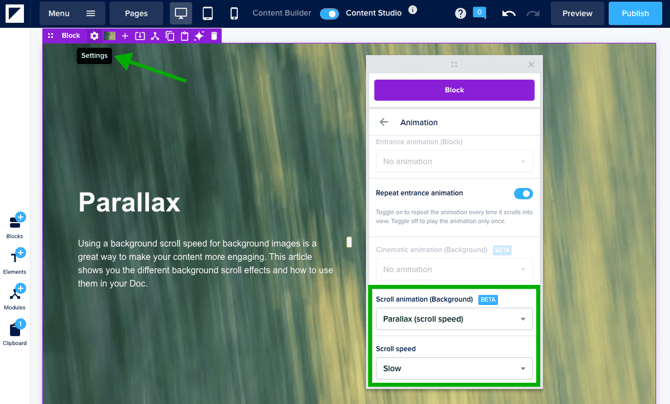
- On your block, click Settings in the element bar
- In the styling panel, open the Animation tab
- Under Scroll animations, select Parallax (Scroll Speed)
- Adjust the scroll speed to adjust how the background moves as the reader scrolls (Normal scroll, Slow, Slower, Even Slower, No scroll)
Good to know:
- Parallax (scroll speed) can only be applied to background images, not background videos.
💡 When you're working with the Content Builder, it's not possible to add background scroll effect to your block.
Background settings
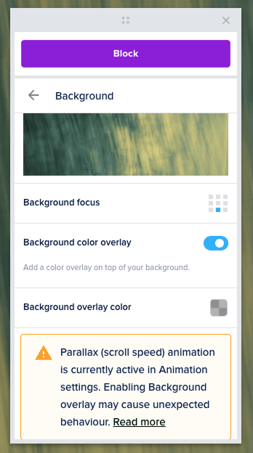
With the setting "Background color", you are able to apply a color overlay to place on top of your background image.
⚠️ Performance considerations
Combining a scroll effect with a background color overlay needs more processing power and may affect performance on some devices. Using both together can cause unexpected behavior.
Different scroll speeds
Below you can find some examples of the different scroll speeds in action.
The examples that are shared below use this combination of settings, which might result in inconsistent performance or unexpected behavior. Please be aware of this when you create your content so that you don't have any issues in the editor and live version of your Foleon Doc.
⚠️ If you set up multiple blocks with the same fixed background image and a scroll option applied, the editor shows this message: “With this combination of background settings, unexpected behavior can occur”
-
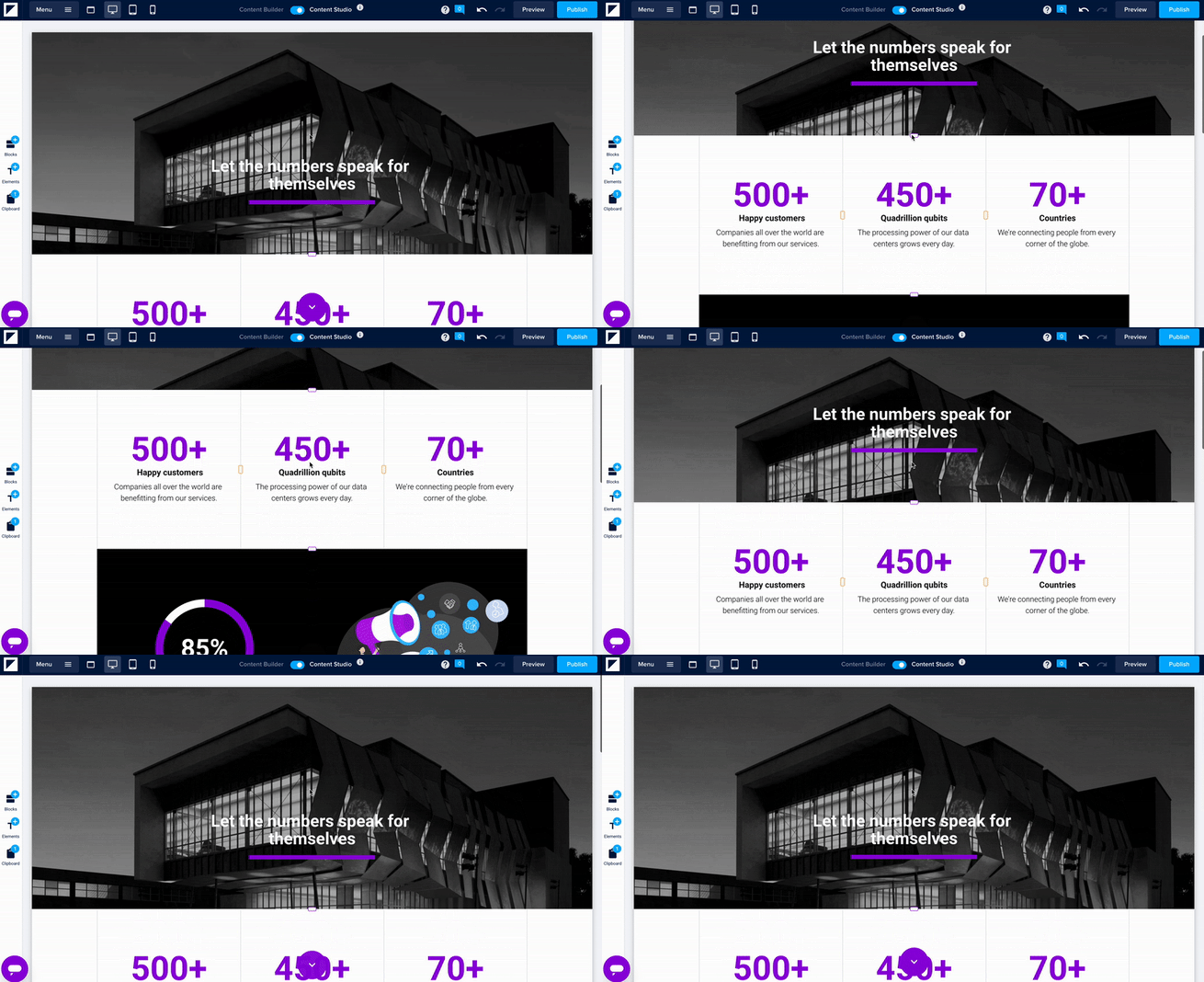
Example 1 — No scroll background into normal scroll
In this example, you'll see the background image with the buildings with a no scroll effect and the next block with the data elements with normal scroll. This creates an effect that the second block slides over the first one.
-
Example 2 — No scroll parallax effect
In this example, we achieve the "Parallax" effect by combining multiple blocks of the same background and text elements. This common effect is desired to create the "floating text" effect, in which the two backgrounds flow perfectly into one another as if it was one long background.

-
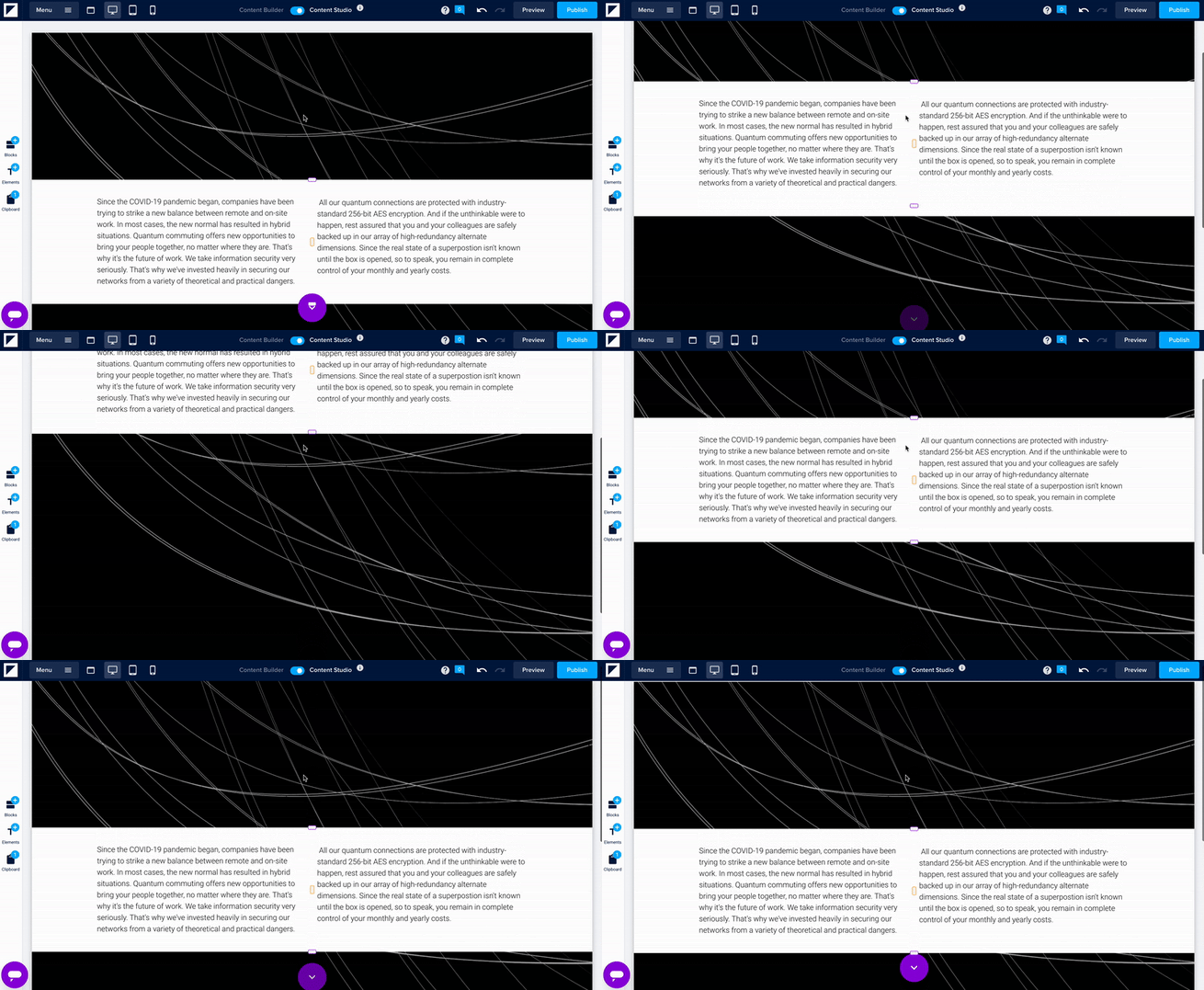
Example 3 — No scroll parallax effect with a middle block of text
In this example, you can see the no scroll effect for two blocks without text. However, there is a middle white block with text; this shows the effect that the two background blocks are as one behind this white middle block.
Known limitations
Applying a background scroll speed takes much calculation power for your reader's device. For that reason, it's best to be mindful of the number of times you use this effect in your Foleon Doc. Extensive use can result in inconsistent performance or unexpected behavior.
We have a few recommendations to avoid issues in the editor and live version of your Foleon Doc:
- When you have multiple blocks with the same no-scroll background image, set the background color to transparent for all blocks and columns.
- Don't apply a background scroll speed to more than ten blocks for a page.
- Try not to apply a background scroll speed to a background image in combination with a color overlay.