
Sometimes, you want to include extra context — a personal story, a detailed table, or an FAQ — without overwhelming your reader or cluttering your layout. That’s where Reveal & Hide Blocks come in. They let you neatly tuck content away inside a collapsible section that expands when clicked, keeping your page clean and easy to navigate.
In this article
What is a Reveal & Hide Block?
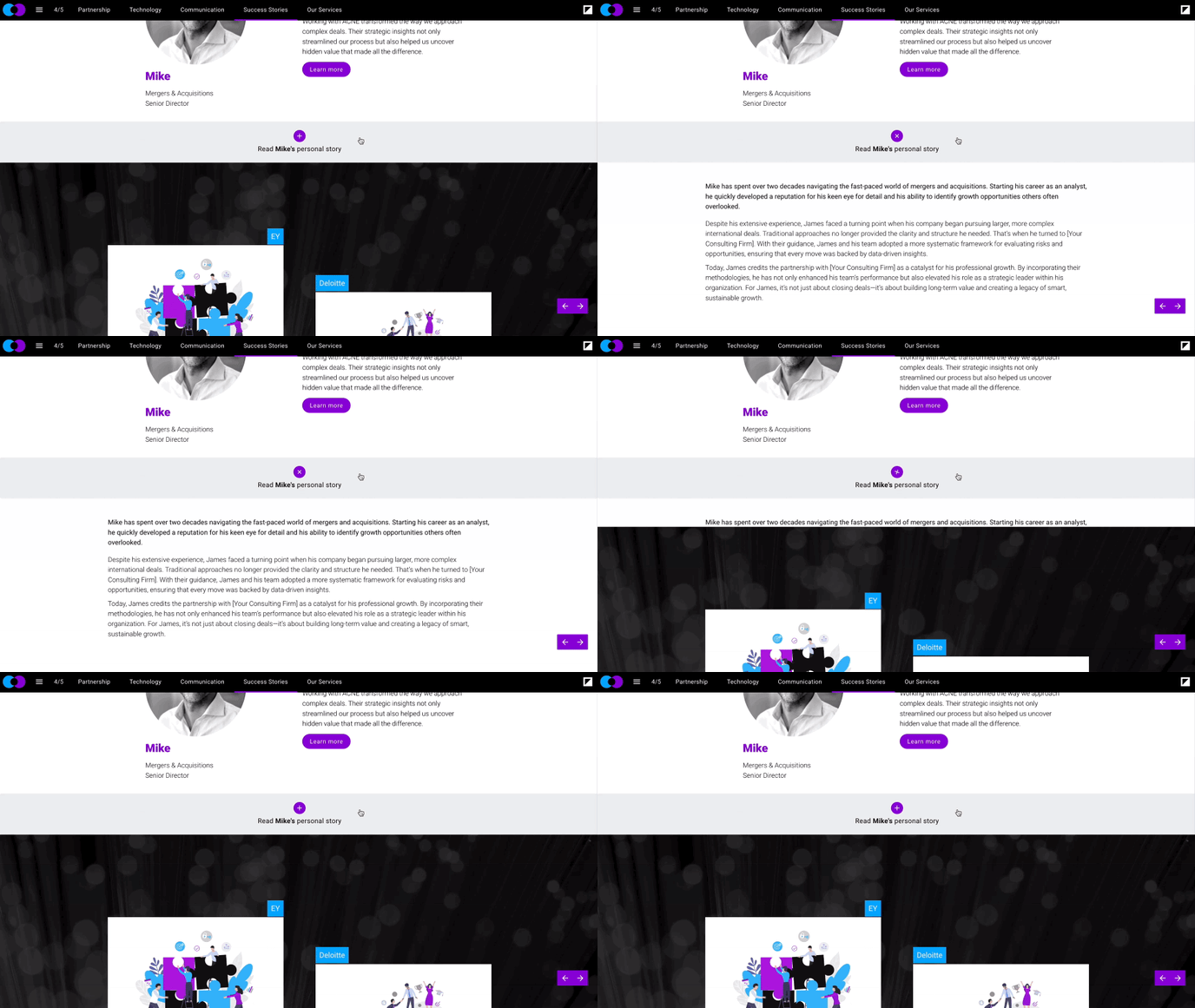
Reveal & Hide Blocks let you place content inside an expandable section. When readers click the "+" icon (or anywhere on the block), the hidden content expands. Clicking again collapses it.
This keeps your core message front and center, giving curious readers the option to dive deeper without leaving the page. Consider this an alternative to overlays — especially useful on mobile.
You might use Reveal & Hide Blocks to display sections such as personal stories, extra descriptions, FAQs, supporting data, or anything that’s informative but not essential upfront.
Use Reveal & Hide when you want to:
-
Minimize visual noise while keeping content accessible
-
Improve mobile experience by reducing vertical scroll
-
Encourage interaction and give readers control over what they view
-
Replace overlays for a more seamless experience
How to create a Reveal & Hide Block
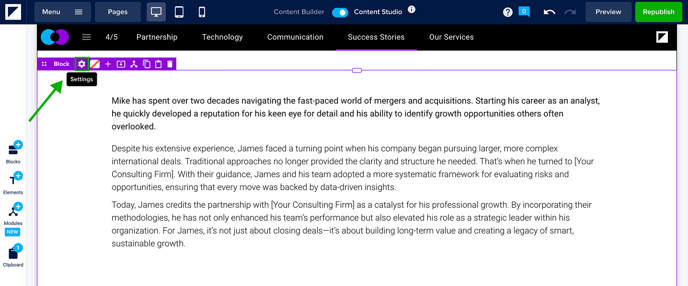
Hover over the block that you want to make collapsible. In the purple block toolbar, click the settings icon ⚙️.
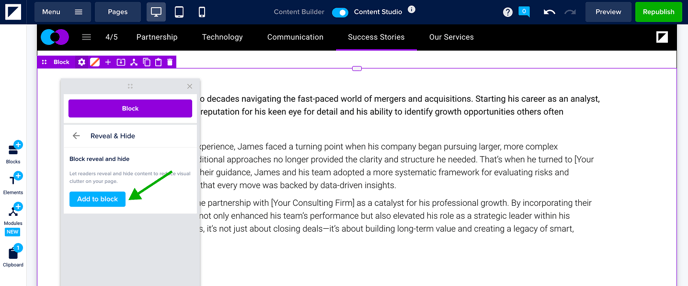
In the block settings panel, select Reveal & Hide. Then, click Add to block.
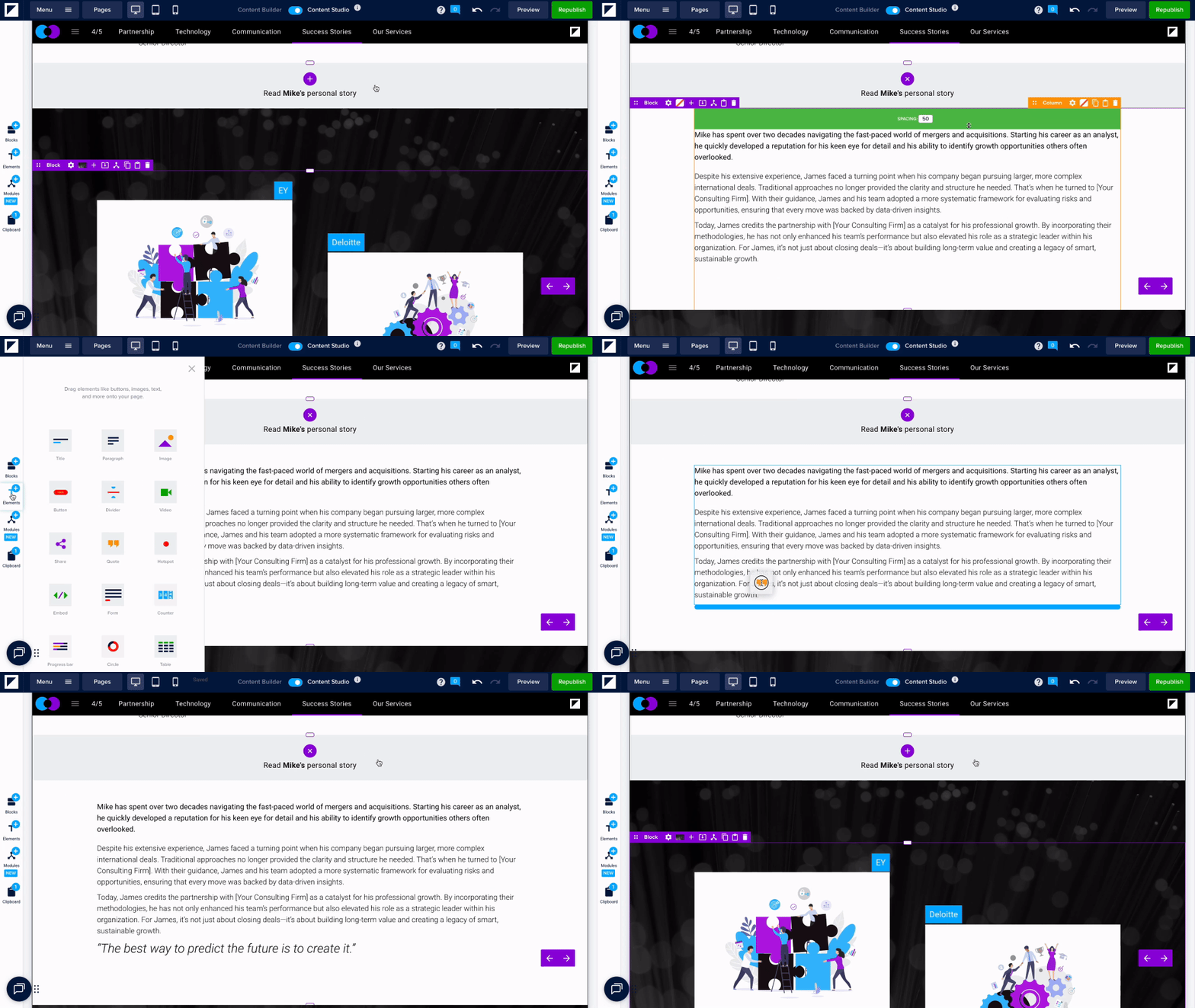
Your block will now be collapsed, and you'll see a new full-width bar with a "+" button and the default text 'Click here to learn more.' You can click in the text box to adjust the text as needed.
Clicking anywhere in the block will open the hidden content. You can add elements like text, images, buttons, or tables — just like in any other block.
How to remove the Reveal & Hide settings from a Block
If you want to revert to a standard block, you can remove the Reveal & Hide setting from the block.
Expand your content and click the settings icon ⚙️ on the purple block toolbar,
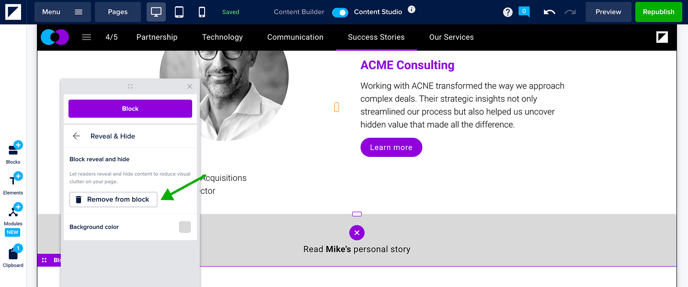
Open the Reveal & Hide section. Click the option 'Remove from block' and confirm. Your content will now be converted to a standard block.
Styling options
Reveal & Hide Blocks can be styled with a few settings:
"+" icon
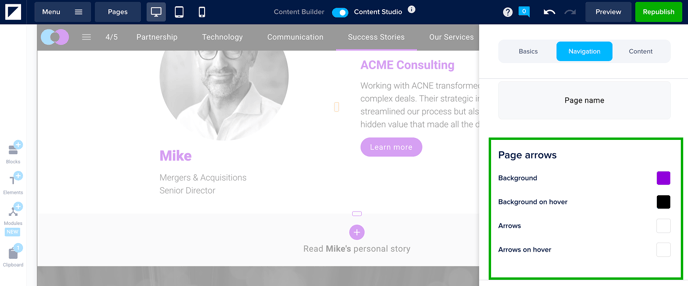
This icon is considered a navigation element, so its color is inherited from the Page Arrow settings. You can adjust this style in your brand settings. For now, you can't change the icon, size, or position.
📖 Learn how to adjust the style of your Page Arrows here.
Background color
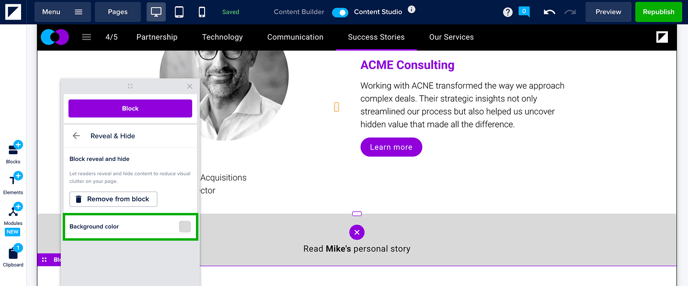
You can adjust the background color of the section in the Reveal & Hide settings.
Text styling
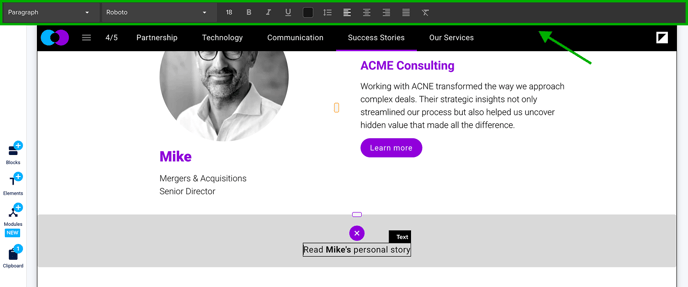
Use the standard text editing toolbar to update fonts, sizes, and alignment.
⚠️ Note, it's not currently possible to set custom spacing on the collapsible bar.