
Infogram is an intuitive visualization tool that empowers people and teams to create engaging infographics and reports in minutes. This article describes how to add a chart from Infogram to your Foleon Doc using the embed element. 🖼️
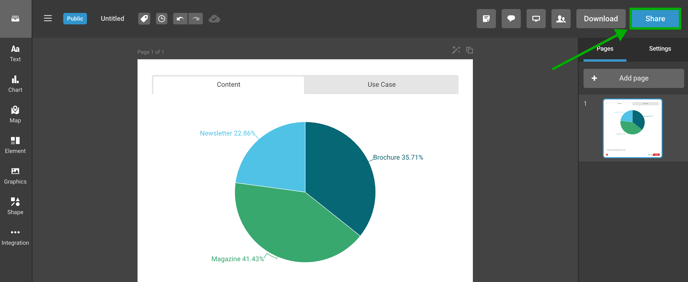
- Step 1: Create a chart in Infogram. Design the chart as you want it to appear in Foleon. Once your chart is ready, click share in the top-right corner.
-
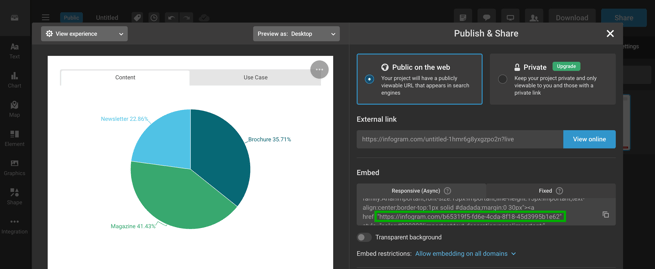
Step 2: In the Publish & share window, go to the Embed section. You'll need to find the URL that is included in the code. You will find this after "href=". Copy this URL to your clipboard.
- Step 3: Go to your Foleon Doc and drag an embed element to your column.
If you're only working in the Content Builder, select a block template that includes an embed element.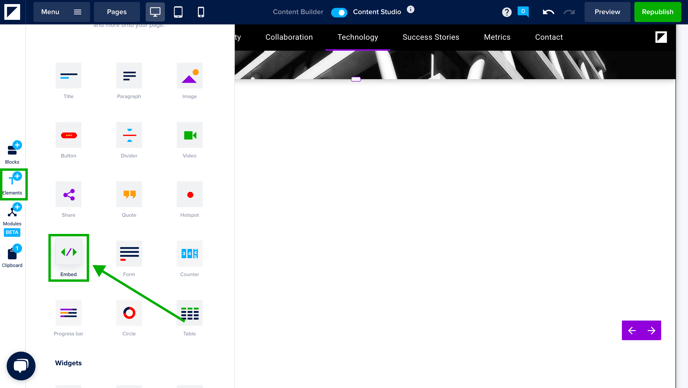
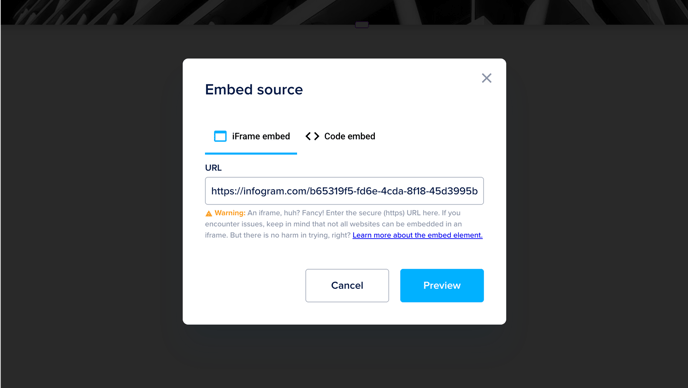
- Step 4: Paste the URL you copied from Infogram in the URL field, click preview, then save.
💡 To ensure your embed is responsive, we recommend adding ?src=embed at the end of the Infogram URL before pasting it in Foleon.
For example:
🔗 If your Infogram URL looks like this:
https://infogram.com/example-chart-1234567890
Change it to:
✅ https://infogram.com/example-chart-1234567890?src=embed
This, combined with Dynamic height and Scrolling set to Hidden explained in Step 5, ensures the best cross-device experience.
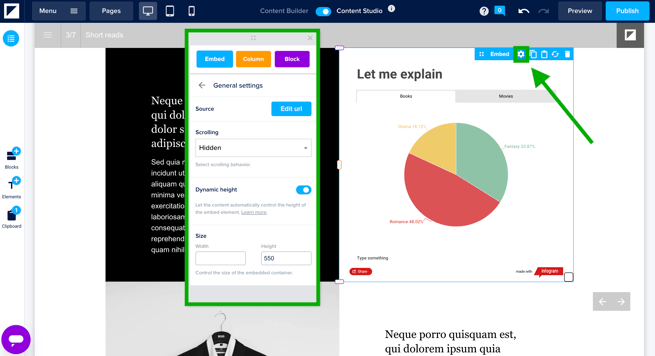
- Step 5: To adjust the spacing, open the element settings by clicking the settings icon on the blue element bar. Navigate to the general settings, set scrolling to hidden, and switch on dynamic height.
If you've followed these steps, your Infogram embed will be completely responsive — with no white spacing below them if you've removed all spacing from your block and column.
✅ Recommended settings for responsive Infogram embeds:
-
Dynamic height: Enabled
-
Scrolling: Hidden
-
URL ends with: ?src=embed
-