
Our built-in Foleon Analytics gives you easy access to the most important metrics on your content’s performance. It allows you to analyze how your content performs and collect learnings to improve your next Doc.
📖 Want to learn more about the metrics? Check out the article Our Foleon Analytics metrics explained.
⚡️ Want to download or share your Foleon Analytics report with your team? Check out our quick guide.
How to access Foleon Analytics
Go to your workspace and find the Foleon Doc you want to analyze. Click the three dots next to the Doc and select Foleon Analytics from the dropdown menu. This will open the analytics dashboard for the selected Doc.
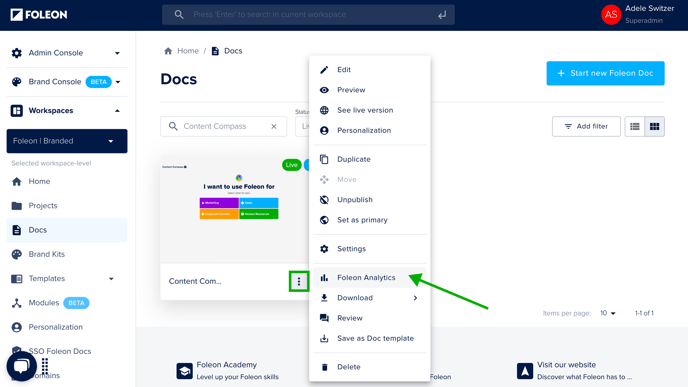
When a Doc has been taken offline (unpublished), you'll still be able to see the analytics from when it was online (published).
When you're self-hosting Docs on your own server, you'll still be able to access Foleon Analytics, as a tracking code is included in the ZIP file of your Doc.
⚠️ Preview links (e.g., https://example.viewer.foleon.com) are not tracked in Foleon Analytics. To collect analytics data, always share the published Doc's URL (e.g., https://example.customdomain.com).
If you want to analyze the performance of your entire Workspace, click the back arrow button at the top of the screen. This will take you to the workspace overview, where you can compare analytics across all your published Docs — a helpful way to spot trends!
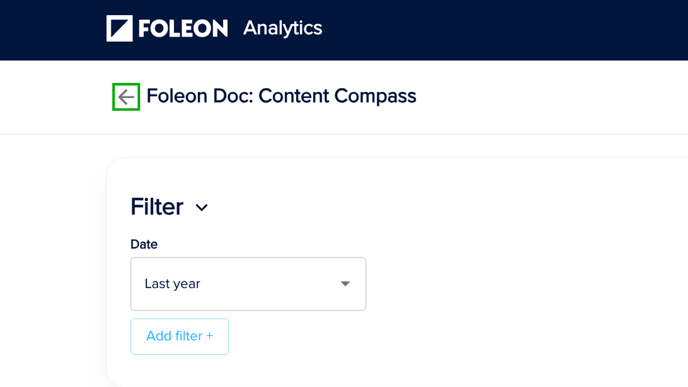
Controls for Foleon Analytics
Change the date range and filters
At the top of the page, you can customize the filters applied to your report. The date range filter is available by default. To change it, click the date field and select your preferred time frame. Click Add filter + to include additional filters.
💡By default, the report only shows data from the last month. To explore older data, update the date range settings. You can look as far back as the day you first published your Doc.

Download your report as a PDF or CSV
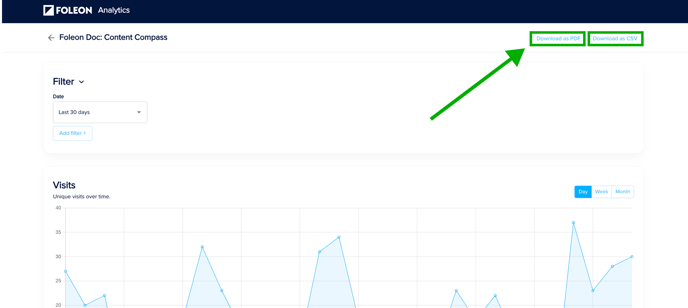
You can download your report to share insights with others. Click either Download as PDF or Download as CSV on the top right of the screen.
📖 Check out our quick guide on how to download and share your report.
We discuss the different metrics in our article Our Foleon Analytics metrics explained.