
Custom Roles give Admins on Enterprise plans the flexibility to create tailored user roles that mirror real organizational responsibilities, while maintaining strong governance, platform security, and operational efficiency. They let you assign exactly the right level of access to each team member, so your content workflows run smoothly and your compliance standards remain intact.
⚠️ This feature is only available on Enterprise plans. If you're interested in creating your own Custom Roles, contact us here!
💡 Only Admins with access to the Admin Console can create and assign Custom Roles.
In this article
What are Custom Roles?
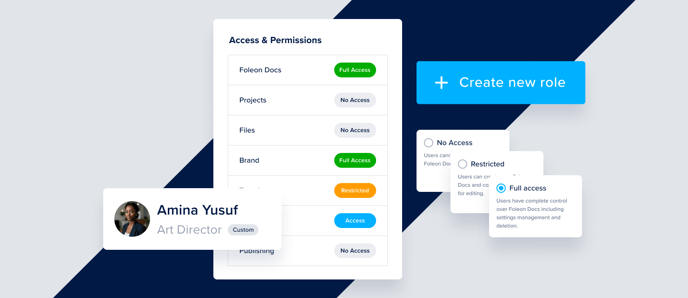
Custom roles are roles you create yourself to define a specific set of permissions. Instead of relying only on predefined roles like Admin or Designer, Admins can configure their own roles by selecting the appropriate access level for each feature area in the platform.
This lets you:
-
Grant only the permissions needed for each user
-
Improve governance and simplify InfoSec reviews
-
Assign access to one or many workspaces
-
Reuse roles across your team for consistency and scale
💡 Want to understand the default roles? Read more about Foleon's default roles and seat types here.
Permissions explained
Each Custom Role is built by setting permission levels for different areas of the platform, called feature groups. To make configuration easier, these feature groups are organized into categories:
-
Content Production: These settings relate to creating, editing, personalizing, and publishing content
-
Brand & Media: These settings relate to managing brand settings, templates, and media assets
-
Users & Workspaces: These settings relate to managing users and workspaces
-
System Settings: These settings relate to managing SSO, domains, and global settings
-
Analytics & Billing: These settings relate to accessing analytics and invoices
For most features, you'll be able to select from the following options:
- Full Access: Complete access, including deletion and administrative controls
- Restricted: Access to core functionality but with limits (e.g., cannot delete)
- No Access: No access at all to the functionality
For other features that require access rather than management, such as text editing, workspaces, analytics, and invoicing, you'll be able to select one of two options:
- Access: Access to functionality
- No Access: No access at all to the functionality
💡 Want to see the Full breakdown? Jump to the Full permission matrix below.
How to create a Custom Role
Admins can create new roles directly from the Roles & permissions page in the Admin Console.
⚠️ Creating a Custom Role will take up a Premium seat. Most plans have a limited number of Premium seats, so keep this in mind when planning your roles.
Go to Admin Console > Roles & permissions:
- To start a role from scratch, click + Create new role.
- You can also duplicate an existing role to use as a starting point. Under Actions, click Duplicate.
Enter or update the Role title. Be sure to choose a clear, descriptive name (e.g., IT Administrator or Brand Manager). This will automatically generate a Role alias, which is a unique identifier for the custom role. You can edit the Role alias if needed.
Enter a Role description. This will help you keep track of the role's purpose and who should have access. Be as descriptive as possible.
Under Access & Permissions, choose a permission level for each feature group.
Feature groups are grouped under categories to simplify configuration (e.g., Content Production, Brand & Media, Users & Workspaces). Open the toggle for each feature group and select the appropriate level.
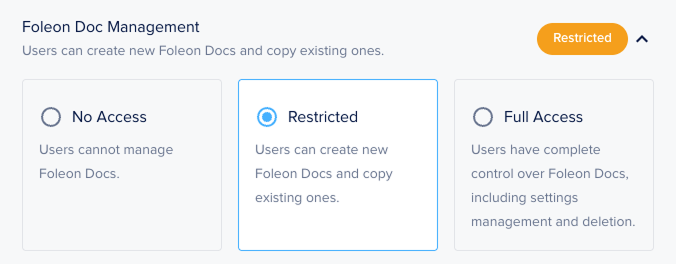
Once everything is configured, click Create or Duplicate. Your new role will appear in the list of all roles.
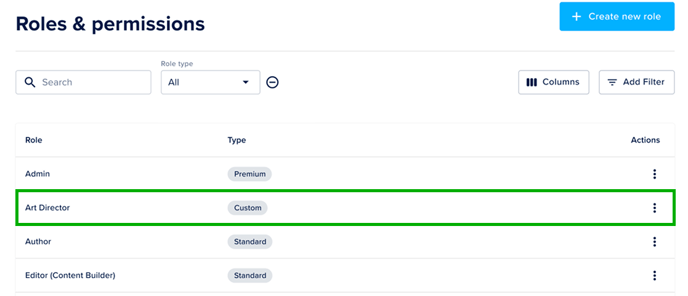
💡 Use the search bar to quickly search for specific roles.
View and Manage Custom Roles
How to edit a Custom Role
You can make changes to a Custom Role at any time. Locate the Custom Role you want to update. Under Actions, click the Settings icon ⚙️.
Make the necessary changes and click Save.
⚠️ Be careful when editing roles!
Any changes you make to a Custom Role will apply to all users assigned to it. Before updating permissions, review the list of assigned users and ensure you're not unintentionally giving access to features they shouldn't have.
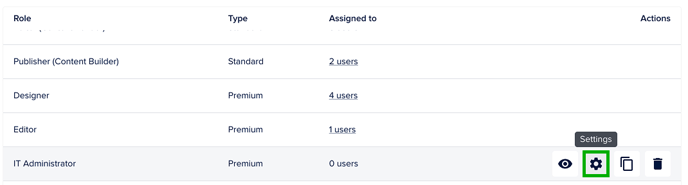
How to delete a Custom Role
You can also delete a Custom Role that is not assigned to users. This option will not be available is the Custom Role is assigned.
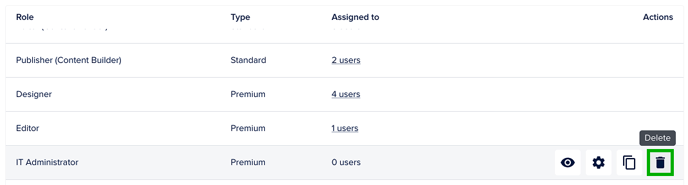
Under Actions, select the Delete icon 🗑️. You'll be asked to confirm you want to delete the role.
View permissions and assigned users
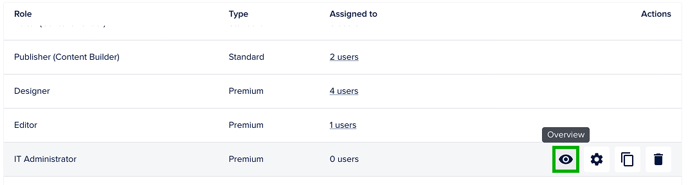
To see an overview of each role's permissions, click the Overview icon 👁️ under Actions. Use the toggles to expand each category and review which features this role can access.
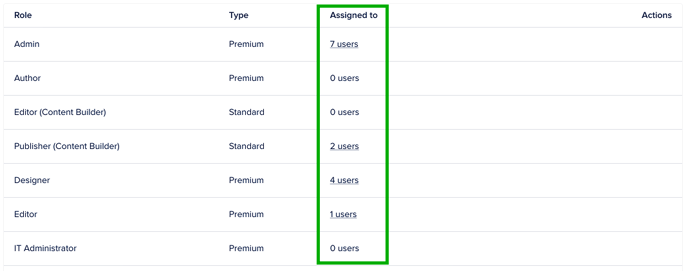
You can also see which users have been assigned each role. From the Roles & permissions page, you'll see how many users have been assigned the role. Click the link to open the list of users. This will take you to the Users page where a filter on Role has been applied.
Assign a Custom Role to a User
Once your Custom Role is created, you can assign it to a user.
Go to Admin Console > Users. If you want to add a new user, click +Invite new user. Alternatively, to edit an existing user's role, click the cogwheel icon ⚙️ or select Settings from the quick actions menu (⋮).
Fill out the following:
-
First name, Last name, and Email (for new users)
-
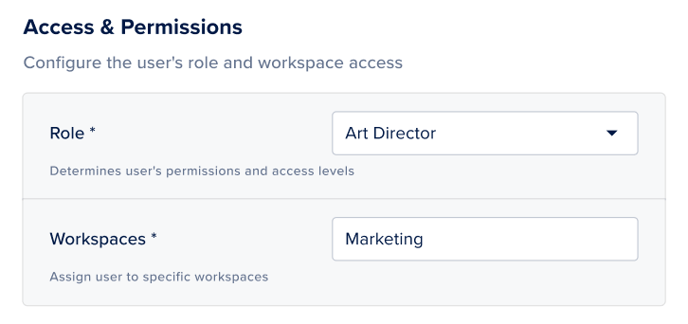
Role: Select the Custom Role from the dropdown list.
-
Workspaces: Choose which workspace(s) they should have access to.
Click Create (for new users) or Save (for existing users).
⚠️ Users assigned a Custom Role will take one of your available Premium seats. For example, if your plan includes five Premium seats, you can assign up to five users to Custom Roles.
📖 For more information on setting up and managing users, read our article: Set up users and roles.
Examples of Custom Roles
Custom Roles are highly flexible, so you can configure nearly any combination of permissions to match your team’s needs. Below are just a few example roles you might create, depending on your workflows, responsibilities, or organizational structure.
| Role Name | Description | Example Permissions |
| Brand Manager | Oversees brand consistency and visual design, without publishing or admin rights. | Full access to the Brand & Media category. No access to Publishing, Users & Workspaces, System Settings, or Analytics & Billing. |
| It Administrator | Manages platform security and user governance, without content creation rights. | Full access to Users & Workspaces and System Settings. No access to Content Production or Brand & Media. |
| External Designer | Can support visual layout and design in a single workspace, but can't publish. | Restricted access to Brand & Media (Templates, Media Library) and Content Production (Layout editing). No access to Publishing, Users & Workspaces, or System Settings. |
| Regional Publisher | Creates and publishes Docs for a local market but can't alter branding or platform settings. | Full access to Content Production (Docs, Projects, Publishing). No access to Brand & Media, Users & Workspaces, System Settings, or Analytics & Billing. |
FAQs
Can I edit a Custom Role after it’s been created?
Yes, you can edit a Custom Role after it's been created. Keep in mind that any changes you make will apply immediately to all users with that role, which impacts what they can see and do in Foleon.
Before making changes, we recommend reviewing the list of assigned users to ensure your updates won't unintentionally grant or remove access to key features.
Can I duplicate an existing role?
Yes! You can duplicate a default or custom role to use it as a base for a new one.
Can users have different roles in different workspaces?
No. A user can only hold one role across all workspaces.
How can I see what a role allows?
In the Roles list, click a role to preview its permissions.
Full Permission Matrix
The table below lists all feature groups and their available permission levels. These groups are organized into categories, so you can easily configure roles.
📄 Content Production
These settings relate to creating, editing, personalizing, and publishing content.
| Feature Group | Permission Level | Description |
| Foleon Doc Management | ⚪️ No Access | Users cannot manage Foleon Docs. |
| 🟠 Restricted | Users can create new Foleon Docs and copy existing ones. | |
| 🟢 Full Access | Users have complete control over Foleon Docs, including settings management and deletion. | |
| Projects | ⚪️ No Access | Users cannot manage projects. |
| 🟠 Restricted | Users can create and manage projects. | |
| 🟢 Full Access | Users have complete control over projects, including deletion. | |
| Layout Editing | ⚪️ No Access | Users cannot edit Foleon Doc layouts. |
| 🟠 Restricted | Users can access the Content Builder for basic content assembly and layout adjustment. | |
| 🟢 Full Access | Users can access the Content Studio for full layout and customization capabilities. | |
| Text Editing | ⚪️ No Access | Users cannot make text changes to Foleon Docs. |
| 🔵 Access | Users can make text changes in Foleon Docs. This is only effective if Foleon Doc Management is set to No Access. | |
| Personalization | ⚪️ No Access | Users cannot access personalization features. |
| 🟠 Restricted | Users can manage personalization tokens. | |
| 🟢 Full Access | Users can manage and delete personalization tokens and properties. | |
| Publishing | ⚪️ No Access | Users cannot publish Foleon Docs or manage published Foleon Docs. |
| 🔵 Access | Users can publish and unpublish Foleon Docs. |
🎨 Brand & Media
These settings relate to managing brand settings, templates, and media assets.
| Feature Group | Permission Level | Description |
| Media Library | ⚪️ No Access | Users cannot manage the media library. |
| 🟠 Restricted | Users can upload and manage the media library. | |
| 🟢 Full Access | Users have complete control over the media library, including deletion. | |
| Brand | ⚪️ No Access | Users cannot access or modify brand settings and modules. |
| 🟠 Restricted | Users can create and manage brand settings and modules. | |
| 🟢 Full Access | Users have complete control over brand settings and modules, including deletion. | |
| Templates | ⚪️ No Access | Users cannot access or modify templates. |
| 🟠 Restricted | Users can create and manage templates. | |
| 🟢 Full Access | Users have complete control over templates, including deletion. |
👥 Users & Workspaces
These settings relate to managing users and workspaces.
| Feature Group | Permission Level | Description |
| Users | ⚪️ No Access | Users cannot access user management. |
| 🟠 Restricted | Users can manage existing users. | |
| 🟢 Full Access | Users have complete control over user management, including adding and deletion. | |
| Workspaces | ⚪️ No Access | Users cannot access workspace management. |
| 🔵 Access | Users can manage workspaces. |
⚙️ System Settings
These settings relate to managing SSO, domains, and global settings.
| Feature Group | Permission Level | Description |
| Single Sign-On (SSO) | ⚪️ No Access | Users cannot manage SSO settings. |
| 🔵 Access | Users can manage SSO settings. | |
| Domains | ⚪️ No Access | Users cannot modify domain settings. |
| 🟠 Restricted | Users can assign existing domains to projects | |
| 🟢 Full Access | Users have complete control over domain settings, including creating and deleting domains. | |
| Global Settings | ⚪️ No Access | Users cannot manage global settings. |
| 🔵 Access | Users can manage global settings. |
📊 Analytics and Billing
These settings relate to accessing analytics and invoices.
| Feature Group | Permission Level | Description |
| Analytics | ⚪️ No Access | Users cannot access analytics. |
| 🔵 Access | Users can view basic analytics. | |
| Invoicing | ⚪️ No Access | Users cannot view invoices. |
| 🔵 Access | Users can view invoices. |