![foleon_logo_white.png]](https://www.foleon.com/hs-fs/hubfs/foleon_logo_white.png?height=40&name=foleon_logo_white.png)
💡Are you working with a different Consent Management Platform (CMP)? Learn more in our article Consent Manager Platforms and Foleon.
How OneTrust and Foleon work together
The role of a Consent Management Platform (CMP) such as OneTrust is to ask for consent, give a signal once cookie preferences are given, and store the cookie preferences in the browser as a cookie. This signal is processed, and the cookie preferences are stored in the browser's local storage. To achieve this, we need to implement JavaScript to ensure Onetrust correctly relays the cookie preferences to Foleon.
Websites or Foleon Docs need to look for those preferences, listen for the signal that the cookie preferences have been set, and then act accordingly by executing the scripts that are allowed to run.
If you want to implement OneTrust into your Foleon Docs, you'll need to build your custom script.
⚠️ It's not possible to implement OneTrust on a Foleon domain, as OneTrust only allows you to set it up for one custom domain (e.g. *.company.com).
Build your custom script
Script 1: Prevent Foleon from placing cookies
If you are not using Foleon's native Cookie Consent feature, a Foleon Doc will attempt to place cookies by default. This poses a problem when using a third-party CMP, as cookies will be placed without consent. This is why we need a script that makes sure the cookies are blocked beforehand. Add the following script tag to your remarketing code:
<!-- Disable all Cookies until consent is given via OneTrust -->
<script>
  if (!window.localStorage.getItem('cc_settings') && window.navigator?.userAgent?.includes("OneTrust") !== true) {
    window.localStorage.setItem(
      'cc_settings',
      JSON.stringify({ statistics: 0, marketing: 0, preferences: 0 })
    );
  }
</script>
Foleon will place certain cookies when the Doc loads. For example, cookies related to:
-
-
Foleon Analytics
-
Google Analytics
-
Custom scripts you've placed in the remarketing field.
-
Script 2: OneTrust banner
To get the OneTrust banner to work, we need to add another script. We need to import the OneTrust banner and its SDK. We do this by placing a script unique to your OneTrust account, which is provided by OneTrust itself. You can find more information on where to find this script on OneTrust's documentation here. The script should look something like this:
<!-- Add your OneTrust Cookies Consent SDK script here, or replace the values with the ones from your application -->
<script
  src="https://cdn.cookielaw.org/scripttemplates/otSDKStub.js"
  type="text/javascript"
  charset="UTF-8"
  data-domain-script="XXXXXXXX-XXXX-XXXX-XXXX-XXXXXXXXXXXX"
></script>
Script 3: Listen for and apply Consent Changes
The third script listens for any consent changes and updates the Foleon consent manager accordingly, ensuring the correct cookies are set.
OneTrust CMP scans your Doc and categorizes all the cookies Foleon places; however, their categories are often more segmented and thus do not map directly to Foleon's Cookie Consent categories. In order to map them to Foleon's categories, put their category code in either the MARKETING_CATEGORIES, STATISTICS_CATEGORIES , or the PREFERENCES_CATEGORIES array. If a cookie is required (strictly functional cookies) leave them out.
If you are unsure what categories are being applied by OneTrust, use the OneTrust.testLog() command in the browser console. This will print a table with all the active categories.
⚠️ Warning: The categories in the example below are not necessarily correct; they might differ in your setup, so check them thoroughly.
<!-- Mapping the OT cookie categories to Foleon cookie categories. -->
<script type="text/javascript">
    function OptanonWrapper() {

        const MARKETING_CATEGORIES = ['C0004', 'C0005']; // Replace values with your own Marketing Categories.
        const STATISTICS_CATEGORIES = ['C0003']; // Replace values with your own Statistics Categories.
        const PREFERENCES_CATEGORIES = ['C0006']; // Replace values with your own Preferences Categories.

        function applyConsent(activeGroups) {
            const statistics = STATISTICS_CATEGORIES.every(value => activeGroups.includes(value)) ? 1 : 0;
            const marketing = MARKETING_CATEGORIES.every(value => activeGroups.includes(value)) ? 1 : 0;
            const preferences = PREFERENCES_CATEGORIES.every(value => activeGroups.includes(value)) ? 1 : 0;

            const selection = {
                statistics: statistics,
                marketing: marketing,
                preferences: preferences
            };

            if (typeof CookieConsentAPI !== 'undefined') {
                CookieConsentAPI.update(selection)
                CookieConsentAPI.save()
            } else {
                // Save new values after (updated) consent.
                localStorage.setItem('cc_settings', JSON.stringify(selection))
            }
        }

        // Wait for OnetrustActiveGroups to be populated for returning visitors.
        function waitForActiveGroups(retries = 0) {
            if (window.OnetrustActiveGroups && window.OnetrustActiveGroups.length > 0) {
                applyConsent(window.OnetrustActiveGroups.split(',').filter(Boolean));
            } else if (retries < 20) {
                setTimeout(() => waitForActiveGroups(retries + 1), 50);
            } else {
                console.warn('OneTrust: OnetrustActiveGroups not available after timeout.');
            }
        }

        waitForActiveGroups();

        // Listen for OneTrust cookie consent changes to update the Foleon cookie consent manager.
        OneTrust.OnConsentChanged(function(e) {
            applyConsent(e.detail);
        });
    }
</script>
Final steps
Now that we have all the scripts, we need to paste them into the Foleon Remarketing code. For most use cases, it is recommended to use the Global Doc settings, as they apply the cookie banner to all Documents in your workspace.
Republish your Docs to make sure the changes are applied.
⚠️ Warning: The Cookie banner will not be available in the editor, to test it you will need to republish and visit the live published Doc.
Example of a complete script
With the three scripts we've shared above, we assembled an example of a complete script.In the example below, replace the second script with your own OneTrust script. That's it, you've now built the complete script. Read on to learn how to inject this script into the remarketing field.
⚠️ Any custom script you implement is the creator's responsibility, so ensure you know your script inside out. If you're not very experienced, we recommend you consult an expert in Javascript and cookie consent.
<!-- Disable all Cookies until consent is given via OneTrust -->
<script>
  if (!window.localStorage.getItem('cc_settings') && window.navigator?.userAgent?.includes("OneTrust") !== true) {
    window.localStorage.setItem(
      'cc_settings',
      JSON.stringify({ statistics: 0, marketing: 0, preferences: 0 })
    );
  }
</script>

<!-- Add your OneTrust Cookies Consent SDK script here, or replace the values with the ones from your application -->
<script
  src="https://cdn.cookielaw.org/scripttemplates/otSDKStub.js"
  type="text/javascript"
  charset="UTF-8"
  data-domain-script="XXXXXXXX-XXXX-XXXX-XXXX-XXXXXXXXXXXX"
></script>

<!-- Mapping the OT cookie categories to Foleon cookie categories. -->
<script type="text/javascript">
    function OptanonWrapper() {

        const MARKETING_CATEGORIES = ['C0004', 'C0005']; // Replace values with your own Marketing Categories.
        const STATISTICS_CATEGORIES = ['C0003']; // Replace values with your own Statistics Categories.
        const PREFERENCES_CATEGORIES = ['C0006']; // Replace values with your own Preferences Categories.

        function applyConsent(activeGroups) {
            const statistics = STATISTICS_CATEGORIES.every(value => activeGroups.includes(value)) ? 1 : 0;
            const marketing = MARKETING_CATEGORIES.every(value => activeGroups.includes(value)) ? 1 : 0;
            const preferences = PREFERENCES_CATEGORIES.every(value => activeGroups.includes(value)) ? 1 : 0;

            const selection = {
                statistics: statistics,
                marketing: marketing,
                preferences: preferences
            };

            if (typeof CookieConsentAPI !== 'undefined') {
                CookieConsentAPI.update(selection)
                CookieConsentAPI.save()
            } else {
                // Save new values after (updated) consent.
                localStorage.setItem('cc_settings', JSON.stringify(selection))
            }
        }

        // Wait for OnetrustActiveGroups to be populated for returning visitors.
        function waitForActiveGroups(retries = 0) {
            if (window.OnetrustActiveGroups && window.OnetrustActiveGroups.length > 0) {
                applyConsent(window.OnetrustActiveGroups.split(',').filter(Boolean));
            } else if (retries < 20) {
                setTimeout(() => waitForActiveGroups(retries + 1), 50);
            } else {
                console.warn('OneTrust: OnetrustActiveGroups not available after timeout.');
            }
        }

        waitForActiveGroups();

        // Listen for OneTrust cookie consent changes to update the Foleon cookie consent manager.
        OneTrust.OnConsentChanged(function(e) {
            applyConsent(e.detail);
        });
    }
</script>
Place your script in the remarketing field
We're almost there. We’ve prevented scripts from being executed without consent and built the script, so now we're ready to inject the OneTrust script into the remarketing field.
⚠️ Any custom script you implement is the creator's responsibility, so ensure you know your script inside out. If you're not very experienced, we recommend you consult an expert in Javascript and cookie consent.
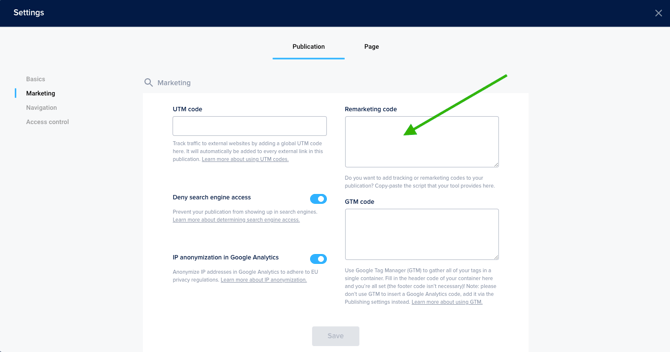
Once you've correctly configured your custom script, add your custom code in the Foleon Doc settings of your Doc when you scroll down to the Marketing tab.
On the right side, copy-paste the script into the Remarketing code field. Save your changes and (re)publish your Foleon Doc.
⚠️ The script will only run on published (live) Foleon Docs — not in the preview.