![foleon_logo_white.png]](https://www.foleon.com/hs-fs/hubfs/foleon_logo_white.png?height=40&name=foleon_logo_white.png)
💡 Starting a new project or Foleon Doc? Align with your team on the folder and tagging structure before you begin uploading. It's easier to get this right from the start than to reorganize later.
In this article
- Brand Console vs. Workspace Media Library
- Folder organization
- Tag your assets
- Duplicating Foleon Docs
Brand Console vs. Workspace Media Library
There are two places where media can be stored and managed. Understanding the difference helps your team decide where assets should live and how they should be organized.
1️⃣ Brand Console Media Library
The Brand Console Media Library is designed for centralized asset management across multiple workspaces, allowing teams to reuse approved assets without uploading them repeatedly.
Admins and Designers can upload and organize brand-approved assets into folders and share them with specific workspaces. Typical assets managed in the Brand Console include
-
Company logos
-
Brand illustrations
-
Approved photography
-
Icon libraries
⚠️ Workspace users cannot upload, edit, move, rename, or delete content inside Brand Console folders.
📖 Read more: Share media from the Brand Console Media Library
2️⃣ Workspace Media Library
The workspace Media Library is used for assets that belong to a specific workspace or project. Typical assets stored here include:
-
Project-specific images
-
Campaign visuals
-
Temporary assets
-
Files used in a single Foleon Doc
This allows teams to organize project assets without affecting the shared brand library.
How folder organization works
The Media Library lets you organize assets using folders and subfolders. Your workspace folders and shared folders from the Brand Console appear together in the same view.
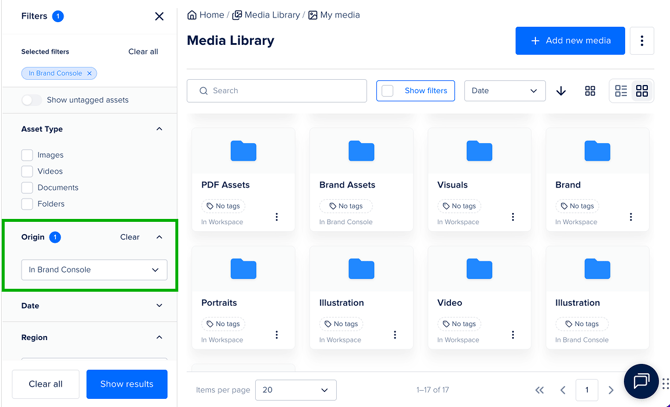
To tell them apart, use the Origin filter:
- Navigate to the Media Library.
- Click Show filters to open the filter panel.
- Under Origin, select one of the following:
- In Workspace — shows only folders and media from the workspace
- In Brand Console — shows only folders shared from the Brand Console
- Click Show results to apply your filters.
💡 When navigating inside a folder, the Origin filter is hidden because all content within that folder shares the same origin.
Recommended folder structure
When working on multiple projects, organizing your media with folders helps keep everything easy to find.
Below, you can see an example structure that we recommend:
- Brand assets - top-level folder
- Logos - subfolder
- Backgrounds - subfolder
- Icons - subfolder
- Illustrations - subfolder
- Photography - subfolder
- Project 1 (Newsletters) - top-level folder
- Newsletter January 2024 (Foleon Doc) - subfolder
- Newsletter February 2024 (Foleon Doc) - subfolder
- Project 2 (Reports) - top-level folder
- Annual Report 2023 - subfolder
- Annual Report 2024 - subfolder
💡 Folders in the Brand Console Media Library can be shared with workspaces. Once shared, all the contents in that folder will be accessible by workspace users.
If you create a subfolder for an individual Foleon Doc, you can also consider creating one for each page or type of media asset (photography, videos, illustrations…).
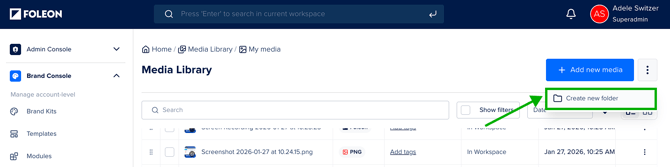
- Click the quick actions menu (⋮) in the top-right corner of the Media Library.
- Select Create new folder.
- Enter a name for your folder.
- Click Create.
Files are always uploaded to the folder that is currently open, so make sure you navigate to the right folder before uploading.
Moving files between folders
You can move files between folders in two ways:
- Drag and drop the file into the destination folder.
- Click the quick actions menu (⋮) on the file, select Move, choose a destination folder, and click Move here.
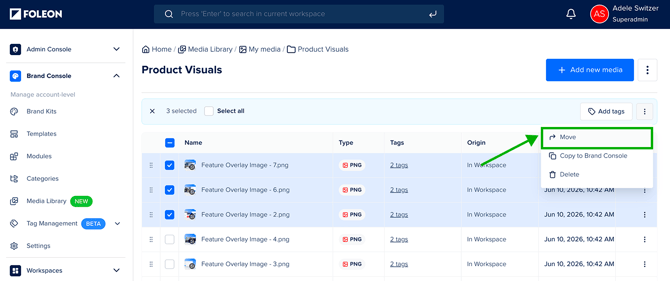
To move multiple files at once:
-
Select the files you want to move
-
Click the quick actions menu (⋮) in the actions panel.
-
Select Move
-
Choose the destination folder
-
Click Move here to move the files.
Tag your assets
Folders help you organize assets by project or type, but tags give you a second layer of structure that works across folders.
You can tag assets by campaign, region, lifecycle stage, or any other category your team uses, and then filter by those tags to find exactly what you need.
📖 To learn how to set up tag groups, create tags, apply them to assets, and filter by tags, see Manage your Media Library with Tags.
Duplicating Foleon Docs
- Duplicating a Doc to a project in the same workspace: the media assets of that Doc stay in the same Media Library folder they were already in.
- Duplicating a Doc to a project in another workspace: a new Media Library folder will be created for the media assets, named "Copied on...<date>". If media assets of the duplicated Doc somehow already exist in the Media Library of the new workspace, these files won't be copied over again. This is to prevent unnecessary file duplicates.
⚠️ After duplicating a Doc to a different workspace, rename the Copied on… folder straight away so it's easy to find later.