![foleon_logo_white.png]](https://www.foleon.com/hs-fs/hubfs/foleon_logo_white.png?height=40&name=foleon_logo_white.png)
Do you have content in the PDF format that you want to add to your Foleon Doc? In this article, we show you how to upload a PDF, link to it, and embed it. This way the information can be part of your content, but still remain in its original format.
💡 Do you want to convert your Foleon Doc to PDF? This can be done in the Quick Actions menu.
Uploading a PDF to the Media Library
Before you can link to a PDF or embed one on your page, you will have to upload it to the Media Library.
In the Media Library, select Add new media on the top-right corner, and click on Upload Media. This will display a pop-up screen where you can upload a PDF from your computer.
⚠️ The maximum file size for uploading a PDF to the media library is 20 MB.
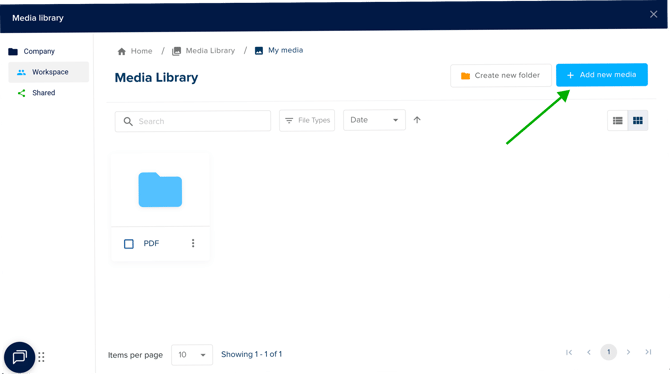
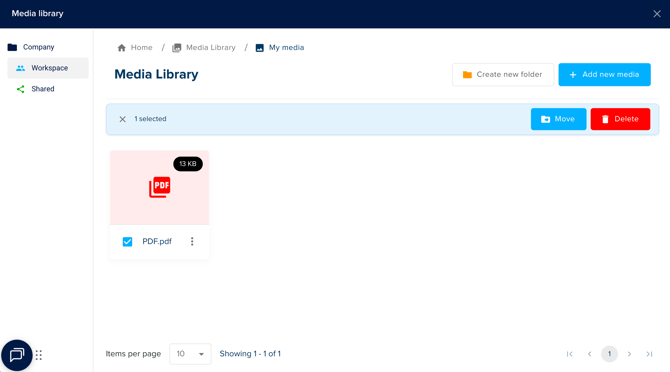
Once you have successfully uploaded the PDF file, you will see it in the Media Library with the "PDF" icon (as shown below).
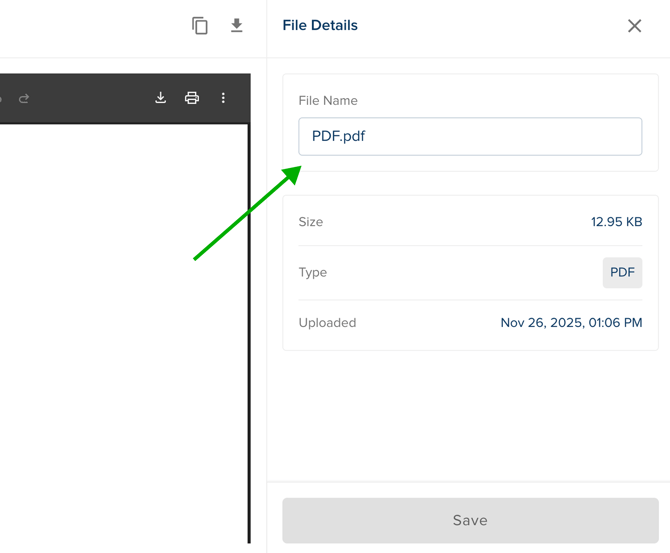
In the Media Library, you can rename the PDF file that you have uploaded. To do so, double-click on the file to open the preview. Under File Details, click on the File Name field. There, you can change the file name that will display in the Media Library.
How to link to a PDF
You can link to a PDF from an image, button hotspot, or text. When your readers click the link, they will then be redirected to the PDF document that will always open in a new window.
Open to the settings of the button, image, or hotspot. Then, go to General settings and select the Edit Link button.
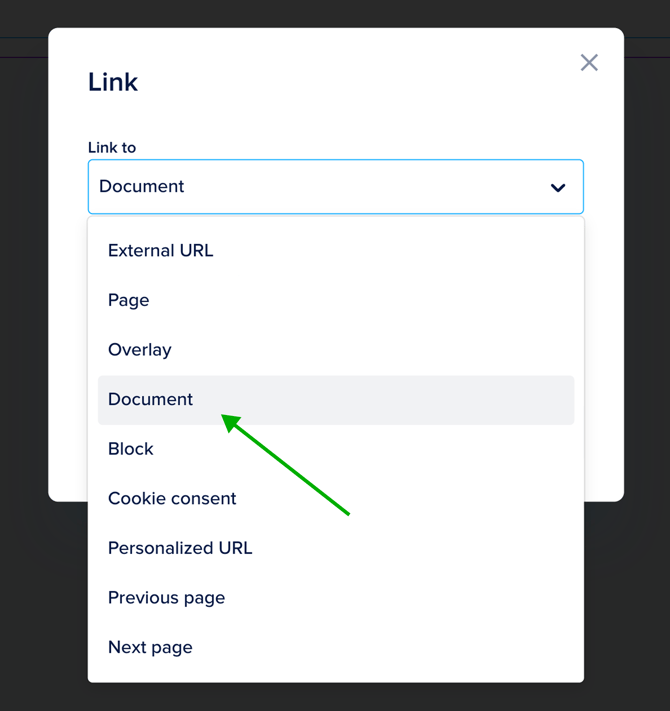
From the dropdown, select the option Document. Click Select a document to open the Media Library. Click on the file you want to link to and click Choose. Finally, click Link to document.
For text, you can link to Documents by selecting the text and then clicking on Insert link in the text bar.
💡 Test the link to your PDF in the preview.
How to embed a PDF
You can also embed a PDF on a page, to display it within your Foleon Doc. This might be useful if you've already created content in the PDF format, but still want to include it in your Foleon Doc.
First, make sure that you have uploaded your PDF to the Media Library. Once your file is uploaded, click on the quick actions menu (⋮) and select Copy Direct Link. This will copy the URL to this file.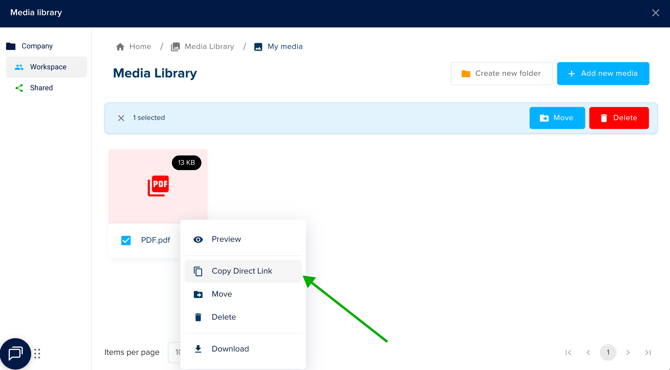
Then, drag and drop an embed element on your page and paste the copied URL in the field.
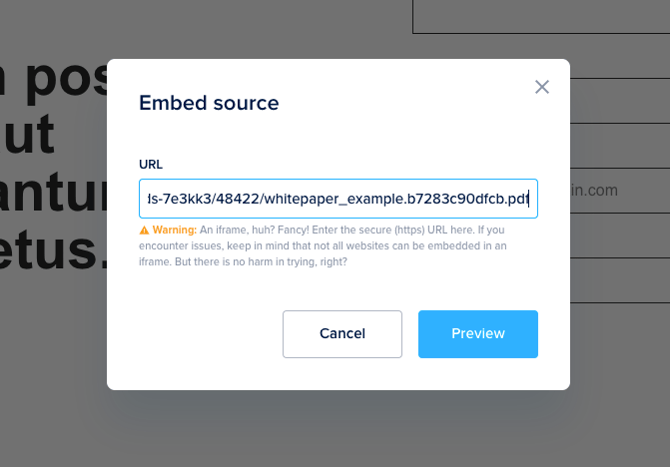
Preview your PDF file to see if it meets your expectations. If you're satisfied, click Save.
⚠️ Adding a PDF to your page with the Embed element might have an effect on the responsiveness of the page. Check the preview of your Foleon Doc thoroughly before publishing.