![foleon_logo_white.png]](https://www.foleon.com/hs-fs/hubfs/foleon_logo_white.png?height=40&name=foleon_logo_white.png)
When working with large asset libraries, it can be difficult to track where an image or video is stored. From the Editor, you can quickly locate the exact folder of a file in the Media Library.
💡 Want to learn more? Check out our article All about the media library.
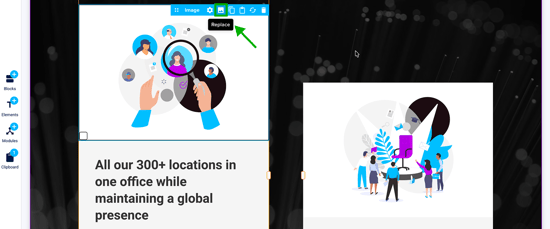
- Open your Doc in the Editor and navigate to the image or video you want to locate.
- In the element settings, click Replace.
- If the file is used as a background on a block, column, or card, click Change background, then hover over the image or video and click Replace.
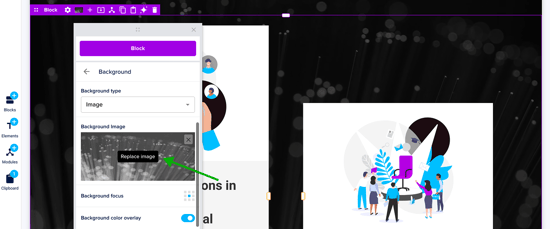
-
The Media Library will open in the folder where the file is stored. The file is already selected, making it easy to find within large libraries.
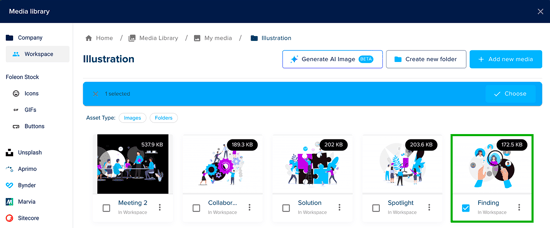
💡 This only works for files stored in the Media Library. If the file comes from an integration (such as Unsplash, Aprimo, or Bynder), the Media Library will open your most recent folder location.