![foleon_logo_white.png]](https://www.foleon.com/hs-fs/hubfs/foleon_logo_white.png?height=40&name=foleon_logo_white.png)
💡 This feature is not included in every plan. If you are interested in using this feature, please reach out to our Customer Success Management team.
Why gate forms with a HubSpot form?
Our lead generation feature allows you to block (further) access to your Foleon Doc on any page. Visitors are prompted with a pop-up and will have to fill in their personal details to access your content (or the rest of it).
As a marketer or demand generation specialist, you want this information in HubSpot instantly. So you can automatically assign leads to your sales reps, do lead scoring and marketing automation right when they convert.
This means you won’t need to manually upload leads to these platforms, and you'll get accurate attribution in HubSpot automatically.
💡 Don’t forget to enable HubSpot tracking on your Foleon Docs.
How to gate your Foleon Doc with a HubSpot form
In order to use a HubSpot form for lead generation, create a form in HubSpot in the Marketing tab.
⚠️ Since May 16th 2024, HubSpot requires you to add domains for external pages that have embedded HubSpot forms. This means you'll have to add the domains on which you host Foleon content to Hubspot as additional site domains. If you don't, form submissions from your Docs on domains that have not been added will be filtered to your spam submissions. Learn here how.
Once you have your form, click on the form and take note of the Hub ID and Form ID in the URL. This is the quickest way to get this information. The URL will look something like this:
https://app.hubspot.com/forms/YOUR HUB ID/ YOUR FORM ID/performance
On your dashboard, open a Foleon Doc. Then select Foleon Doc settings. In the lead generation section, turn on Gate your Foleon Doc and choose HubSpot as your preferred gating method.

Type this information into the required fields in Foleon, choose your layout template, and hit save.
If the setup is successful, your lead generation gate will now show in the pages overview.

In the image below, you see what a HubSpot form might look like in your Foleon Doc. If you want to change the styling of the form to match your brand, follow the steps in Styling your form.
💡Want to enable your visitor to upload a file in a HubSpot form? Check out this thread from the HubSpot community.

Assigning your gate to a page
When you’ve finished setting up your lead generation method, you can connect it to any of your pages.
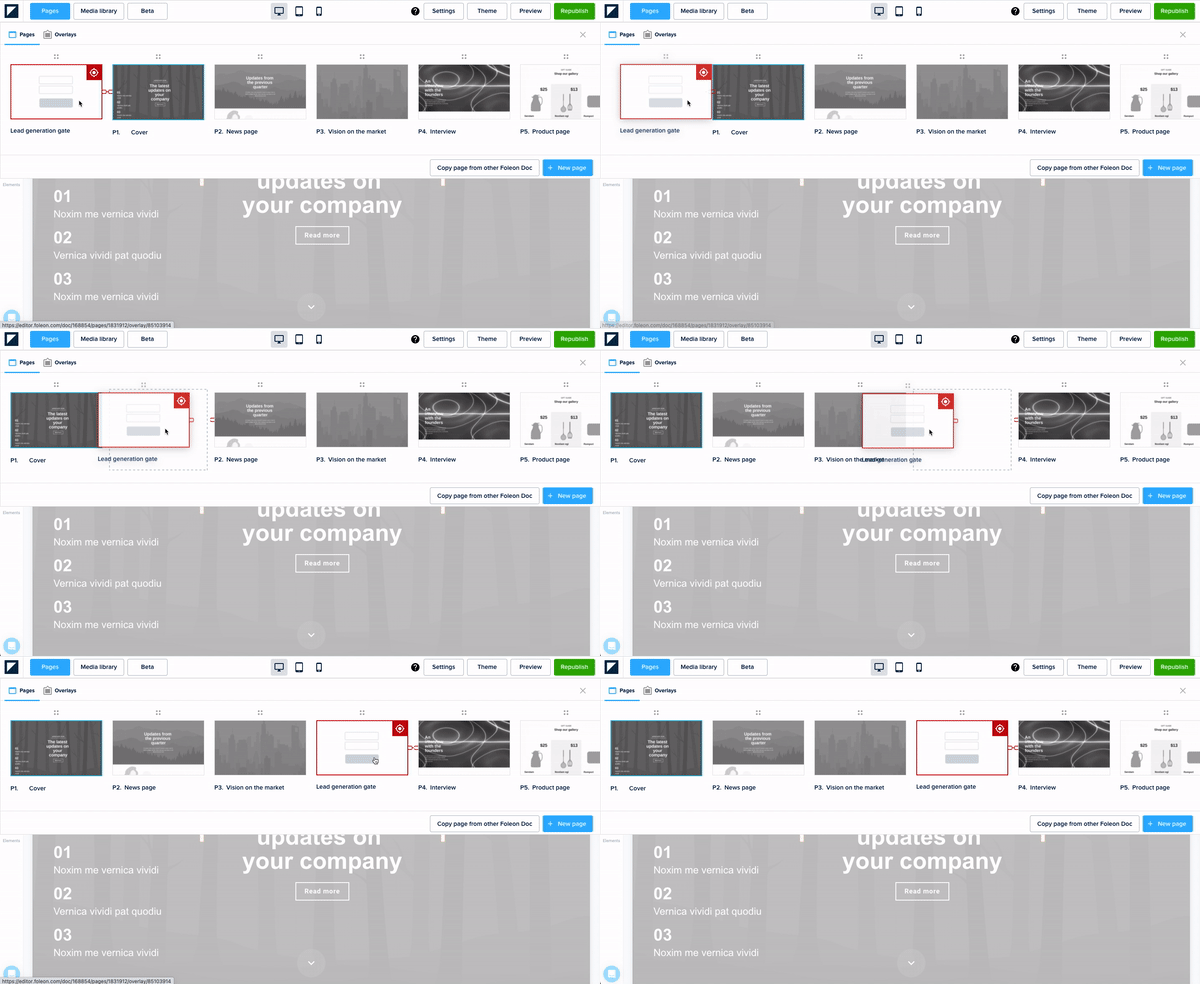
Drag and drop the lead generation gate in front of the page where you want it to appear. This lets you give readers access to a preview of your content, prompting them to submit the form to continue reading.
Once satisfied with your Foleon Doc and the gate you’ve created, hit Publish or Preview to test your gate.
Once a visitor has submitted the form, the lead generation overlay will close automatically. For that reason, no success message will be shown.
⚠️ Currently, it is not possible to configure a success message in HubSpot or redirect visitors to a follow-up page after form submission.
Allow reader to skip
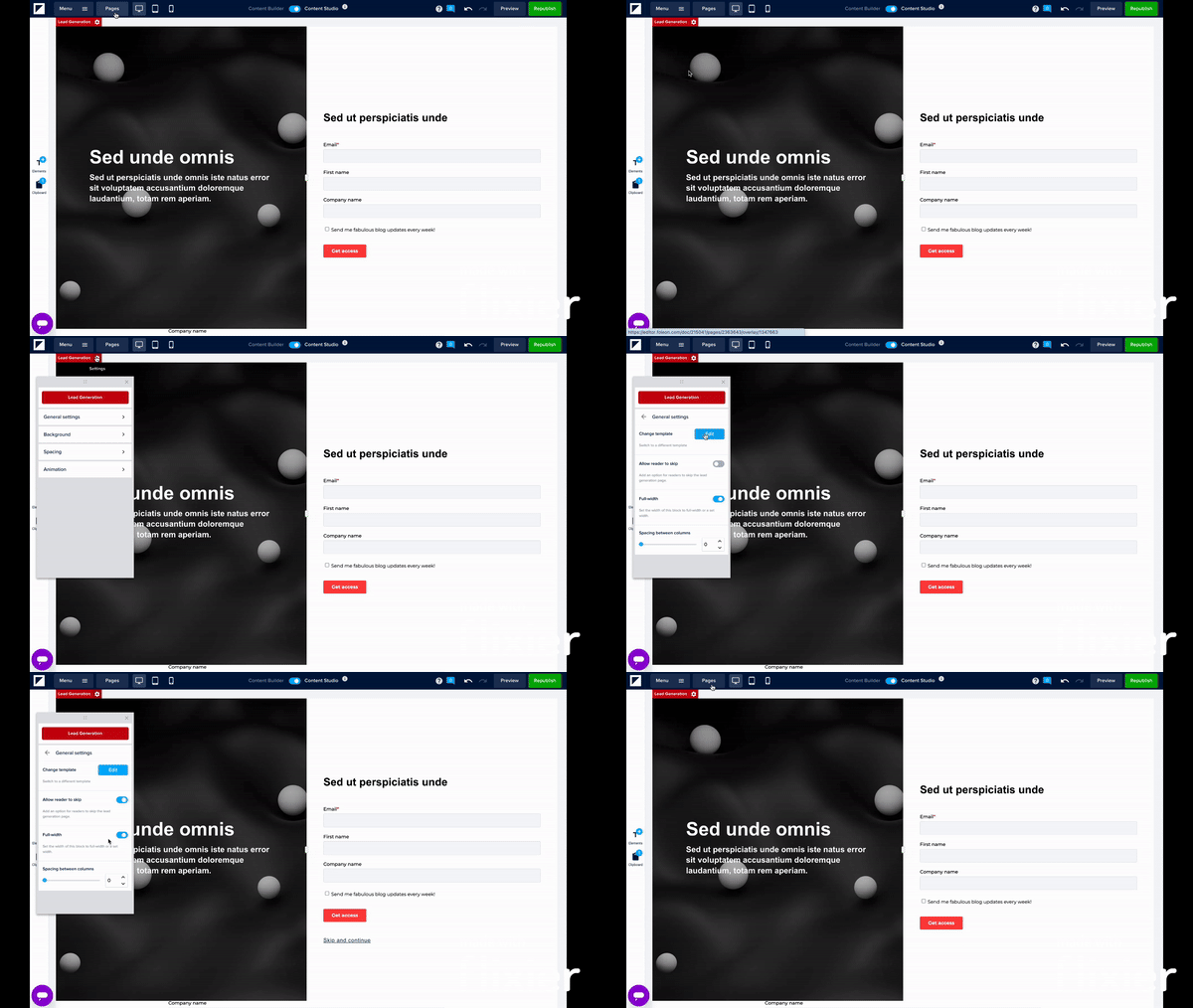
You can allow readers to skip the form and continue reading without submitting their details. To enable this, go to Pages and click the relevant Lead Generation gate. In the Lead Generation settings, open General Settings, toggle on Allow Reader to Skip, then republish your Doc to apply the changes.
Styling your form
When you create a form in HubSpot to use in your Doc, there are limited styling options in Foleon. However, HubSpot allows you to customize your form to suit your needs.
💡 Learn more in HubSpot's documentation: Set up and style a HubSpot form on an external site.
In addition to HubSpot form themes, you're able to style embedded forms on a more granular level. You can control the form field width, font family, font sizes, font colors, and form button.
If you want to prevent spam form submissions — for example, by enabling reCAPTCHA — learn how to set this up in HubSpot's documentation: Prevent spam form submissions.
Next, you can apply styling by inserting custom CSS code into the Doc’s remarketing field in the Foleon Doc settings. Using CSS only applies if you insert the HubSpot form as an unstyled, raw HTML form — an option in HubSpot.
⚠️ Any custom code that has been implemented is the responsibility of the creator. Although this feature is easy to use, ensure you know your custom code inside out. If you're not very experienced with coding, we don't recommend using this feature.

Returning visitors
Foleon places a cookie that remembers whether a visitor has passed your lead generation gate for a specific Foleon Doc. This means that if visitors reopen a gated Doc they’ve already completed, they won’t have to submit the HubSpot form again — assuming they visit from the same device and browser.
This cookie is stored for that specific Doc and isn’t linked to the form used to gate. So, even if you swap out the form, returning visitors will not have to submit the new form.
💡Some visitors might use browsers or browser extensions that delete cookies automatically. In this case, these visitors might have to fill in your lead generation form every time they visit your Foleon Doc.