![foleon_logo_white.png]](https://www.foleon.com/hs-fs/hubfs/foleon_logo_white.png?height=40&name=foleon_logo_white.png)
Collapse and expand the menu
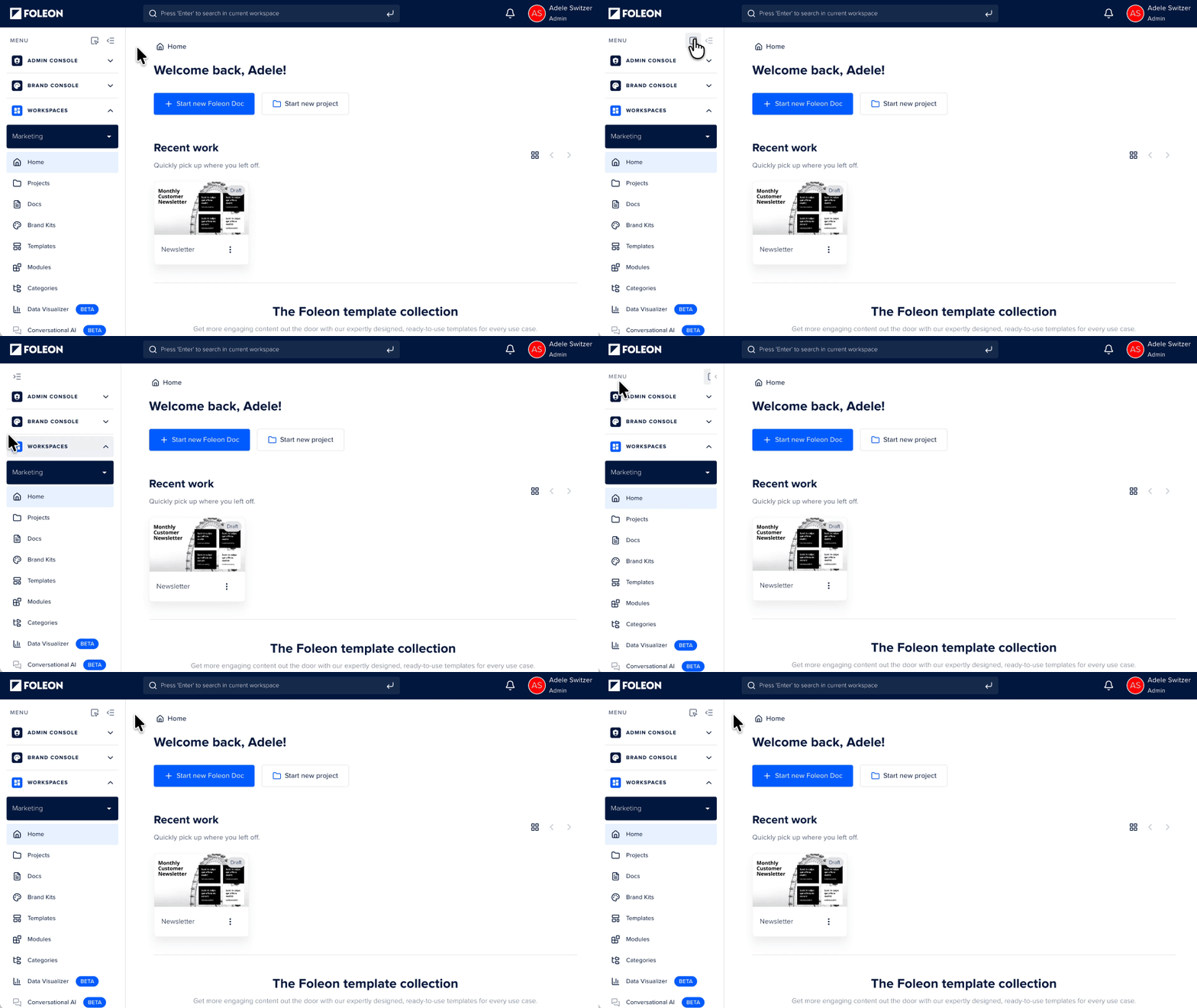
Collapse the menu for more space on your screen, then expand it again when you need the full menu.
- Open the Dashboard.
- Click the Collapse icon
 at the top right of the menu.
The menu switches to icons only. Hover over an icon to see its name and click it to navigate. - Click the Expand icon
 at the top right of the menu to open the full menu again.
💡 Tip: Press ⌘ + \ to collapse or expand the menu from your keyboard.
Expand the menu on hover
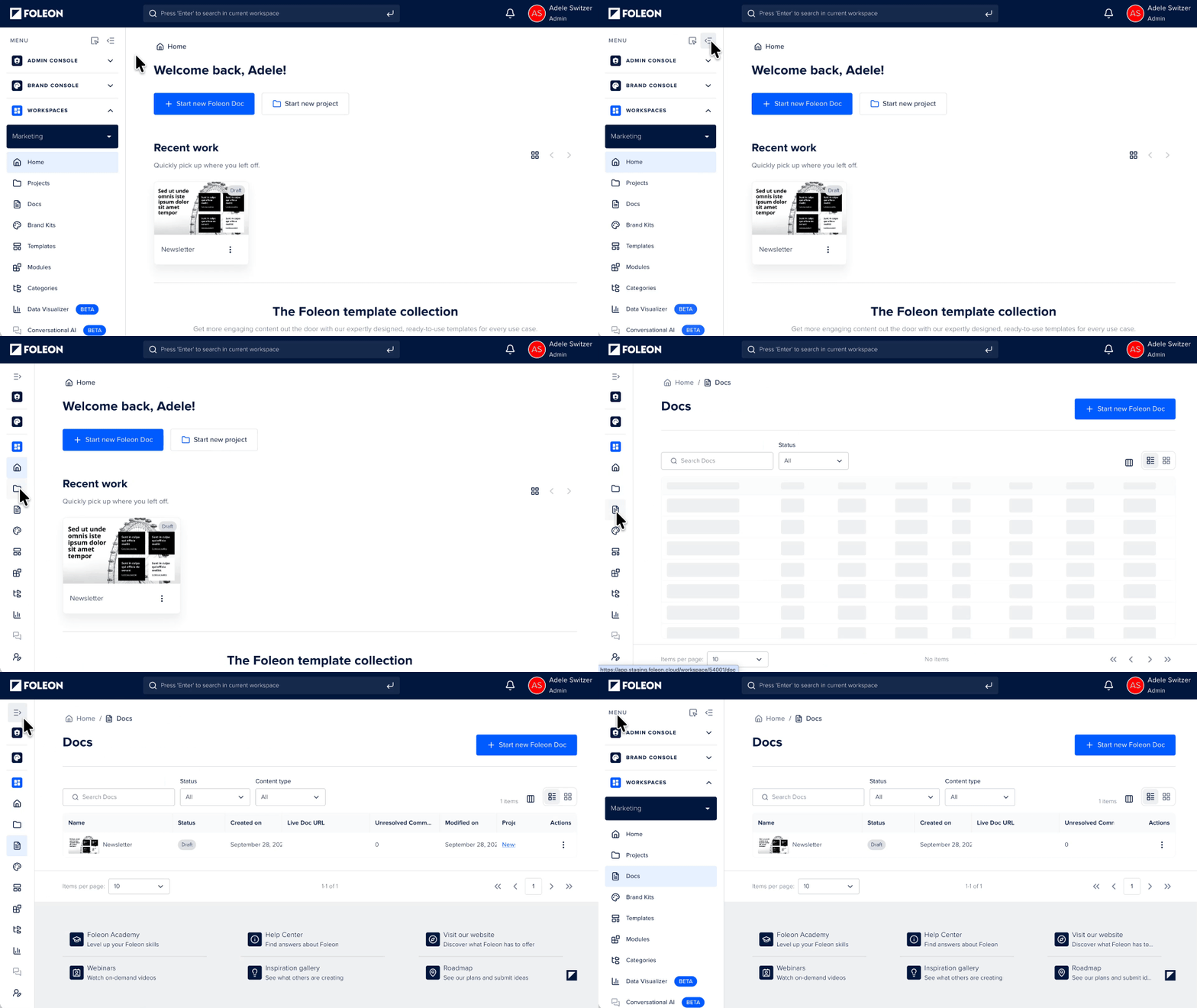
You can also set the menu to stay collapsed and open automatically when you hover over it.
- Expand the menu if it's collapsed.
- Click the Expand on hover icon
 at the top right of the menu.
The menu collapses. When you move your cursor over it, the full menu opens.
To go back to the full menu:
- Click Expand icon .
- Click Expand on hover icon again.