![foleon_logo_white.png]](https://www.foleon.com/hs-fs/hubfs/foleon_logo_white.png?height=40&name=foleon_logo_white.png)
⚠️ This feature is only available for Enterprise plans. If you would like access to this feature, contact us here.
In this article:
What is scheduled publishing?
Scheduled publishing allows you to:
- Publish a Doc at a specific date and time in the future
- Automatically unpublish a Doc at a defined moment
This is especially useful for product launches, time-bound campaigns, or seasonal offers. This enables predictable publishing without relying on manual actions or being online at a specific time.
You can schedule publishing and unpublishing directly from the Editor or the Dashboard, so it easily fits into your workflow.
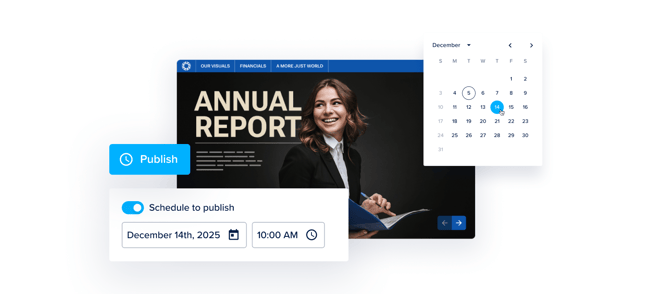
Schedule publishing from the Editor
You can schedule publishing directly from within the Editor while working on your Doc.
- Open your Doc in the Editor and click the Publish button in the top right corner
-
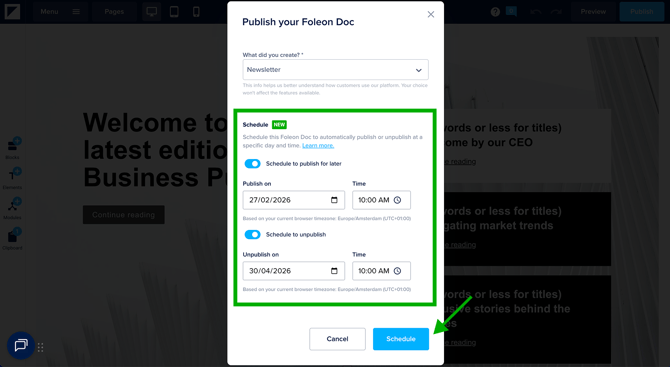
In the pop-up window, go to the Schedule section and turn on the toggle to:
- Schedule when your Doc is published, and/or
- Schedule when your Doc is unpublished
- After the toggle is on, choose your preferred date and time:
- Time selection works in 15-minute intervals
- Scheduling is based on your browser's time zone
- Click Schedule to confirm
💡 Scheduling does not lock your Doc. You can continue editing, and all changes made before the scheduled time will be included.
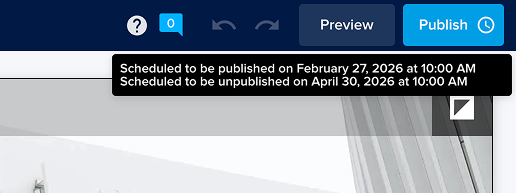
Once your Doc has a scheduled action, a clock icon appears on the Publish button.
Schedule publishing from the Dashboard
You can also schedule publishing directly from the Dashboard.
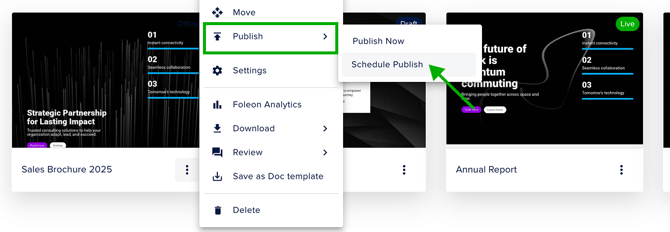
- Navigate to your Doc in the dashboard and click the quick actions menu (⋮)
- Select the option Publish > Schedule Publish
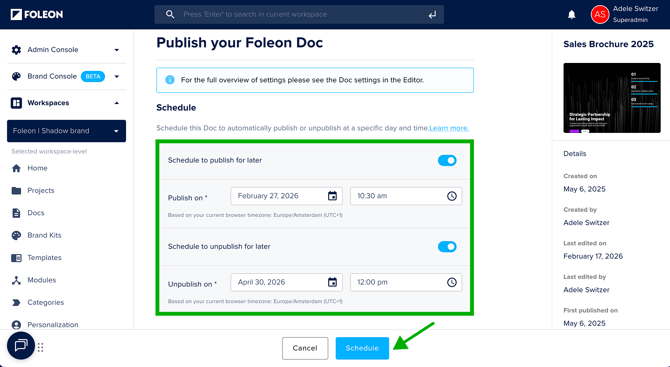
- Toggle on the options to:
- Schedule when your Doc is published, and/or
- Schedule when your Doc is unpublished
- After the toggle is on, choose your preferred date and time:
- Time selection works in 15-minute intervals
- Scheduling is based on your browser's time zone
- Click Schedule to confirm
The Doc remains Draft (or Live) until the scheduled action executes. The status will update when the scheduled action runs.
💡 Scheduling does not lock your Doc. You can continue editing, and all changes made before the scheduled time will be included.
Cancel your scheduled (un)publishing
You can cancel your schedule anytime before your Doc is published or unpublished.
In either the Editor or the Dashboard, toggle off the option to schedule when your Doc is published or unpublished and confirm.
In the Editor:
- Open your Doc in the Editor and click the Publish button in the top right corner.
- In the pop-up window, go to the Schedule section
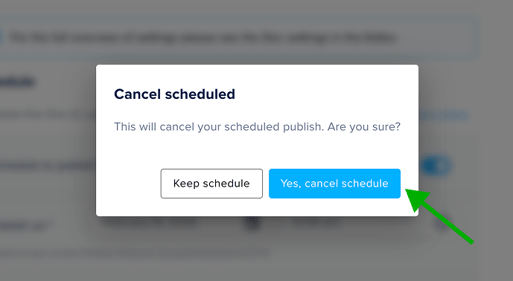
- Turn off the toggle(s) and click Yes, cancel schedule to confirm
In the Dashboard:
- Navigate to your Doc in the dashboard and click the quick actions menu (⋮)
- Select the option Publish > Schedule Publish
- Turn off the toggle(s) and click Yes, cancel schedule to confirm
How scheduling works with Approval Flow
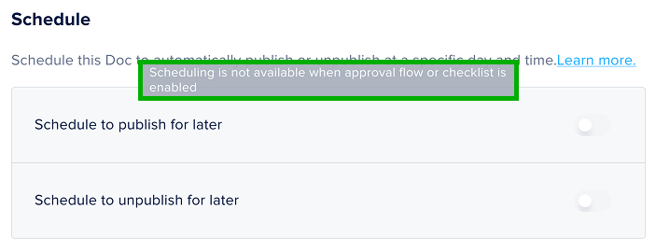
⚠️ Scheduling is not available if you have Approval Flow enabled
If Approval Flow is activated, scheduling will not be available. If this is the case, you will see a message indicating that scheduling is unavailable due to Approval Flow.
If a Doc already has a schedule and Approval Flow is later enabled, the existing schedule remains valid.
Notifications
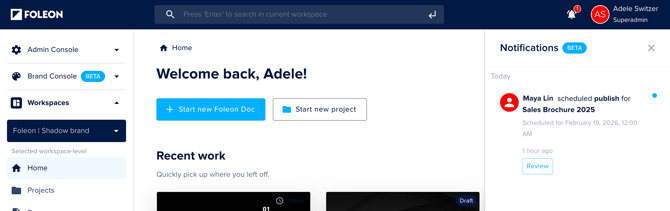
Scheduled actions are visible in the Notifications panel. A notification will appear for the following actions:
- When a Doc has been scheduled to be published or unpublished
- What actions have been executed
The notification will remain visible for 7 days.
This provides clear visibility into what has been scheduled and what actions have been executed.